 AideAI
How to Connect Class Materials, Deadlines, and Notes in One Mac Workflow
The assignment page is open. The rubric is in a PDF. Your lecture notes mention the concept you need. The due date is on Calendar — or maybe it moved in Canvas yesterday.
Each piece exists. None of them talk to each other.
That is the everyday student problem this guide solves: not "how do I take notes" or "how do I track Canvas," but how to wire materials, deadlines, and notes into one workflow so you stop rebuilding context every session.
This is a setup and habit guide for AideAI on Mac. For the big-picture integrations story, read All the Places Your Student Life Already Lives — Connected. For semester visibility after setup, read How to Finally See Everything Going On in Your Semester.

Materials, deadlines, and notes often live in three different places. The goal is one assistant workflow that can reach all three without copy-paste every night.
The Three Layers (And Why They Split)
Think of your semester as three layers, not three apps:
| Layer | What it holds | Typical home |
|---|---|---|
| Materials | slides, readings, rubrics, linked Docs, PDFs | LMS, Drive, local files |
| Deadlines | due dates, exam windows, submission types | Canvas, Classroom, Calendar |
| Notes | lecture thoughts, essay angles, office-hour takeaways | Apple Notes, meeting summaries |
Most productivity advice treats these separately: a note app here, a calendar there, an LMS checker somewhere else. You become the glue.
AideAI's extension layer is built so the assistant can reach each layer when you ask — after you connect the sources you actually use.
Connect In This Order
You do not need every integration on day one. This order minimizes rework.
Step 1: Course structure (deadlines + materials metadata)
Start with your LMS — it holds official assignments and course materials.
Canvas: follow Canvas LMS Integration for Students, then refresh study data so courses and assignments feed the local academic snapshot.
Google Classroom: follow Google Classroom in AideAI and link Workspace if your teachers assign Docs.
Mixed stack: connect both. Study overview becomes the cross-source view instead of checking each LMS nightly. See How to Keep Track of Canvas Assignments With AI for the weekly rhythm — it applies to Classroom-heavy weeks too.
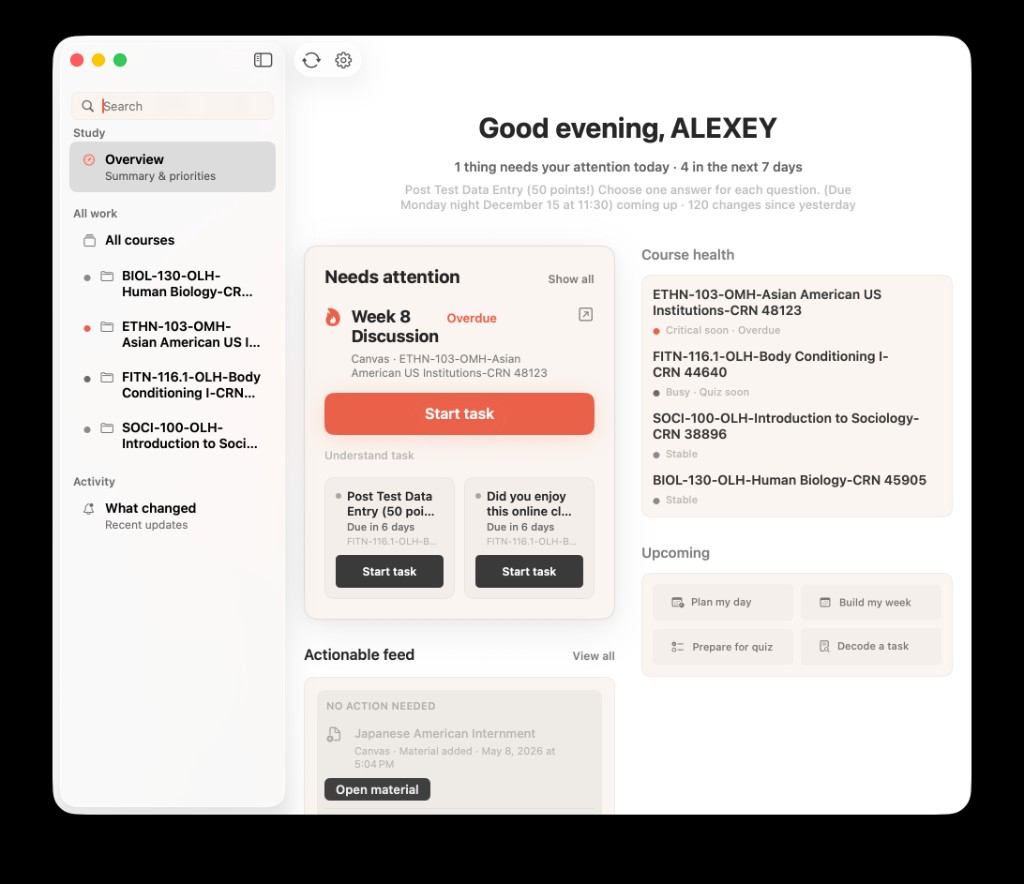
After LMS sync, deadlines and course changes show up in Study overview — the deadline layer your assistant can reason about.
Step 2: Time (Calendar)
Deadlines in the LMS are not the same as time on your calendar.
Connect Apple Calendar so class blocks, office hours, and study sessions sit next to due dates. When you ask what to do tonight, the assistant can weigh when work fits, not just what is due.
Step 3: Notes (where ideas actually live)
Lecture thoughts, reading reactions, and half-finished essay angles rarely stay in the LMS. They land in Apple Notes.
Connect Apple Notes so the assistant can search notes by text, folder, and date. Full Disk Access is required for the local Notes database — the setup post walks through it.
This is the layer that turns "I remember writing something about mitosis" into a searchable fact instead of a vague memory.
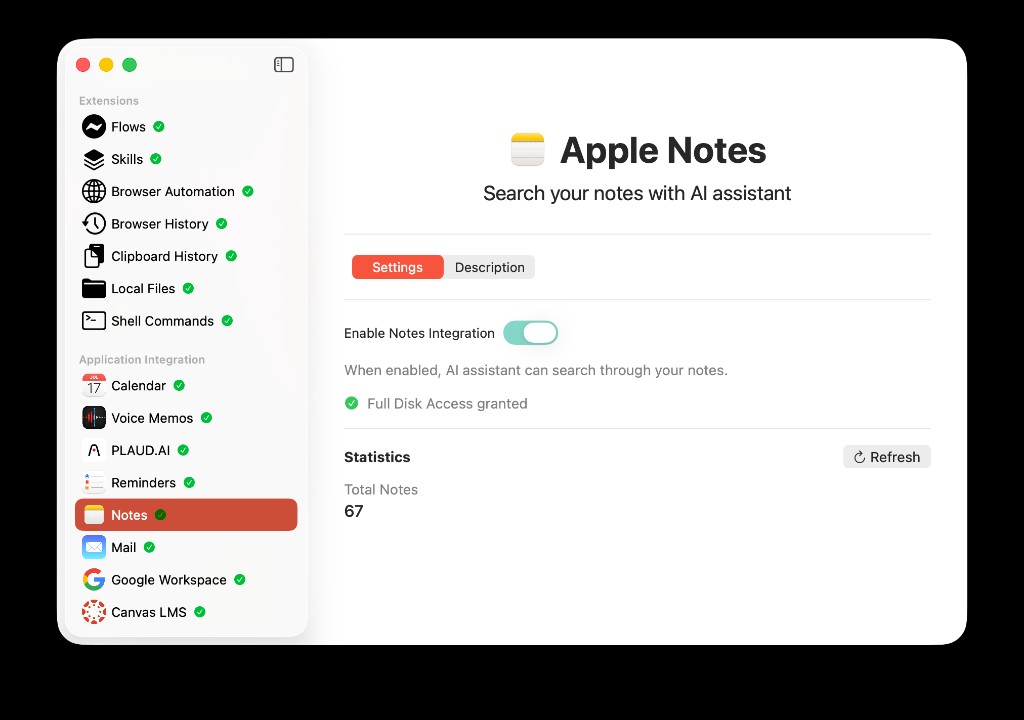
Notes integration lets class ideas stay in Apple Notes while the assistant can find them when you attach an assignment or ask for context.
Step 4: Files (readings and rubrics on disk)
PDFs, problem sets, and class folders on your Mac are materials the LMS only links to.
Connect Local Files for indexed paths on disk. Pair with Google Workspace when the real draft lives in a linked Doc.
For attaching PDFs and audio in chat, read Use PDFs, Notes, Docs, and Audio as AI Context.
Step 5: Sync and scan once
After connections:
- Refresh Canvas or Classroom study data.
- Open Study overview — scan Today, Needs attention, and What changed.
- Confirm Calendar events look right for the week.
You are not optimizing yet. You are verifying the three layers actually feed one picture.
Three Connected Scenarios
Scenario A: Essay due Friday
Before wiring: open Canvas for the prompt, search Notes for the thesis you drafted Tuesday, find the rubric PDF in Downloads, check Calendar for Thursday lab conflict, paste fragments into a blank chat.
After wiring: attach the assignment context (Canvas sync + linked Doc or local PDF), ask:
Based on my synced deadline, my notes from this week, and the rubric — what should I draft first tonight?
Materials, deadline, and notes reach the same thread without you narrating the semester from memory.
For writing help once context is connected, read AI to Write Better Essays and Assignments.
Scenario B: Quiz tomorrow, notes from last lecture
Before: Voice Memos or a recording app holds audio; Notes has bullet points; Canvas shows the quiz date. You study from three surfaces.
After: import or link the lecture (Turn Lectures Into Notes), keep quick notes in Apple Notes, sync Canvas for the quiz timing. Ask:
What from my lecture notes and summary should I review first for tomorrow's quiz?
Deadlines tell you when; notes and transcript tell you what.
Scenario C: "Something changed" midweek
Wednesday panic often comes from quiet LMS updates, not missing effort.
Use What changed in Study overview after a refresh. If a due date moved, Calendar and your planning chat can adjust the same night instead of at 11 p.m. Thursday.
This is the deadline layer doing its job — connected to action, not just displayed in a list.
Habits That Keep The Wiring Useful
Connecting once is not enough. Three small habits maintain the link:
Name notes with course cues. "Bio 101 — enzyme lab" beats "Tuesday notes." Search works better when folders and titles match how you ask questions.
Refresh study data before weekly planning. Sunday or Monday: sync LMS, scan overview, then open Plan mode or What Should I Do Today?.
Attach the material you mean. When a PDF or Doc is the real assignment, link or attach it in chat — do not assume the assistant guessed the right file from a course title alone.
What Stays Where (Honest Boundaries)
| Source of truth | Stays in |
|---|---|
| Official submissions and grades | Canvas / Classroom |
| Calendar events you control | Apple Calendar |
| Your thinking and quick capture | Apple Notes |
| Assistant reasoning and plans | AideAI chat |
AideAI connects and interprets. It does not replace submitting in the LMS or storing every note in a new walled garden.
Free Is Enough To Wire This
Canvas, Classroom, Calendar, Notes, Mail, local files, and other built-in extensions are available on AideAI Free. You do not need Premium to connect the three layers or use Study overview.
Premium adds stronger models, voice, and higher limits — useful for heavy terms, not required for the wiring itself. See Pricing.
Connect Once, Then Run One Assignment Through It
Pick one real assignment due this week:
- Connect LMS + Calendar + Notes (add Local Files if the reading is a PDF).
- Refresh study data and glance at Study overview.
- Open chat, attach the rubric or linked Doc, and ask for tonight's first step.
If that feels faster than your usual five-app scavenger hunt, keep the connections. If a layer is missing, add only the integration that would have saved you time this week — not all sixteen at once.
Download AideAI on Mac and start with All the Places Your Student Life Already Lives — Connected if you want the full map before you wire.