 AideAI
How to Finally See Everything Going On in Your Semester
The semester rarely feels hard because you do not care.
It feels hard because the picture is split.
An assignment lives in Canvas. A due date moved in Google Classroom. Notes from office hours sit in Apple Notes. Your calendar shows part of the schedule. Your browser holds the reading you meant to finish. And the question you keep carrying is simple:
What is actually going on right now?
That is an visibility problem, not a motivation problem.
The Hidden Job Students Do Every Day
Before you write, read, or submit anything, you often do another job first: rebuild the semester in your head.
Check what is due. Scan what changed. Remember which class feels risky. Figure out what deserves attention before something becomes urgent. Open the LMS again because you are not sure whether you saw the latest update.
That synthesis work repeats every day. It is tiring, invisible, and easy to drop when you are already busy.
Most student tools were built to show slices:
- the LMS shows assignments
- the calendar shows dates
- notes hold ideas
- files hold drafts
- the browser holds research in progress
Each slice can be useful. Almost none of them show the whole academic state at once.
What Academic Clarity Actually Means
Academic clarity is not another dashboard for its own sake.
It is the moment when you can answer three questions without opening five apps:
- What needs attention now?
- What changed since I last looked?
- Which course is quietly becoming risky?
AideAI's Study overview is built around those questions. After you connect coursework sources like Canvas or Google Classroom and sync a local academic snapshot, the Study window helps turn scattered signals into one clearer semester view.
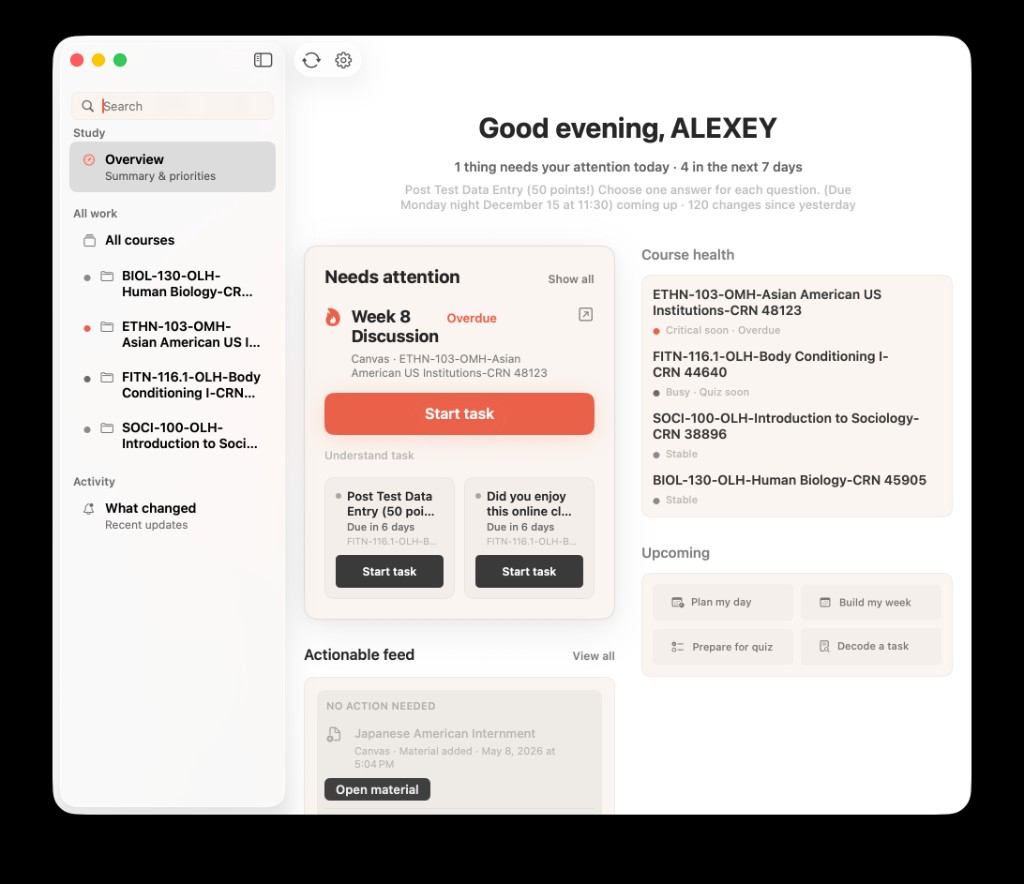
Study overview brings deadlines, course health, recent changes, and next actions into one academic picture instead of forcing you to rebuild it from separate tools.
This is different from asking a generic AI chat "what should I do?" with no context. The overview starts from your connected coursework and local academic data, then helps you move from visibility into action.
Three Signals Worth Watching
The useful parts of the Study overview are not random widgets. They answer different student questions.
Today
The today brief helps you see what the current workload looks like right now: overdue work, items due today, and what is coming up soon. It is the fastest answer to "what kind of day is this academically?"
Needs Attention
The needs-attention queue is narrower and more actionable. Instead of showing everything, it highlights a short list of work that likely deserves your next move: overdue items, due-today tasks, recent schedule changes, or course load that is starting to stack up.
What Changed
Students miss important things because changes are quiet. A due date moves. An announcement appears. A submission status shifts. A new assignment lands in a course you have not opened recently.
The what-changed feed helps you notice those updates without manually re-checking every class every day.
Course Health
Course health is not a grade. It is a heuristic view of which classes look stable, busy, at risk, or close to becoming urgent. That matters because the loudest task is not always the most dangerous one. A quieter class can drift for two weeks before it becomes a crisis.
Together, these signals turn fragmented coursework into something you can actually steer.
A Tuesday Night, Before And After
Before: you know something is off, but not exactly what. You open Canvas for one class, check Classroom for another, glance at Calendar, search Notes for a detail you half remember, and still are not sure which course needs attention first. Twenty minutes pass before real work begins.
After: you open Study overview, see one assignment overdue in a course that already looks at risk, notice a due-date change you had not registered, and pick a concrete first move. The semester still has work in it. The picture is no longer fog.
That is the practical value. Less rediscovery. More confidence about where to look first.
From Overview To Action
Seeing the semester clearly is only step one.
The next step is deciding what to do with that picture. Study overview is designed to connect into the rest of AideAI:
- open a prefilled planning or learning chat from a dashboard scenario
- ask what changed across your courses
- move from "what needs attention" into a daily plan
- use digests for morning, evening, or weekly rhythm once the overview habit exists
If your main bottleneck is daily prioritization, read What Should I Do Today? A Better Way to Plan Your College Work. If you want proactive planning and review moments, read How to Use a Daily and Weekly Study Digest to Stay on Top of College.
Connect The Sources First
The overview gets stronger when AideAI can see your real coursework.
For many students, that means connecting LMS sources such as:
Canvas and Classroom remain the source of truth for official course activity. AideAI syncs that data into a local academic snapshot on your Mac, then uses it for Study overview, assistant context, and planning workflows.
For the broader connected-student-life story, read All the Places Your Student Life Already Lives - Connected.
When This Helps Most
This workflow is especially useful if:
- you balance several classes with overlapping deadlines
- important changes often show up quietly
- you feel busy but still unclear about what matters
- you spend too much time switching tools just to understand the week
- one course keeps slipping while louder tasks take over
It helps less if you only need help with one isolated assignment and already know exactly what to do. In that case, a focused chat or writing workflow may be enough.
The academic clarity layer matters most when the semester itself feels fragmented.
Try Study Overview In AideAI
If your coursework is spread across LMS pages, calendars, notes, files, and tabs, you do not need more reminders. You need one place that helps the semester make sense.
Connect your coursework sources, open Study overview, and use Today, What changed, and Course health to see where attention is needed before urgency chooses for you.
Start on AideAI Free and build from visibility into planning. For plan details, visit Pricing.