 AideAI
Google Classroom in AideAI: Course Updates and Materials in Your Study Workflow
For many students, Google Classroom is where the school week becomes real.
It is where courses appear. It is where assignments get posted. It is where due dates, instructions, announcements, and class materials can quietly change what you should do next.
The problem is that Google Classroom often sits apart from the assistant workflow. You can ask AI to plan your day, explain a topic, or help with an assignment, but if the assistant cannot see your real course context, you still have to copy the important details by hand.
That is why the Google Classroom integration matters. It lets AideAI use connected Classroom context as part of your study workflow, so planning and academic questions can start from the courses and coursework you actually have.
AideAI does not replace Google Classroom. Classroom remains the source of truth for official course activity. AideAI adds an assistant layer: it helps you understand what is going on, what changed, and what may need attention next.
Classroom gives AideAI course context, while Drive and Docs often hold the actual files students work on for those courses.
The Problem
Google Classroom is useful, but it can become another place students have to constantly check.
Your Classroom account may contain:
- active courses
- coursework and assignments
- due dates
- assignment descriptions
- course materials
- announcements from teachers or instructors
- links to Google Docs, Sheets, Slides, and Drive files
That context matters because it affects your daily plan.
But when Classroom is disconnected from your assistant, you have to rebuild the academic picture manually:
- Open Classroom.
- Check each course.
- Scan assignments.
- Notice new posts or materials.
- Copy details into chat.
- Ask for help planning or understanding the work.
- Repeat the process when something changes.
That hidden admin work is easy to underestimate. It is one of the reasons students can feel busy and still unclear about what matters most.
Why The Usual Approach Breaks Down
Most student planning starts from partial memory.
You may remember that something is due this week, but not which course posted the new material. You may know a teacher added instructions, but not whether that changes your plan. You may have a Google Doc for the assignment, but not the full Classroom context around it.
Google Classroom has the raw information, but it is not always shaped into a clear next step.
That creates a familiar workflow problem:
- course pages are separate
- assignments compete for attention
- materials are easy to miss
- due dates need interpretation
- announcements may change expectations
- files and coursework live in related but different places
A generic assistant can help only after you explain all of that. A connected student assistant can start closer to the real academic situation.
What AideAI Does Differently
AideAI connects to Google Classroom through the same broader Google sign-in used for Google Workspace, with Classroom-specific permissions for course and coursework access.
Once connected, AideAI can use Classroom context in two related ways.
The first is direct assistant help. You can ask about courses, coursework, and upcoming assignments without manually copying every detail first.
The second is the local academic snapshot. When study data is refreshed, Classroom can feed AideAI's academic view so Study and planning workflows are not starting from a blank slate.
With Classroom connected, AideAI can help with practical outcomes like:
- seeing active courses more clearly
- understanding what coursework exists
- noticing relevant assignments and due dates
- using course context in planning conversations
- connecting Classroom updates to the broader Study workflow
This is especially useful when Classroom is not the only system in your student life. Many students also use Google Docs, Sheets, Slides, Calendar, notes, reminders, and local files. AideAI helps those sources become part of one assistant workflow.
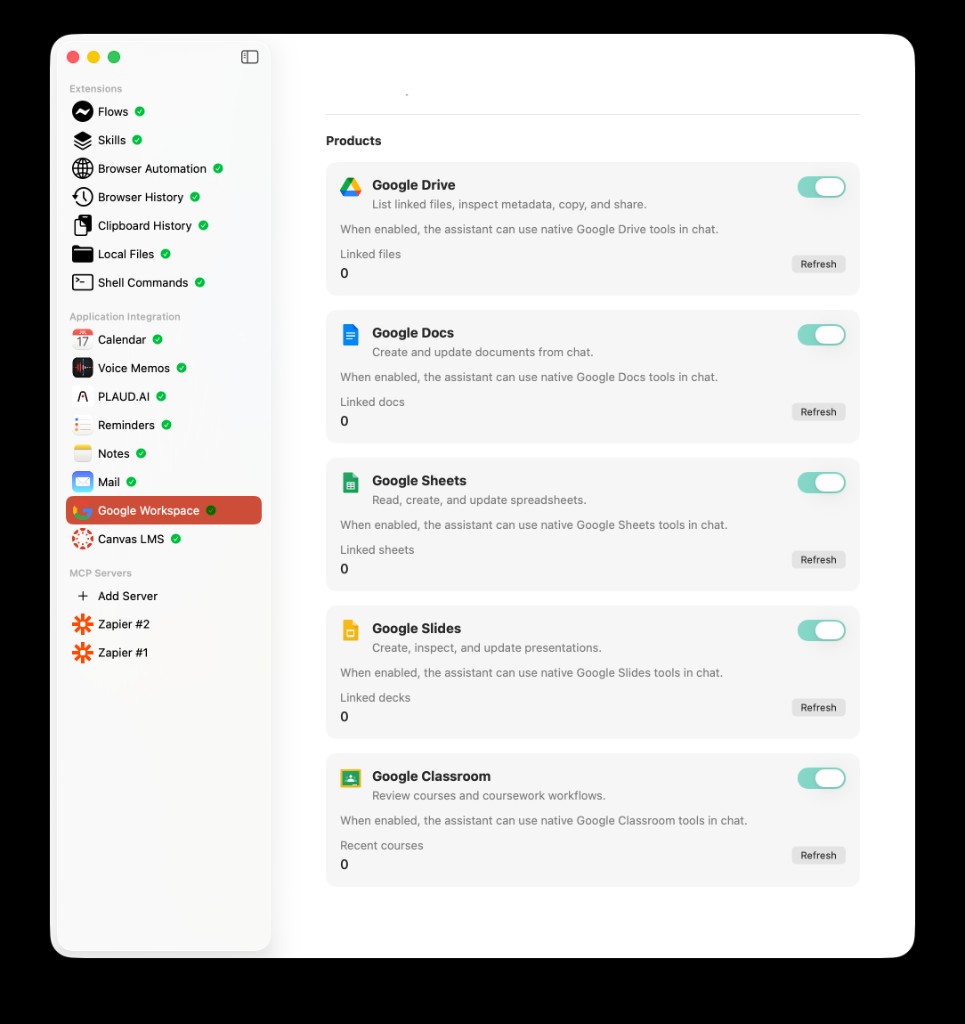
Google Classroom appears as one product inside the broader Google Workspace extension, next to Drive, Docs, Sheets, and Slides.
Classroom And Google Workspace Are Related
Google Classroom and Google Workspace often overlap, but they serve different jobs inside AideAI.
Google Classroom is about academic structure:
- courses
- coursework
- assignment context
- course materials
- academic updates
Google Workspace is about files:
- Google Docs
- Google Sheets
- Google Slides
- selected Drive files
- files linked through Google Picker
- files created or copied by AideAI
For example, Classroom may tell you that a paper is due Friday. Google Workspace may hold the actual Google Doc draft. AideAI becomes more useful when both pieces can be part of the same workflow.
If you want the file-focused setup guide, read Google Workspace in AideAI: Connect Docs, Sheets, Slides, and Drive for Schoolwork.
How To Set Up Google Classroom In AideAI
Classroom uses the Google connection inside AideAI.
In AideAI:
- Open
Extensions & MCP. - Select
Google Workspace. - Click
Connect Google Workspace. - Sign in with the Google account that has your Classroom courses.
- Review and approve the Google permissions.
- Enable the
Google Classroomproduct area. - Open Study and refresh study data when you want the latest academic snapshot.
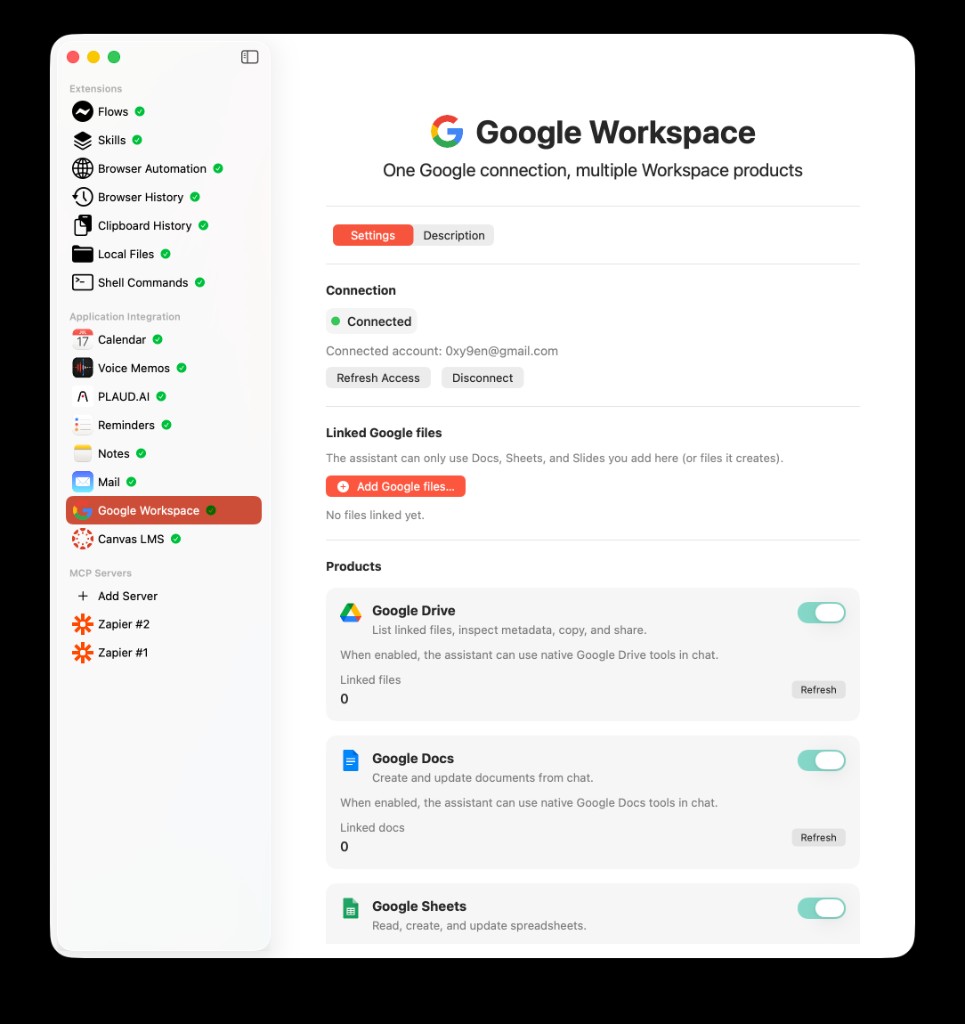
Google Classroom is enabled from the same Google Workspace extension screen, alongside Drive, Docs, Sheets, and Slides.
If you use multiple Google accounts, the account choice matters. Connect the account where your Classroom courses actually live.
If Google permissions change later, disconnect and reconnect Google Workspace so the Classroom consent grant is current.
What "Refresh Study Data" Means
Classroom can support the assistant directly, but the broader value comes from bringing course context into AideAI's academic view.
When you refresh study data, AideAI can sync Classroom context into a normalized local academic snapshot on your Mac.
That snapshot can support views and workflows such as:
- Study overview
- course health
- upcoming work
- recent changes
- planning conversations
- academic briefing context for the assistant
The goal is not to mirror every Classroom screen. The goal is to give AideAI enough current academic context to help you answer better questions:
What should I focus on today?
or:
What changed in my classes?
or:
Which course needs attention first?
That is more useful than treating every Classroom question as a one-off lookup.
What You Can Ask
Once Google Classroom is connected, you can ask about coursework in natural language.
For example:
What Google Classroom assignments are coming up?
or:
Show my active Classroom courses.
or:
What changed in my courses since the last time I checked?
or:
Help me plan tonight based on my Classroom work.
or:
Which assignment should I start first?
or:
Summarize the recent course materials I should review before studying.
The assistant can be more specific because it can use course context instead of relying only on what you remember to paste.
Example Student Workflow: Sunday Planning
Imagine it is Sunday evening.
You have several Classroom courses, two assignments due this week, one newly posted material, and a draft sitting in Google Docs.
Without Classroom connected, your workflow looks like this:
- Open Classroom.
- Check each class.
- Scan coursework.
- Reopen assignment details.
- Check whether new materials were posted.
- Find the related Google Doc.
- Explain everything to the assistant.
- Ask for a plan.
With Classroom connected, the workflow can be simpler:
- Refresh study data in AideAI.
- Ask what needs attention this week.
- Review the course context and upcoming work.
- Link the relevant Google file if you want document-specific help.
- Turn the answer into a plan, reminders, or a study session.
That removes a lot of setup before the actual studying begins.
Example Student Workflow: Assignment Triage
Classroom is not only useful for listing work. It is useful for triage.
Suppose you have three assignments:
- a short reading response due tomorrow
- a lab write-up due in three days
- a group presentation with materials posted today
The question is not just "what is due?" The better question is:
Given my current courses, what should I start first and why?
When AideAI has Classroom context, the assistant can help you reason about urgency, course load, and next actions instead of making you manually summarize every assignment first.
That is where a student assistant becomes more useful than a generic planner.
Classroom In A Mixed Canvas And Google Workflow
Some students use Google Classroom for every course. Others use a mixed stack: Canvas for some classes, Google Classroom for others, and Google Workspace files across both.
AideAI is designed for that kind of fragmented reality.
If your school life spans both Canvas and Classroom, connecting both can help the Study workflow build a more complete academic picture. Canvas can contribute LMS context from Canvas courses, while Classroom contributes Google course context. Google Workspace can then connect the actual Docs, Sheets, Slides, and Drive files you need to work on.
The outcome is not "one more dashboard." The outcome is a better starting point for questions like:
What is happening across my classes?
or:
What changed since yesterday?
or:
What should I do next?
Privacy And Control
Google Classroom access is separate from Google Drive file access.
Classroom permissions are used for course and coursework context. Google Workspace file access uses a linked-file model for selected Docs, Sheets, Slides, and Drive files.
You stay in control:
- you choose whether to connect Google Workspace
- you choose whether Classroom is enabled
- you can disconnect Google Workspace
- you can refresh study data when you want a current snapshot
- selected Google files still need to be linked separately when file-specific work is needed
This separation matters because course context and file content are different kinds of data. AideAI should not need full Drive access just to help you understand Classroom coursework.
Common Setup Issues
Classroom setup can fail for a few predictable reasons.
The wrong Google account may be connected. If your courses are under a school account, connect that account instead of a personal account.
Your school may restrict Google Classroom API access. If AideAI cannot read course data even after sign-in, the account or institution may limit what third-party apps can access.
Permissions may be stale. If Classroom was added or permissions changed after your first connection, disconnect and reconnect Google Workspace so consent is current.
Study data may need a refresh. If the Study view looks old, refresh study data before planning from Classroom context.
Why This Helps With Real Student Outcomes
Students usually do not fall behind because Classroom has no information. They fall behind because the information is spread across courses, files, announcements, materials, and memory.
Used well, Google Classroom integration can help students:
- see course context faster
- notice upcoming work with less manual checking
- connect coursework to daily planning
- reduce the effort of rebuilding the class picture
- use Classroom updates in Study and assistant workflows
- move from "what is posted?" to "what should I do next?"
That is the real reason to connect Google Classroom. It helps AideAI work from the academic system where your courses already live.
Try AideAI
If Google Classroom is where your courses, assignments, and materials live, connecting it to AideAI can make planning and studying feel less fragmented.
Try AideAI, connect Google Workspace in Extensions & MCP, enable Google Classroom, and refresh study data before your next planning session. If your work also lives in Google Docs, Sheets, Slides, or Drive, read Google Workspace in AideAI: Connect Docs, Sheets, Slides, and Drive for Schoolwork. If you want the broader integrations story, read All the Places Your Student Life Already Lives - Connected. If you also use Canvas, read Canvas LMS Integration for Students: Bring Courses and Assignments into AideAI. For plan details, visit Pricing.