 AideAI
Google Workspace in AideAI: Connect Docs, Sheets, Slides, and Drive for Schoolwork

Google Workspace is where a lot of student work actually happens.
Your essay draft may live in Google Docs. Lab data may live in Sheets. A group presentation may live in Slides. Source material, templates, project files, and class handouts may be scattered across Drive.
The problem is that those files often stay separate from your assistant workflow. You ask AI for help, but then you still have to copy the prompt, paste the assignment, describe the document, summarize the spreadsheet, or explain which slides matter.
That is why the Google Workspace integration matters. It lets AideAI work with the Google files you explicitly connect, so the assistant can help with schoolwork using the same Docs, Sheets, Slides, and Drive context you already use.
AideAI does not replace Google Workspace. Google remains where the files live. AideAI adds an assistant layer on top: it helps you understand, write, organize, copy, update, and reason about selected Google files without treating your entire Drive as open context.
The Google Workspace extension connects the Google products students already use for files, drafts, data, slides, and course context.
The Problem
Students rarely work from one clean document.
Your Google account may contain:
- essay drafts in Google Docs
- lecture handouts in Drive
- lab data in Google Sheets
- group project slides in Google Slides
- shared files from classmates
- templates copied from an instructor
- course materials connected to Google Classroom
That information is useful, but only if your assistant can work with the right file at the right time.
In a disconnected workflow, you have to do the bridging manually:
- Open Drive.
- Find the right file.
- Copy the relevant text or data.
- Paste it into chat.
- Explain what the file is for.
- Ask for help.
- Move the result back into Docs, Sheets, or Slides.
That may be fine once. It becomes frustrating when Google Workspace is the main place your classes, projects, and assignments live.
Why The Usual Approach Breaks Down
Generic AI chat starts from a blank prompt.
If you want help improving an essay, the assistant needs the prompt, the draft, the rubric, and your goal. If you want help with a spreadsheet, it needs to know what the sheet contains and what you are trying to calculate. If you want help with slides, it needs the structure of the presentation, not just a vague request like "make this better."
Without a Google Workspace connection, the student becomes the integration layer.
That creates several points of friction:
- you lose time finding and copying file content
- the assistant may answer from incomplete context
- you may paste too much or too little
- updates stay disconnected from the source file
- repeated work becomes slower than it should be
The issue is not that Google Workspace is bad. It is that schoolwork inside Google Workspace often needs an assistant that can understand the selected file as part of the task.
What AideAI Does Differently
AideAI connects to Google Workspace through one Google sign-in, then lets you choose which files the assistant should be able to use.
The key idea is explicit linking.
Instead of asking for broad access to your entire Drive, AideAI is designed around a narrower model:
- you connect Google Workspace once
- you add specific Google files through Google Picker
- AideAI can work with files you linked or files AideAI creates
- Drive listing inside AideAI is based on linked files, not a full Drive crawl
That means the assistant can be useful without turning every Drive file into assistant context.
With Google Workspace enabled, AideAI can support workflows around:
- Google Drive file metadata for linked files
- Google Docs creation and updates
- Google Sheets reading and updates
- Google Slides creation and editing
- copying and sharing linked files
- templates copied by AideAI and registered as linked files
This makes the assistant more grounded in real coursework while keeping the access model understandable.
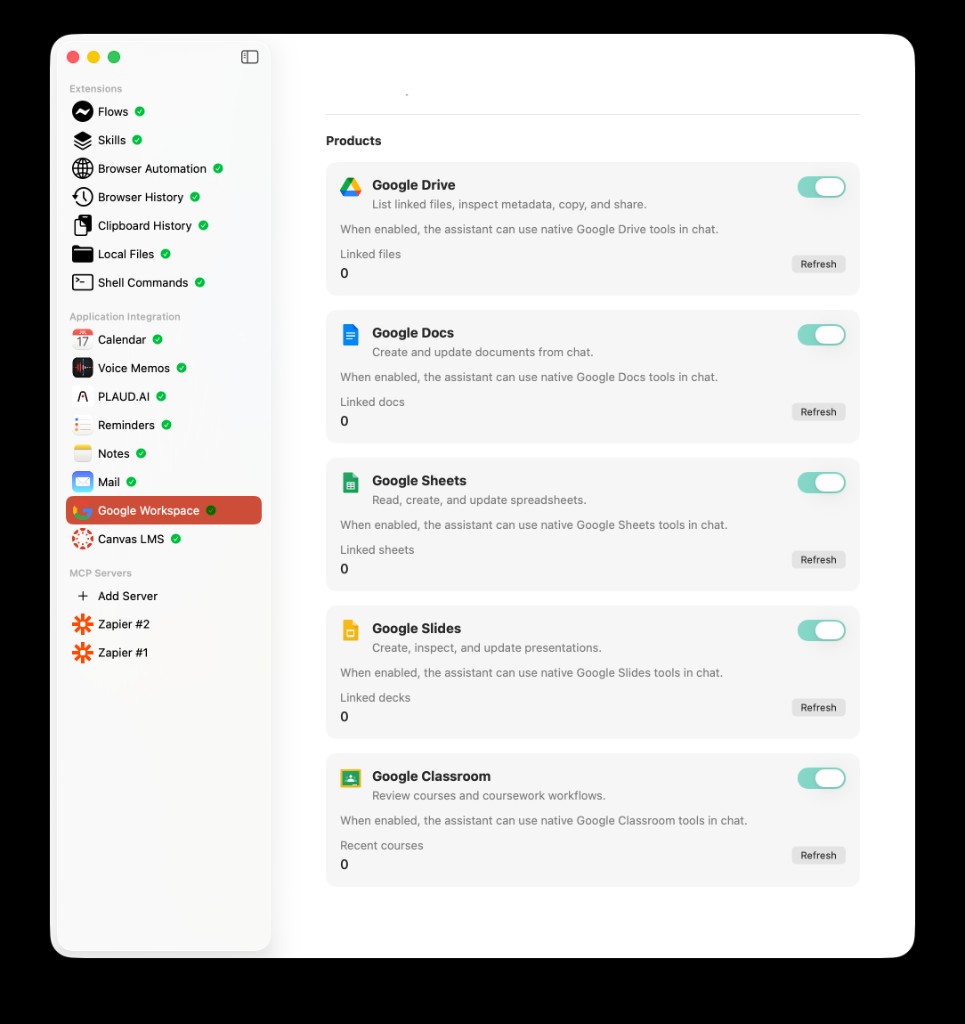
The Google Workspace extension includes separate product toggles for Drive, Docs, Sheets, Slides, and Classroom, so students can choose which Google tools the assistant can use.
What "Linked Files" Means
The most important privacy and control detail is this: AideAI works with Google files you explicitly link or files the app creates.
In practice, that means you use Google Picker inside AideAI to choose the Docs, Sheets, or Slides files that matter for your current schoolwork. Those selected files become available to the assistant.
This is different from giving an assistant permission to search everything in your Google Drive.
AideAI's Drive-related access is based on Google's drive.file model. That grant is intentionally narrower than full Drive access. It lets the app work with files opened or selected with the app, and files created by the app, instead of broadly reading your entire Drive.
That distinction matters for students because Drive often contains a mix of school, personal, shared, and old files. You should not have to connect all of that just to get help with one paper, lab, or presentation.
How To Set Up Google Workspace In AideAI
The setup flow is designed to be explicit.
In AideAI:
- Open
Extensions & MCP. - Select
Google Workspace. - Click
Connect Google Workspace. - Sign in with the Google account you use for school.
- Review and approve the requested Google permissions.
- After the connection succeeds, use
Add Google files.... - Pick the Docs, Sheets, or Slides files you want AideAI to use.
- Enable the Google products you want available in chat.
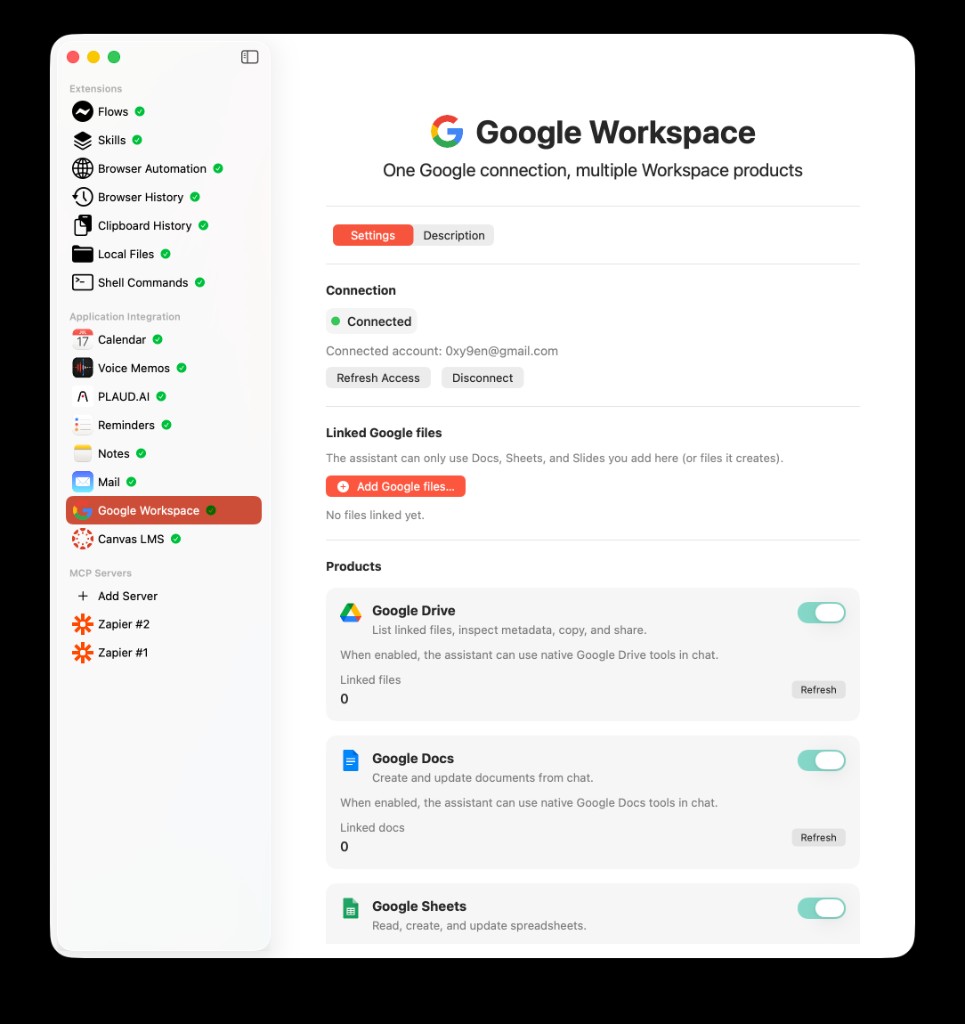
The Google Workspace extension settings screen in AideAI: connect one Google account, add selected Google files, and enable product tools for Drive, Docs, Sheets, Slides, and Classroom.
Once a file is linked, AideAI can use it through the relevant Google Workspace tools. For example, a linked Google Doc can be used in a writing workflow, a linked Sheet can be used for data-related work, and a linked Slides file can become part of a presentation workflow.
If Google Workspace permissions change later, disconnect and reconnect the integration so Google consent matches the current product behavior.
What You Can Ask
Once Google Workspace is connected and files are linked, you can ask more concrete schoolwork questions.
For example:
Use my linked essay draft and help me make the introduction clearer.
or:
Create a copy of this project template and share it with my teammate.
or:
Look at the linked spreadsheet and help me understand what the lab data is showing.
or:
Turn these presentation notes into a clearer slide outline.
or:
Update the document with a cleaner structure based on the assignment prompt.
The assistant is more useful because it can work from a selected file instead of relying on a pasted excerpt and a vague description.
Example Student Workflow: Essay Draft In Google Docs
Imagine you are writing a history essay in Google Docs.
You have:
- the assignment prompt
- a rough thesis
- a draft that feels too broad
- comments from a classmate
- a rubric from the course
Without Google Workspace connected, you have to paste sections into chat and keep track of what changed manually.
With Google Workspace connected, the workflow can be simpler:
- Link the Google Doc in AideAI.
- Ask the assistant to review the structure against your goal.
- Get suggestions for the thesis, outline, and transitions.
- Ask for a clearer version of a section.
- Move the improved structure back into the document workflow.
The point is not to outsource the paper. It is to make the assistant aware of the draft you are actually working on, so feedback and planning are more specific.
Example Student Workflow: Lab Data In Google Sheets
Google Sheets often holds the work behind the assignment: observations, calculations, experiment results, survey responses, or project tracking.
When a linked Sheet is available to AideAI, you can ask questions that are closer to the real task:
What is the pattern in this data?
or:
Help me decide which chart would explain these results best.
or:
Add a new row for this observation and keep the same structure.
This is useful because students often need help understanding what the numbers mean, not just formatting the sheet.
Example Student Workflow: Group Slides
Slides are another place where student work becomes fragmented.
One teammate has the outline. Another has research notes. Someone else owns design. The actual presentation lives in Google Slides, while the planning conversation happens somewhere else.
With a linked Slides file, AideAI can help you reason about presentation structure:
- what the slide order should be
- where the argument feels unclear
- what content should be shortened
- what speaker notes could include
- how to turn rough points into a cleaner flow
That makes the assistant more useful during group work because it can help with the artifact you are actually preparing.
Google Classroom Is Related, But Different
Google Workspace and Google Classroom often show up together in student life, but they are not the same thing inside AideAI.
Google Workspace is about connected Google files: Docs, Sheets, Slides, and Drive items you explicitly link.
Google Classroom is about course context: classes, coursework, assignments, and academic updates that can support the Study overview and planning workflow.
Both can use the same Google sign-in, but they serve different jobs. If your school uses Classroom, read Google Classroom in AideAI: Course Updates and Materials in Your Study Workflow next.
Privacy And Control
Google Workspace can contain sensitive academic and personal material, so the access model should be clear.
AideAI is designed around user choice:
- you choose whether to connect Google Workspace
- you choose which files to link through Google Picker
- you can remove linked files from AideAI
- you can disconnect Google Workspace
- Drive tools work from linked files, not a broad Drive search
If a file was never linked and was not created by AideAI, the assistant should not treat it as available workspace context.
This helps keep the integration practical. You can connect the files that matter for a class, project, or assignment without making the assistant responsible for your entire Google Drive.
Common Setup Issues
Google Workspace setup can fail for a few predictable reasons.
The Google account may not be the one you use for school. If your class files live in a school account, connect that account instead of a personal Gmail account.
Google Picker may not open if the required Google configuration is missing in the build you are using. In that case, reconnecting will not fix the issue by itself. The app needs the Google Picker setup to be available.
A file may appear unavailable if it was not linked through Picker or created by AideAI. Add it with Add Google files... before asking the assistant to use it.
If Google permissions changed, disconnect and reconnect Google Workspace so the consent grant is current.
Why This Helps With Real Student Outcomes
Google Workspace integration is not just about opening cloud files from chat.
It helps students reduce the manual work between "I have a file" and "I can make progress with it."
Used well, it can help students:
- get more specific feedback on Google Docs drafts
- reason about Sheets data without manually copying everything
- improve Slides structure for presentations
- keep selected course files close to the assistant workflow
- spend less time moving content between Drive and chat
- use Google files as real study context instead of disconnected storage
That is the real reason to connect Google Workspace. It turns selected school files into usable assistant context while keeping the source of truth in Google.
Try AideAI
If your schoolwork already lives in Google Docs, Sheets, Slides, and Drive, connecting Google Workspace is one of the best ways to make AideAI more useful for real coursework.
Try AideAI, connect Google Workspace in Extensions & MCP, and start by linking one active class file with Add Google files.... If you want the broader integrations story, read All the Places Your Student Life Already Lives - Connected. If you use Google Classroom too, read Google Classroom in AideAI: Course Updates and Materials in Your Study Workflow. If you want help turning connected context into a daily plan, read What Should I Do Today? A Better Way to Plan Your College Work. For plan details, visit Pricing.