 AideAI
Canvas LMS Integration for Students: Bring Courses and Assignments into AideAI

For many students, Canvas is the source of truth for the semester.
It is where courses live. It is where assignments appear. It is where due dates move, rubrics get posted, announcements change expectations, and course materials quietly determine what you should study next.
The problem is that Canvas often stays separate from the assistant workflow. You can ask AI to help plan your week, but if the assistant cannot see your actual courses and assignments, you still have to copy the important parts out of Canvas by hand.
That is why the Canvas LMS integration matters. It lets AideAI connect to your Canvas account so courses, assignments, and related academic context can become part of the assistant's working picture.
AideAI does not replace Canvas. Canvas remains the source of truth for your courses, submissions, grades, announcements, and official class materials. AideAI adds an assistant layer on top: it helps you find, understand, and plan around the Canvas context you already have.
After you connect Canvas and refresh study data, AideAI can use that Canvas snapshot in Study overview, course health, and planning conversations, so you are not starting each study session by rebuilding the semester picture from scratch.
The Problem
Canvas is useful, but it can also become one more place students have to keep checking.
Your Canvas account may contain:
- active courses
- assignment lists
- due dates
- points and submission types
- assignment descriptions
- announcements from instructors
- module materials and course resources
- submission and grade status when Canvas reports it
That information matters because it shapes what you should do next.
But in a disconnected workflow, you have to manually rebuild the same picture again and again:
- open Canvas
- check each course
- scan assignments
- notice what changed
- copy details into notes or chat
- decide what is urgent
- turn that into a plan
That hidden admin work adds up quickly.
Why The Usual Approach Breaks Down
Most student planning starts from incomplete context.
You might remember one deadline, but not the smaller assignment posted yesterday. You might know a course feels risky, but not exactly which work is unsubmitted. You might have a calendar block for studying, but not the Canvas details that explain what studying should mean.
Canvas has the raw information, but it is not always shaped into a clear workflow.
For students balancing several classes, that creates a familiar pattern:
- every class has its own page
- every assignment has its own details
- every announcement may change the plan
- every due date competes with everything else
- every missed check-in increases the chance of surprise work
The assistant can only help so much if it starts from a blank prompt. The missing layer is your real Canvas coursework in the assistant: what you are enrolled in, what is due, and what course context matters now, pulled when you ask or refreshed into Study data.
What AideAI Does Differently
AideAI's Canvas LMS integration connects to Canvas using your Canvas base URL and an access token.
Once connected, AideAI can work with Canvas data through both direct chat tools and a local academic snapshot.
With Canvas enabled, AideAI can help with three practical outcomes:
- see your active courses and what is due
- open assignment details when you need them
- keep Study overview current with
Refresh study data
Under the hood, that includes course lookup, assignment lookup, due dates, points, links, submission metadata when Canvas provides it, plus announcements and course materials during study-data sync.
That does not turn AideAI into a second Canvas. You still use Canvas for official course pages, submissions, grades, and instructor materials. AideAI uses Canvas as a connected source when helping you plan, study, and prioritize.
Two Ways To Connect Canvas
AideAI supports two setup paths.
The first is guided setup in chat. This is the recommended path when AideAI suggests enabling Canvas or when you ask to connect Canvas. The app can try to detect your Canvas URL automatically, open the relevant Canvas settings page, help generate an access token through Browser Automation, then connect and enable the extension.
The second is manual setup in Extensions & MCP. You paste your Canvas URL and access token directly into the Canvas LMS settings screen.
Both paths end in the same place: AideAI stores the Canvas base URL and token securely, validates the connection, and lets Canvas tools become available to the assistant.
Guided Setup: What Happens
Guided setup is designed to reduce the most annoying part of connecting Canvas: finding the right Canvas URL and creating an access token.
The flow has three phases:
- Find the right Canvas URL. AideAI checks Browser Automation, then tries to detect your Canvas URL from browser history and screenshot OCR. If it cannot find the URL, it asks you to send it in chat.
- Open Canvas and handle login. AideAI opens Canvas in a browser automation window. If Canvas asks you to log in, you sign in there and continue the setup flow.
- Create and validate the token. AideAI opens the Canvas profile/settings area, helps generate an access token, captures it, validates it against Canvas, then enables the extension.
This flow is especially useful because Canvas URLs vary by school. Some institutions use school.instructure.com, some use a custom canvas.school.edu domain, and some route students through a portal first. AideAI includes logic to resolve portal-style URLs to the actual Canvas LMS host when possible.
Manual Setup: What You Need
Manual setup is also straightforward if you already know your Canvas URL and have an access token.
In AideAI:
- Open
Extensions & MCP. - Select
Canvas LMS. - Enter your Canvas URL.
- Paste your Canvas access token.
- Click
Connect Canvas. - Turn on the Canvas products you want:
CoursesandAssignments. - Use
Refresh study datato build a local Canvas snapshot.
Canvas access tokens are usually created in Canvas under:
Account -> Settings -> Approved Integrations -> New Access Token
Your exact Canvas UI may vary by school, but the idea is the same: create a token in Canvas, then paste it into AideAI.
This does not move your Canvas account into AideAI. It gives AideAI permission to read the Canvas information needed for assistant workflows while Canvas remains the system you use for official class activity.
What The Canvas Settings Screen Shows
The Canvas LMS settings screen is more detailed than simple on/off integrations because Canvas has both connection state and product-level toggles.
Here is the Canvas LMS integration screen inside AideAI:
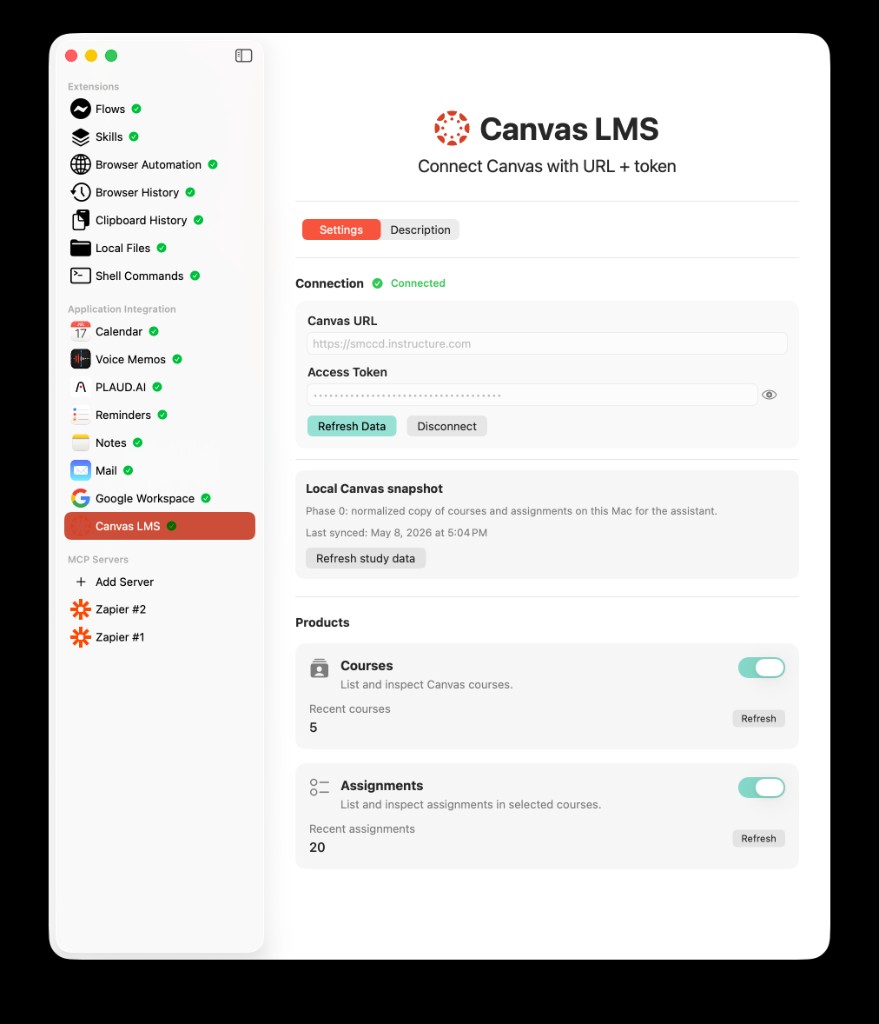
The Canvas LMS settings screen in AideAI: connection status, Canvas URL and token, local Canvas snapshot, and product toggles for Courses and Assignments.
The most important parts are:
- Connection: Canvas URL, token status,
Refresh Data, andDisconnect - Local Canvas snapshot: last sync status and
Refresh study data - Products: toggles and counts for
CoursesandAssignments
The product toggles matter because they let you decide which Canvas capabilities should be available. For example, you can connect Canvas and enable course lookup, assignment lookup, or both.
What "Refresh Study Data" Means
Canvas can be used in two related ways inside AideAI.
The first is direct tool use in chat. When you ask about Canvas courses or assignments, AideAI can call Canvas tools and fetch current data from the Canvas API.
The second is the local academic snapshot. When you click Refresh study data, AideAI syncs Canvas into a normalized local academic store on your Mac.
During Canvas sync, AideAI can pull:
- active courses
- assignments for those courses
- announcements
- module materials
- due dates and links
- submission and grade status when Canvas includes it
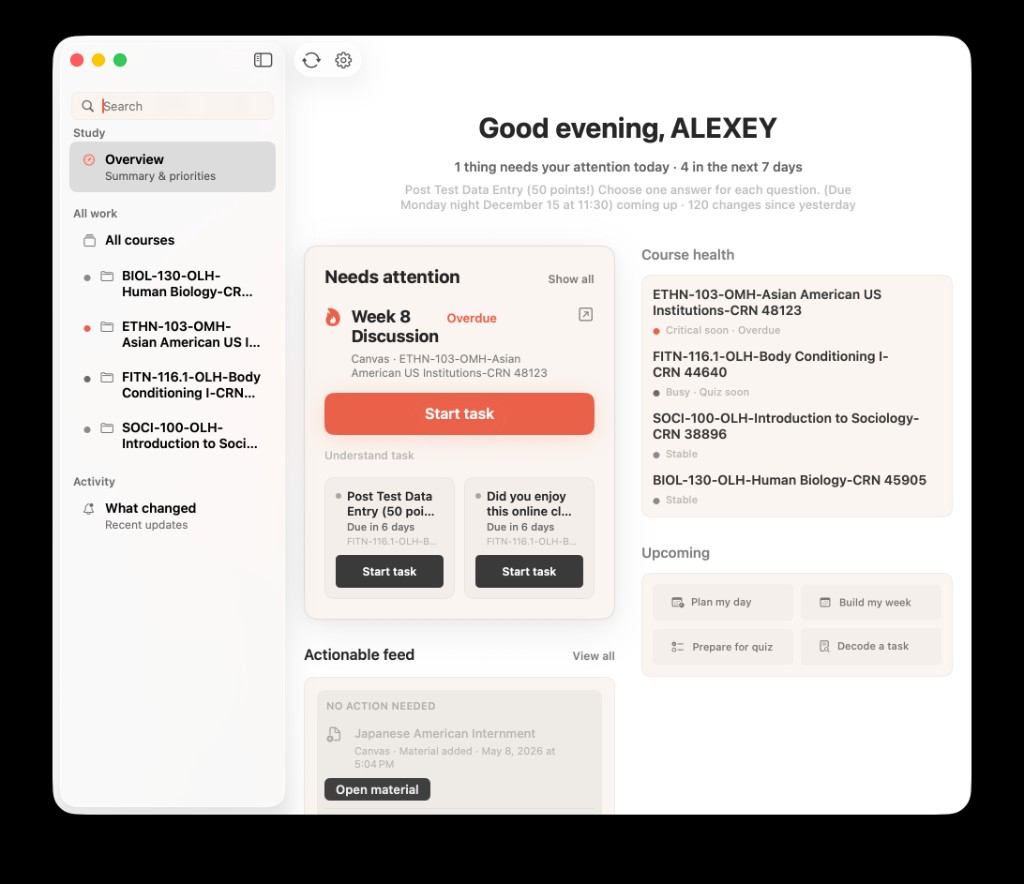
Canvas data after sync inside AideAI Study: assignments that need attention, course health, upcoming actions, and a feed of recent course changes.
That local snapshot supports broader academic views and assistant context. It helps AideAI reason about what is happening across your semester instead of treating every Canvas question as a one-off lookup.
What You Can Ask
Once Canvas is connected, you can ask about coursework in natural language.
For example:
What Canvas assignments are coming up?
or:
Show my active Canvas courses.
or:
What is due in my biology course?
or:
Look up the details for this Canvas assignment.
or:
Summarize recent announcements and assignment updates from my synced Canvas data.
The assistant can use Canvas course and assignment tools, and when study data has been synced, it can also work from the local academic snapshot.
Why This Helps With Student Planning
Canvas integration is not just about fetching a list of assignments.
The real value is that Canvas context can sit next to the rest of your academic life:
- calendar events that define when you have time
- reminders that track follow-up
- notes that explain class context
- mail that contains professor updates
- files that hold the actual work
- meetings that created action items
When Canvas is connected, a planning question becomes more grounded.
Instead of asking:
Help me plan tonight.
and then manually explaining every assignment, you can ask with Canvas connected and let AideAI use course context as part of the answer.
That is the difference between a generic assistant and a student assistant that understands the semester you are actually in.
Example Student Workflow
Imagine it is Sunday evening.
You have three classes, two assignments due this week, one announcement you skimmed but did not process, and a project deadline that depends on a course module.
Without Canvas integration, your workflow looks like this:
- Open Canvas.
- Check each course.
- Scan assignments.
- Reopen announcements.
- Find module materials.
- Copy details into chat.
- Ask for help planning.
With Canvas connected, the workflow can be simpler:
- Refresh Canvas study data.
- Ask AideAI what needs attention this week.
- Review upcoming assignments and recent course context.
- Turn the answer into a plan, reminders, or a study session.
That removes a lot of setup before the real work begins.
Privacy And Credentials
Canvas connection uses your Canvas URL and access token.
AideAI stores the Canvas base URL and token through the app's secure credential storage. The token is used to call the Canvas API for your courses, assignments, announcements, and materials. If Canvas rejects the token, AideAI marks the connection as unauthorized and asks you to reconnect with a fresh token.
You stay in control:
- you choose whether to connect Canvas
- you can disconnect Canvas from the settings screen
- you can decide whether
CoursesandAssignmentsare enabled - you can refresh study data when you want a current local snapshot
If you disconnect Canvas, AideAI removes the stored Canvas credentials and Canvas tools stop being available.
Common Setup Issues
Canvas setup can fail for a few predictable reasons.
The Canvas URL may be wrong. Some schools use a portal URL that redirects into Canvas, but the API needs the actual Canvas LMS host. AideAI tries to resolve this automatically, but manual setup may still require the real Canvas URL, such as https://school.instructure.com.
The access token may be expired or rejected. In that case, create a new token in Canvas and reconnect.
You may need to log in during guided setup. If Canvas opens a login page, sign in, then continue the setup flow.
Browser Automation may be disabled. Guided setup depends on Browser Automation, so enable it first if you want AideAI to create and capture the token for you.
Why This Helps With Real Student Outcomes
Students do not usually miss work because Canvas has no information. They miss work because the information has to be checked, interpreted, and connected to everything else.
Used well, Canvas LMS integration can help students:
- see active courses more clearly
- find upcoming assignments faster
- catch due dates and course changes earlier
- connect assignments to planning and reminders
- turn course context into a better daily plan
- reduce manual LMS checking before study sessions
That is the real reason to connect Canvas. It gives AideAI access to the course system where your academic obligations already live, so the assistant can help you move from scattered coursework to a clearer next step.
Try AideAI
If Canvas is where your classes, assignments, and course updates live, connecting it to AideAI is one of the most important setup steps for a student workflow.
Try AideAI, connect Canvas LMS in Extensions & MCP, and refresh study data before your next planning session. If you want the broader integrations story, read All the Places Your Student Life Already Lives - Connected. If you want to see how connected coursework improves semester visibility, read How to Finally See Everything Going On in Your Semester. If you want to turn that context into a daily plan, read What Should I Do Today? A Better Way to Plan Your College Work. For plan details, visit Pricing.