 AideAI
Local Files in AideAI: Search PDFs, Docs, Notes, and Class Materials on Your Mac

Local files are where a lot of student context quietly disappears.
Lecture PDFs, essay drafts, downloaded slides, lab reports, code files, research notes, old rubrics, screenshots, and project documents often live somewhere on your Mac. The problem is not that the files are gone. The problem is that you have to remember where they are and what was inside them.
That is why the Local Files extension matters. It lets AideAI search indexed files on your Mac by content, name, folder, file type, and modification date, so the assistant can help you find the class material you already have.
AideAI does not replace Finder. Finder remains the place where your files live. AideAI adds an assistant layer on top: it helps you ask natural-language questions about local files instead of manually opening folders, guessing filenames, and copying content into chat.
The Problem
Students rarely keep course material in one perfect folder.
Your Mac may contain:
- lecture slides downloaded as PDFs
- essay drafts in
.docxor text files - code files for programming classes
- spreadsheets from labs or projects
- old assignment prompts
- notes exported from other tools
- research papers saved months ago
- project files split across Desktop, Documents, and custom folders
Those files can be valuable context, but only if you can find the right one quickly.
In a disconnected workflow, you have to do the search work yourself:
- Open Finder.
- Guess which folder the file might be in.
- Search by filename.
- Open several possible matches.
- Skim each file.
- Copy relevant text into chat.
- Explain why the file matters.
That takes attention away from the real task: understanding the material, writing the paper, fixing the code, or planning what to do next.
Why The Usual Approach Breaks Down
Finder is useful when you know the filename or location.
But student questions are often not filename-shaped.
You may remember:
the PDF about photosynthesis from last month
or:
the assignment where the professor mentioned peer review
or:
the code file where I wrote the parser
or:
the notes about regression analysis
Those are content questions, not just file-location questions.
That is where a normal folder search starts to feel limited. You may not remember whether the file was called lecture_08.pdf, slides-final.pdf, BIO notes.pdf, or something else entirely. You may remember the idea inside the file, not the filename.
What AideAI Does Differently
AideAI's Local Files extension indexes selected folders on your Mac so the assistant can search them as part of your workflow.
With Local Files enabled, AideAI can help with:
- searching by file content
- searching by filename
- filtering to a specific folder or path
- filtering by file type, such as PDFs, Markdown, Swift, Python, or Office files
- filtering by modification date
- listing indexed files in a folder when you ask what is there
- creating clickable file references in assistant responses
The assistant can then answer questions that sound closer to real student memory:
Find the file where I wrote about memory consolidation.
or:
Which PDFs in Documents mention carbon cycles?
or:
Show me Swift files I changed last week.
or:
What files are in my project folder?
That turns local files from static storage into usable study context.
What Gets Indexed
The Local Files extension is built around indexed paths.
If you have not configured custom paths, AideAI uses default locations such as Documents and Desktop. You can add more folders from the Local Files settings screen when a class, project, or research folder should become searchable.
AideAI can extract text from many file types students commonly use, including:
- PDFs
- plain text and Markdown
- code files
- CSV and TSV files
- configuration files
.docx,.xlsx, and.pptxOffice documents- other readable text-based files
The important idea is that indexing happens before search. Once files are indexed, AideAI can search faster and return relevant matches without asking you to manually attach every file first.
How To Set Up Local Files In AideAI
The setup is straightforward, but it requires a macOS permission.
In AideAI:
- Open
Extensions & MCP. - Select
Local Files. - Turn on
Enable Local Files Search. - Grant Full Disk Access when macOS asks.
- Confirm that the settings screen shows
Full Disk Access granted. - Review the indexed paths.
- Add any class, project, or research folders you want AideAI to search.
- Use
Reindexwhen you want to refresh the local file index.
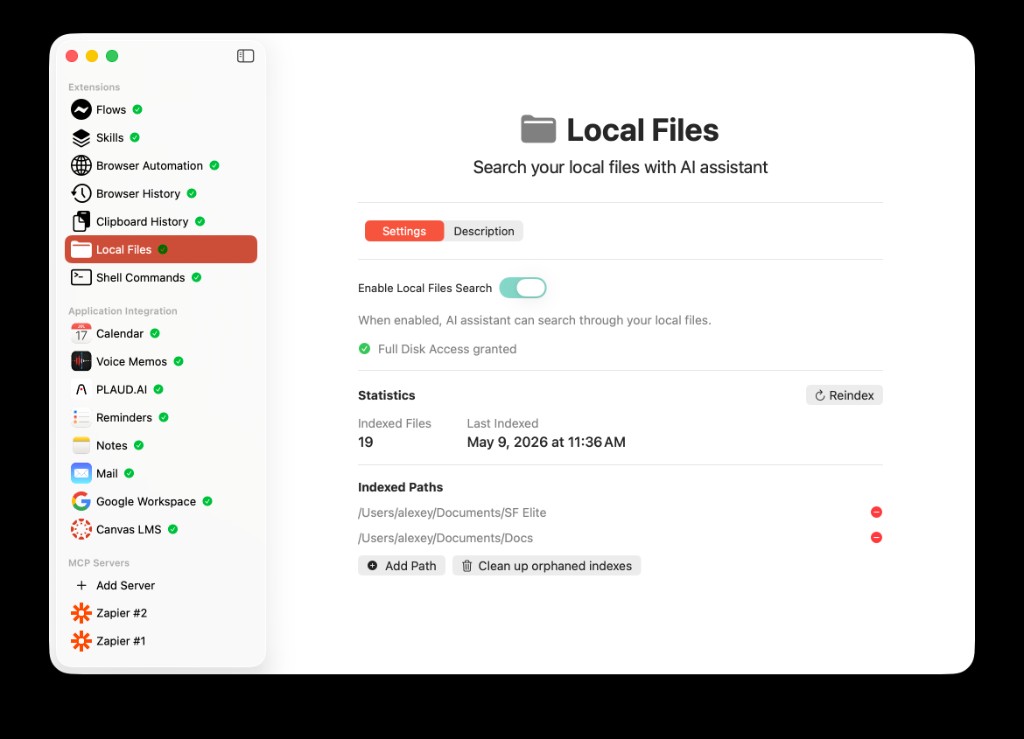
The Local Files settings screen in AideAI: enable local file search, confirm Full Disk Access, review indexed file statistics, and choose which folders should be searchable.
Full Disk Access is required because macOS protects file locations that apps cannot read by default. Without that permission, AideAI cannot reliably index and search the folders where your study material may live.
What You Can Ask
Once Local Files is enabled and indexed, you can ask file questions in normal language.
For example:
Find PDFs about climate policy in my Documents folder.
or:
Where did I write about Shakespeare and identity?
or:
Show me files modified last week for my data science project.
or:
Find Python files that mention pandas.
or:
What files are inside my thesis folder?
When AideAI finds matching files, it can reference them in the response so you can open the right source instead of hunting for it manually.
Example Student Workflow: Finding A Lost Reading
Imagine you are preparing for a seminar.
You remember reading a PDF about urban planning, but you do not remember the filename. It might be in Downloads, Documents, or a course folder. You only remember a phrase from the topic.
Without Local Files, the workflow looks like this:
- Search Finder.
- Try several keywords.
- Open likely PDFs.
- Skim them manually.
- Copy the right passage into your notes or chat.
With Local Files enabled, you can ask:
Find the PDF where the author discusses zoning and public transit.
AideAI can search indexed local content and surface the likely file. That saves time, but more importantly, it gets you back to the actual studying faster.
Example Student Workflow: Using Local Code As Context
Local Files is also useful for technical classes.
If you are working on a programming assignment, your assistant may need to find a function, config file, or old implementation. You may remember what the code did, but not which file it was in.
You can ask:
Find the Swift file where I handle calendar permissions.
or:
Search my project folder for files related to vector search.
That is useful because code projects are often spread across many folders and filenames. Local Files helps the assistant find the relevant file before you decide what to fix or explain.
Example Student Workflow: Planning From Class Materials
Local Files can also support planning.
Suppose you have:
- a rubric PDF
- a draft document
- lecture slides
- a spreadsheet with lab results
- notes from a previous meeting
Instead of manually finding each source, you can ask AideAI to search the indexed folder first:
Find files for my biology lab report and help me decide what to review first.
The assistant can identify likely materials, then help you turn that local context into a study plan, writing plan, or checklist.
Local Files vs Attached Files
Local Files and attached files solve related but different problems.
Attached files are best when you know exactly which file you want to use in a specific chat. You attach the file, and the assistant can use it as context for that conversation.
Local Files is best when you do not know exactly which file matters yet. You ask AideAI to search indexed folders first, then use the result to decide what to open, attach, summarize, or act on.
In practice, students often use both:
- Use Local Files to find the right material.
- Open or attach the relevant file.
- Ask a deeper question about the selected source.
Privacy And Control
Local files can contain sensitive material, so the control model matters.
AideAI is designed around user choice:
- you choose whether to enable Local Files
- you grant or revoke Full Disk Access in macOS System Settings
- you choose which folders are indexed
- you can add or remove indexed paths
- you can reindex files when needed
- you can clean up indexes for paths you no longer use
The extension searches indexed local files on your Mac. It is not a cloud-drive replacement, and it does not mean every file automatically becomes relevant to every answer. The assistant searches when the task calls for file context.
Common Setup Issues
Local Files setup can fail for a few predictable reasons.
Full Disk Access may not be granted yet. If the settings screen says access is required, open macOS System Settings, add AideAI under Privacy & Security -> Full Disk Access, then restart the app if needed.
The folder may not be indexed. If a class folder is outside the default locations, add it under Indexed Paths.
The index may be stale. Use Reindex if you recently added or changed files and the assistant cannot find them yet.
The file may be unsupported or too large to index. PDFs, text files, code files, and Office documents are the main targets. Some binary or unusual files may not produce readable text.
The query may be too broad. If you get too many results, add a folder, file type, or date range.
Why This Helps With Real Student Outcomes
Students do not just need more storage. They need their existing materials to be easier to reuse.
Used well, Local Files can help students:
- recover class material faster
- find old notes and drafts by meaning, not just filename
- search PDFs and documents before writing or studying
- locate code files during technical assignments
- reduce time lost in Finder before starting real work
- connect local course materials to planning, writing, and study workflows
That is the real reason to enable Local Files. It makes the files already on your Mac more useful inside the assistant workflow.
Try AideAI
If your class materials, drafts, PDFs, and project files already live on your Mac, Local Files is one of the fastest ways to make AideAI more grounded in your real work.
Try AideAI, enable Local Files in Extensions & MCP, grant Full Disk Access, and add one active class or project folder. If you want the broader integrations story, read All the Places Your Student Life Already Lives - Connected. If your work also lives in Google Docs and Drive, read Google Workspace in AideAI: Connect Docs, Sheets, Slides, and Drive for Schoolwork. If you want help turning found files into a daily plan, read What Should I Do Today? A Better Way to Plan Your College Work. For plan details, visit Pricing.