 AideAI
How to Keep Track of Canvas Assignments With AI: A Weekly Playbook
Canvas knows your deadlines. It does not know your week.
You can have a clean assignment list in Canvas and still walk into Wednesday evening surprised: a due date moved on Tuesday, a discussion post landed in a course you have not opened since Monday, and the "small" lab write-up is actually two parts with different submission types.
The failure mode is not laziness. It is checking without a rhythm.
Most students treat Canvas like a fire alarm — open it when something feels urgent. That works until something changes quietly. Then you are doing emergency triage instead of steady tracking.
This playbook is for students who already use Canvas as their LMS and want a repeatable way to stay ahead of assignments without living inside five course pages. It assumes you have connected Canvas to AideAI. If you have not done that yet, start with Canvas LMS Integration for Students. This post is about the workflow after setup.
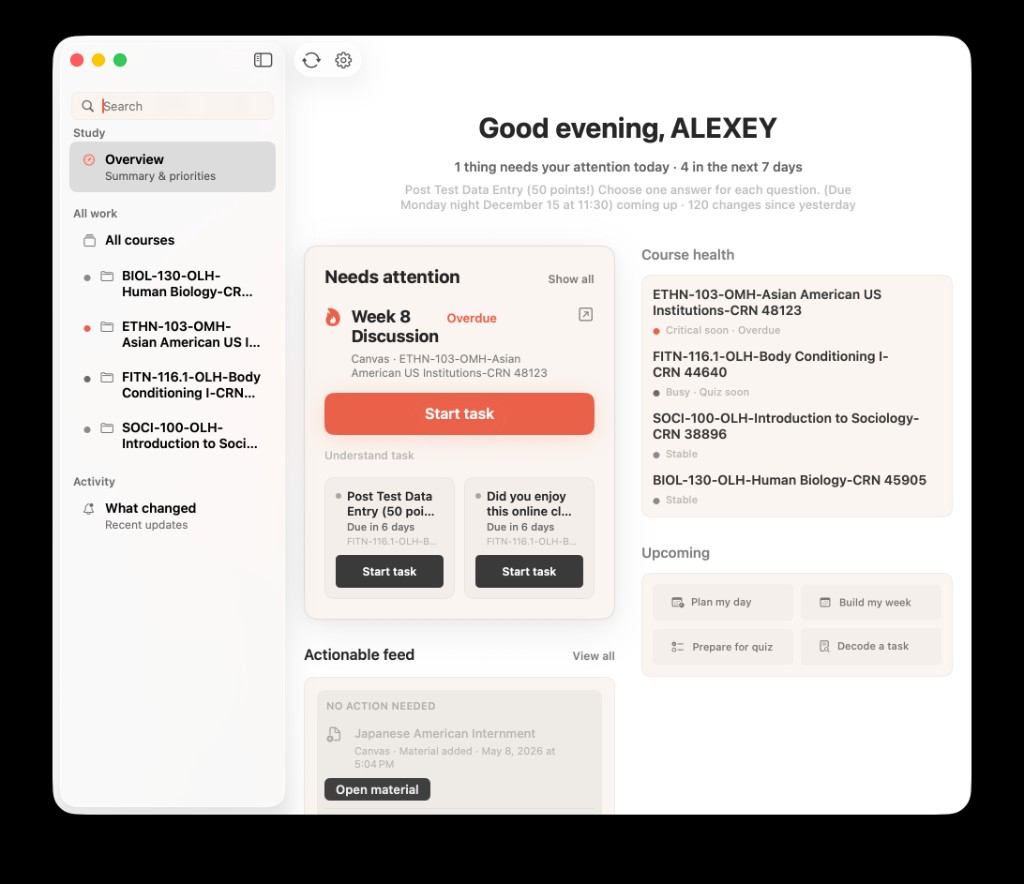
Assignment tracking works best when Canvas data feeds a semester picture you can scan in minutes — not when you rebuild that picture from scratch every night.
The Playbook At A Glance
You do not need a new productivity system. You need four short checkpoints that answer different questions:
| When | Question | Where to look |
|---|---|---|
| Sunday | What does this week actually contain? | Study overview + refreshed Canvas snapshot |
| Wednesday | What changed since I last looked? | What changed feed |
| Any day | Which class is drifting? | Course health |
| Tonight | What is the one move that matters? | Today brief → planning chat |
The goal is not perfect coverage. It is fewer surprises and faster decisions.
Sunday Scan: Ten Minutes To See The Week
Sunday is when Canvas assignments stop being abstract and start competing with your actual calendar.
Before: you open Canvas course by course, skim modules, copy due dates into Notes, and still forget the discussion post that only appears on the assignments page. Forty minutes later you have information — but not a plan.
After: you refresh Canvas study data in AideAI, open Study overview, and scan three layers in about ten minutes:
- Due this week — what has a real deadline in the next seven days?
- Needs attention — what is overdue, due today, or recently changed?
- Course health — which classes look busy or at risk before they become loud?
Then ask one grounding question in chat:
Based on my synced Canvas data, what should I watch most closely this week?
You are not asking for a motivational speech. You are asking for a ranked read on workload before Monday urgency takes over.
If you want the broader semester-visibility story behind Study overview, read How to Finally See Everything Going On in Your Semester. This Sunday scan is the Canvas-specific version of that habit.
Wednesday Pulse: Catch What Changed
Assignment tracking breaks down in the middle of the week.
Instructors post announcements. Due dates shift. New assignments appear in courses you checked on Sunday but have not reopened. Submission windows open and close. None of that is dramatic enough to trigger a "check Canvas now" reflex — until it is due tomorrow.
The Wednesday pulse is a five-minute check focused only on change:
- Open What changed in Study overview.
- Scan for due-date moves, new assignments, and course updates since your last sync.
- If something looks off, ask:
What changed in my Canvas courses since Sunday? Anything I should reprioritize?
Before: you discover the shifted deadline when you open the assignment page at 11 p.m.
After: you notice the change on Wednesday afternoon and move one block on Thursday instead of losing a night to panic.
This is different from a full weekly review. For that broader rhythm, read How to Do a Weekly Study Review Without Spending an Hour on It. The Wednesday pulse is narrower: did Canvas move on me?
Course Health: The Quiet Class Problem
The loudest assignment is not always the dangerous one.
Canvas makes urgent work visible. It is much worse at showing drift — the class where you are technically caught up on submissions but have not engaged with new material, or the course where small weekly tasks are stacking into a bad midterm position.
Course health in Study overview is a heuristic view of which classes look stable, busy, at risk, or close to urgent. It is not a grade. It is a steering signal.
Use it when:
- one course keeps getting pushed to "later"
- you feel busy but unclear which class is actually slipping
- a project deadline is far away, but weekly Canvas tasks are quietly compounding
A useful Sunday or Wednesday question:
Which Canvas course looks most at risk right now, and what is the smallest next step?
That question often surfaces the quiet class before it becomes a crisis.
Tonight's Priority: One Decision, Not Five Tabs
Tracking assignments is only useful if it ends in action.
By evening, the question is no longer "what exists in Canvas?" It is:
What should I do in the next study block?
Before: you open Canvas for one class, check Mail for a professor clarification, glance at Calendar, search Notes for a rubric detail, and still cannot pick a first move. The session starts with navigation, not work.
After: you open the Today brief, see overdue work, due-today items, and what is coming up soon, then ask:
What should I do tonight if I only have 90 minutes?
AideAI can answer from synced Canvas context plus your connected student stack — calendar blocks, reminders, notes, files — instead of from a blank prompt.
For the daily planning layer around that decision, read What Should I Do Today? A Better Way to Plan Your College Work. This playbook gives you the Canvas tracking rhythm; that post helps you turn the rhythm into a nightly plan.
When Canvas Is Not Your Only LMS
Some students run a mixed stack: Canvas for two departments, Google Classroom for another program, or a lab course in Classroom while lectures live in Canvas.
This playbook still works if you treat each LMS as a coursework source, not as the whole semester.
- Connect Canvas following the setup guide above.
- If Classroom is part of your stack, connect it too — see Google Classroom in AideAI.
- Refresh study data so both sources feed the same local academic snapshot.
- Use Study overview and What changed as the cross-source view instead of checking each LMS separately every night.
You do not need perfect parity between systems. You need one place that shows what changed across the courses you are actually enrolled in.
For the connected-student-life framing, read All the Places Your Student Life Already Lives — Connected.
What Stays In Canvas (And What AideAI Adds)
Honest expectations keep this workflow usable.
Canvas remains the source of truth for:
- official assignment pages
- submissions and grades
- instructor announcements
- course modules and materials
AideAI helps you:
- pull Canvas courses and assignments into assistant context
- sync a local academic snapshot for Study overview
- spot changes, risk, and tonight's priority faster
- turn assignment context into plans, reminders, and follow-up in chat
AideAI does not replace submitting work in Canvas. It reduces the manual checking and copying that happens before you can think clearly about what to do next.
What You Get On Free
Canvas LMS integration is available on AideAI Free, along with the other built-in extensions. You do not need Premium to connect Canvas, refresh study data, or use Study overview for assignment tracking.
Premium adds power layers such as realtime voice and higher usage limits. For assignment tracking itself, Free is enough to run this playbook. See Pricing if you want the full Free vs Premium breakdown.
Run The Playbook This Week
If Canvas assignments keep surprising you, try one week with structure:
- Sunday: refresh Canvas study data, scan Study overview, ask what to watch this week.
- Wednesday: check What changed, reprioritize if needed.
- Any slipping day: look at Course health and pick the smallest next step for the at-risk class.
- Tonight: use Today to choose one concrete move for your next study block.
You will still have work. The difference is that fewer deadlines should feel like ambushes.
Download AideAI, connect Canvas if you have not already, and run the Sunday scan before next week starts. For setup details, read Canvas LMS Integration for Students. For plan details, visit Pricing.