 AideAI
Apple Notes Integration for Students: Make Class Notes Searchable with AideAI
Apple Notes is where a lot of student context quietly accumulates.
Class notes, reading reactions, essay ideas, office-hour takeaways, lab observations, project plans, and rough reminders often end up there because Notes is fast, native, and already available on Mac, iPhone, and iPad.
The problem is that notes are easy to create and harder to reuse. When your assistant cannot search them, you still have to remember which note had the useful detail, which folder it was in, and whether it was created last week or last semester.

Without a connected notes workflow, useful context can end up scattered across sticky notes, open windows, and half-remembered documents.
That is why the Apple Notes integration matters. It lets AideAI search your existing Apple Notes so the assistant can work with the study context you already captured.
The problem
Students rarely keep all useful information in one polished document.
Your Apple Notes may contain:
- quick class notes
- essay outlines
- research ideas
- office-hour questions
- project meeting takeaways
- reading summaries
- screenshots or scanned materials
- rough plans for upcoming work
Those notes are useful, but only if you can find the right one at the right moment.
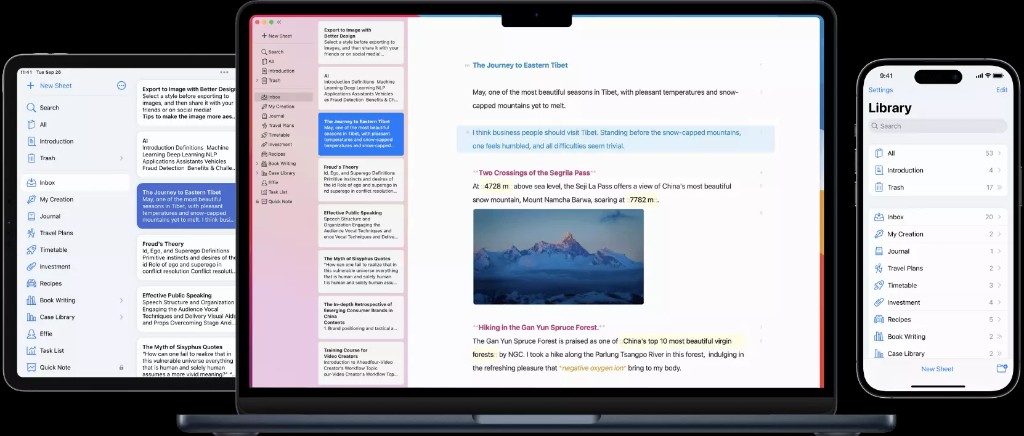
Apple Notes is often where students already capture class ideas, reading notes, and rough plans across devices. AideAI connects to that existing note library instead of asking you to move it somewhere else.
Without an assistant connection, you often have to manually search, skim, and copy the relevant parts into chat. That turns Notes into another place you have to manage instead of a source of context the assistant can use.
Why the usual approach breaks down
The default workflow around notes is usually search-and-skim.
You open Apple Notes. You try a keyword. You scan titles. You open a few notes that might be relevant. You copy the useful text. Then you return to the assistant and explain what you found.
That can work for a single note. It breaks down when notes are spread across classes, folders, semesters, and devices.
For students, this matters because notes often hold the small details that change what you should do next:
- a professor's clarification
- a rough thesis idea
- a quote or reference to revisit
- a list of concepts that still feel confusing
- a project decision from a meeting
- a reminder about how an assignment should be framed
If those details stay buried, the assistant starts from incomplete context.
What AideAI does differently
AideAI's Apple Notes integration lets the assistant search through your Apple Notes when you ask questions that need note context.
With Notes enabled, AideAI can:
- search Apple Notes by text
- find notes related to a topic, class, project, or meeting
- filter by folder when a folder name is useful
- filter by creation or modification date
- return recent notes when you need quick context
- surface note results inside the assistant workflow
- use note content alongside other context such as meetings, reminders, calendar events, and files
The integration is designed around retrieval. Apple Notes remains the place where you capture and store notes. AideAI becomes the place where those notes can be found and used when you are planning, studying, writing, or reviewing.
Why this is useful for students
Students do not need to move all notes into a new AI workspace just to make them useful.
When Apple Notes is connected, AideAI becomes more useful for:
- finding class notes without manually opening every folder
- recovering ideas for essays and assignments
- searching office-hour notes before follow-up work
- pulling reading notes into a study plan
- combining note context with meetings, reminders, and calendar events
- asking broader questions like
What did I write about this topic before?
That changes the role of notes. They stop being a static archive and become part of the assistant's working memory for your student life.
What the setup looks like
The integration lives in Extensions & MCP with the other application integrations.
Here is the Apple Notes integration screen inside AideAI:
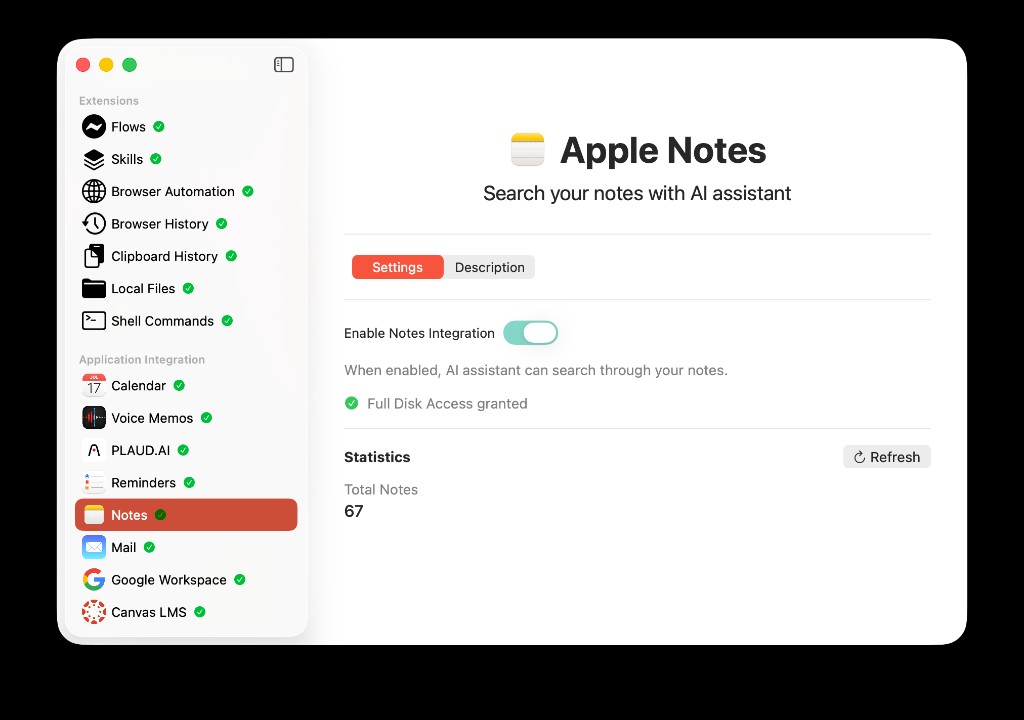
The Apple Notes settings screen in AideAI: enable the integration, confirm Full Disk Access, and refresh the visible note count.
In AideAI, the Apple Notes screen includes:
- an
Enable Notes Integrationtoggle - Full Disk Access status
- a
Grant Accessbutton when permission is missing - a statistics section showing the total number of notes AideAI can see
- a refresh action for updating note counts
Full Disk Access is required because Apple stores Notes data in a protected local location on macOS. AideAI needs that permission to read the local Notes database for search.
Once access is granted and the integration is enabled, AideAI can search notes when the assistant needs that context.
How to set up Apple Notes integration in AideAI
The setup is straightforward:
- Open
Extensions & MCPin AideAI. - Select
Notesin the app integrations list. - Turn on
Enable Notes Integration. - Grant Full Disk Access when macOS prompts you.
- Confirm that the screen shows
Full Disk Access granted. - Use
Refreshif you want to update the visible note count. - Ask AideAI to find notes about a class, topic, project, or date range.
If Full Disk Access was denied earlier, open System Settings, go to Privacy & Security, then Full Disk Access, and make sure AideAI is allowed. After changing that setting, you may need to restart the app for macOS permissions to take effect cleanly.
What you can ask
Once the integration is enabled, you can ask for note context in natural language.
For example:
Find my notes about the psychology midterm.
or:
What notes do I have about my essay thesis?
or:
Look for notes from last week about the group project.
or:
Search my Apple Notes for anything about the lab report.
AideAI can use the Notes integration behind those requests and return relevant results without requiring you to manually search Apple Notes first.
How it fits with study planning and writing
Notes often sit between raw class experience and finished academic work.
You may capture something quickly during class, expand it later, and then need it again while writing an essay or preparing for an exam. The integration helps those notes reappear at the moment they matter.
For example:
- before writing, search earlier notes about the topic
- before office hours, find unresolved questions from class
- before a quiz, recover concepts you marked as confusing
- during planning, combine notes with calendar events and reminders
- after a meeting, search related notes before creating follow-up tasks
This makes Apple Notes part of a larger student workflow instead of a separate pile of text.
Privacy and permissions
This integration uses local access to Apple Notes data on your Mac. AideAI cannot search Notes unless you enable the integration and grant the required macOS permission.
Your notes stay in Apple Notes and continue to sync through iCloud according to your Apple settings. AideAI reads the local Notes data you allow it to access so the assistant can search and reference note content in your workflow.
If you turn the integration off, AideAI stops using Notes search. If you remove Full Disk Access in macOS, the app will no longer be able to read the local Notes data needed for search.
Why this helps with real student outcomes
The value of notes depends on whether you can reuse them.
Used well, Apple Notes integration can help students:
- recover important class details faster
- turn scattered notes into useful study context
- find earlier ideas before writing
- connect notes with meetings, reminders, files, and calendar context
- spend less time searching and more time doing the work
That is the real reason to connect Apple Notes. It makes the notes you already take easier for AideAI to find, reason over, and bring back into your academic workflow.
Try AideAI
If Apple Notes is already where your class thoughts, reading notes, and project ideas live, connecting it to AideAI is one of the fastest ways to make those notes more useful.
Try AideAI, enable Notes in Extensions & MCP, and grant Full Disk Access when macOS asks. If you want the broader integrations story, read All the Places Your Student Life Already Lives - Connected. If you also use Reminders for follow-up, read Apple Reminders Integration for Students: Turn Tasks into an Assistant Workflow. For plan details, visit Pricing.