 AideAI
Apple Reminders Integration for Students: Turn Tasks into an Assistant Workflow
Apple Reminders is already where many students keep the small but important things: homework follow-ups, reading tasks, project steps, errands between classes, and reminders that should not disappear inside a chat thread.
The problem is that task lists often sit apart from the assistant workflow. You may ask AI to summarize a lecture, plan your week, or identify action items from a meeting, but the actual reminders still have to be searched, created, and checked off manually.
That is why the Apple Reminders integration matters. It lets AideAI work with the task system already built into your Mac instead of asking you to copy tasks into a separate app.
The problem
Students rarely have one clean task list.
Your reminders may include:
- assignments due this week
- readings you need to finish
- project follow-ups
- office-hour questions
- application deadlines
- personal tasks that affect your study schedule
Apple Reminders is useful because it is simple, native, and synced through iCloud. But when your assistant cannot see or update those reminders, you still have to bridge the gap yourself.
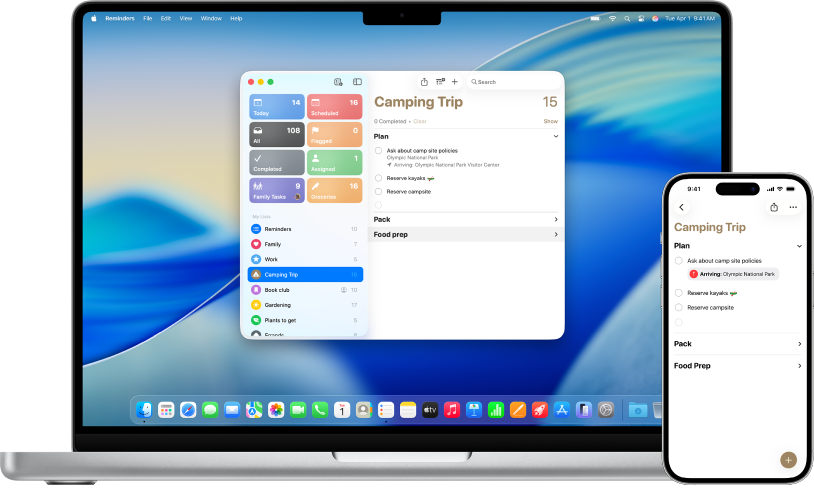
Apple Reminders is often the native place where students already keep tasks, lists, and follow-up. AideAI connects to that existing workflow instead of replacing it.
That creates friction:
- you ask for a plan, then manually create the tasks
- you forget which reminders are already due today
- action items from meetings stay in notes instead of becoming reminders
- completed work remains unchecked because it lives in another app
Why the usual approach breaks down
The default workflow around reminders is often more manual than it needs to be.
You open Reminders. You search for the right list. You check what is due. You create a new item. You add a date. Later, when work is done, you go back and mark the reminder complete.
That is fine for one task. It becomes annoying when reminders are part of a larger academic workflow.
For students, reminders are rarely isolated. They often come from other context:
- a lecture creates a review task
- a meeting creates follow-up work
- a chat answer turns into next steps
- a weekly plan becomes a list of things to do
- a professor's email creates a deadline to track
If those moments do not connect to your task list, useful follow-up can get lost.
What AideAI does differently
AideAI's Apple Reminders integration gives the assistant permission to work with your Apple Reminders data.
With Reminders enabled, AideAI can:
- search your reminders by text, list, completion status, due date, and priority
- answer questions like
What reminders do I have today? - create new reminders from chat, meetings, or planning conversations
- add notes, due dates, priorities, URLs, and list placement when creating reminders
- mark reminders complete after you finish a task
- use selected reminder lists instead of treating every list the same way
That makes reminders part of the assistant workflow. You can move from "what should I do?" to "create the reminder" without switching apps and rebuilding the same context by hand.
Why this is useful for students
Students do not need another task database. They need the task list they already use to connect with the assistant that helps them plan and study.
When Apple Reminders is connected, AideAI becomes more useful for:
- turning meeting action items into reminders
- creating follow-up tasks from lecture notes or chat answers
- checking what is due today before planning a study session
- keeping personal and academic tasks visible in the same workflow
- marking work complete when the assistant already knows what task you mean
The value is not just faster task entry. It is reducing the distance between academic context and follow-through.
What the setup looks like
The integration lives in Extensions & MCP with the other application integrations.
Here is the Apple Reminders integration screen inside AideAI:
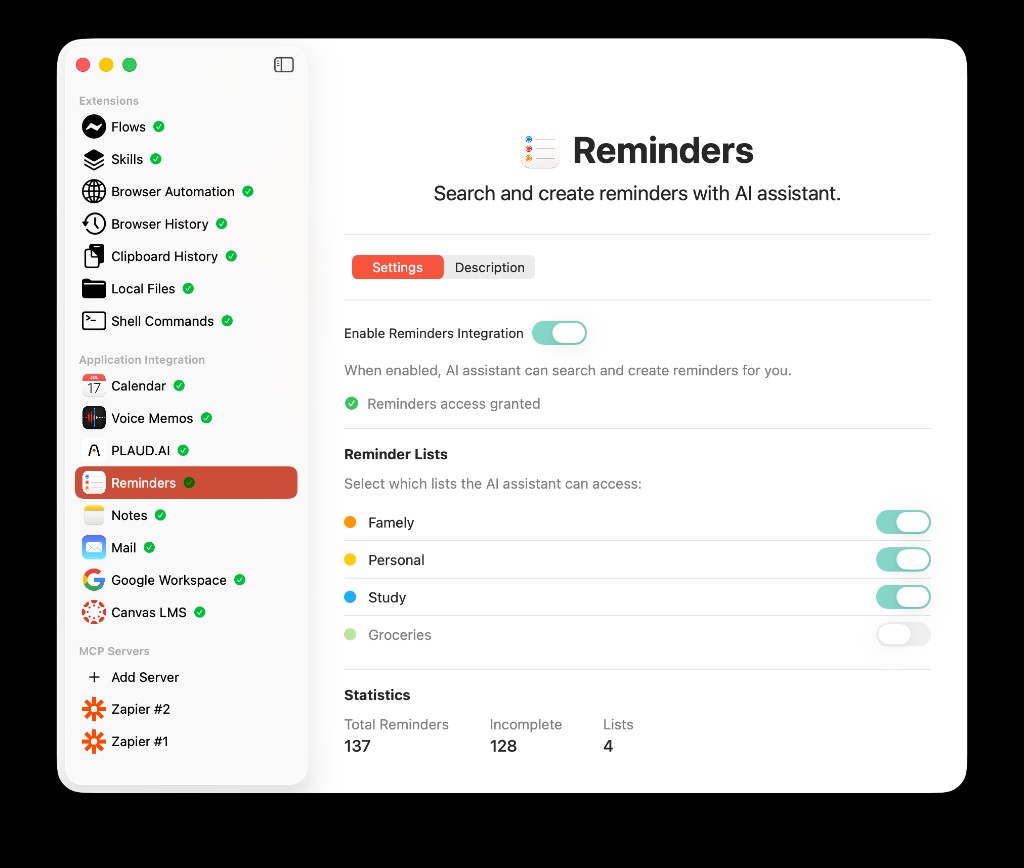
The Reminders settings screen in AideAI: enable the integration, confirm Reminders access, choose which lists the assistant can use, and review basic task statistics.
In AideAI, the Reminders screen includes:
- an
Enable Reminders Integrationtoggle - Reminders permission status
- a
Grant Accessbutton when permission is missing - selectable reminder lists
- basic statistics for total reminders, incomplete reminders, and lists
The list selector matters. Once AideAI has access, you can choose which Apple Reminders lists the assistant should use. That keeps the integration focused on the task lists that are actually relevant to your student workflow.
How to set up Apple Reminders integration in AideAI
The setup is straightforward:
- Open
Extensions & MCPin AideAI. - Select
Remindersin the app integrations list. - Turn on
Enable Reminders Integration. - Grant Reminders access when macOS prompts you.
- Confirm that the screen shows
Reminders access granted. - Review the
Reminder Listssection and enable the lists AideAI should use. - Ask AideAI to search, create, or complete a reminder.
If access was denied earlier, open System Settings, go to Privacy & Security, then Reminders, and make sure AideAI is allowed. After changing that setting, return to AideAI and reopen the Reminders integration screen.
What you can ask
Once the integration is enabled, you can use natural requests instead of manually opening Reminders every time.
For example:
What reminders do I have today?
or:
Find reminders about my chemistry lab.
or:
Remind me to email my professor tomorrow at 10am.
or:
Mark the reading summary reminder as done.
AideAI can use the Reminders integration behind those requests. When it needs to complete a reminder, it first searches for the relevant item so it can act on the correct reminder.
How it fits with meetings and study planning
Reminders becomes more useful when it is connected to the rest of your student context.
After a meeting, the assistant can help turn follow-up items into reminders. During planning, it can check existing tasks before suggesting what to do next. In a daily or weekly review, reminders can sit next to calendar events, meetings, notes, and activity context.
That is the bigger point: Apple Reminders is not just a standalone checklist. It can become the action layer for the work AideAI helps you understand.
Privacy and permissions
This integration uses Apple's Reminders permission on macOS. AideAI cannot search, create, or complete reminders unless you enable the integration and grant access.
Your reminders stay in Apple Reminders and continue to sync through iCloud according to your Apple settings. AideAI works with the reminder data you allow it to access so the assistant can help manage tasks from your Mac workflow.
If you turn the integration off, AideAI stops using Reminders tools. If you remove Reminders permission in macOS, the integration will no longer be able to read or update your reminder data.
Why this helps with real student outcomes
The hardest part of student work is often not knowing that a task exists. It is carrying that task through to the right moment.
Used well, Apple Reminders integration can help students:
- capture follow-up before it disappears
- keep tasks connected to real study context
- check today's work without opening another app
- create reminders directly from plans, meetings, and chat
- close the loop by marking completed tasks done
That is the reason to connect Apple Reminders. It turns a native task list into something the assistant can work with, so planning and follow-through happen in the same workflow.
Try AideAI
If Apple Reminders is already where your tasks live, connecting it to AideAI is one of the simplest ways to make your assistant better at follow-through.
Try AideAI, enable Reminders in Extensions & MCP, and grant Reminders access when macOS asks. If you want the broader integrations story, read All the Places Your Student Life Already Lives - Connected. If you want to connect your schedule too, read Apple Calendar Integration for Students: Why It Matters and How to Set It Up. For plan details, visit Pricing.