 AideAI
Apple Calendar Integration for Students: Why It Matters and How to Set It Up

If you already use Apple Calendar on your Mac, connecting it to AideAI is one of the simplest ways to make the assistant more useful in real student life.
Your calendar already knows when classes, office hours, study sessions, and meetings are happening. The problem is that most student workflows still treat calendar events as isolated blocks of time instead of live context the assistant can work with.
That is why the Apple Calendar integration matters. It helps AideAI use your real schedule so the app can react to meetings more intelligently instead of behaving like a blank assistant with no sense of timing.
The problem
Students often live in two separate realities:
- the reality of what is scheduled
- the reality of what the assistant actually knows
Your calendar may already contain:
- class sessions
- professor meetings
- team project calls
- office hours
- study blocks
But if your assistant cannot see that context, you still have to manually bridge the gap every time.
That usually leads to friction:
- you forget a meeting is about to start
- you start recording too late
- you lose time setting things up manually
- the notes from a meeting stay disconnected from the event itself
Why the usual approach breaks down
The default student workflow around meetings is often more manual than it should be.
You check your calendar. Then you switch to the meeting. Then you remember you wanted notes. Then you decide whether to record. Then, after the meeting, the notes and the event often live in different places.
That is not just inconvenient. It creates small points of failure right when your attention should be on the meeting itself.
For students, that matters because meetings are often where academic context changes:
- a professor clarifies expectations
- a teammate decides who owns what
- a deadline shifts
- a project discussion creates new action items
If the workflow around those moments is fragile, useful information gets lost.
What AideAI does differently
AideAI's Apple Calendar integration gives the assistant access to your Apple Calendar so it can work with scheduled events more intelligently.
It is built around a few practical behaviors:
- understanding when a relevant meeting is about to start
- letting you choose how proactive the app should be
- helping the app handle recordings more smoothly
- connecting finished meeting notes back to the related calendar event
The integration also avoids treating every calendar item the same way. According to the product behavior, it can ignore all-day events, declined invitations, and meetings without video conference links. That helps keep the workflow focused on the events that are actually useful to act on.
Why this is useful for students
Students do not need more calendar software. They need their existing calendar to work better with the assistant they already use for planning and notes.
When Apple Calendar is connected, AideAI becomes more useful for:
- classes and online meetings that should not be missed
- project calls where you want cleaner recording and notes
- office hours or advising calls where follow-up details matter
- turning scheduled time into real workflow context
That changes the role of the assistant. Instead of waiting for you to remember everything manually, AideAI can work with the timing layer that already exists in your schedule.
What the setup looks like
Here is the Calendar integration screen inside AideAI:
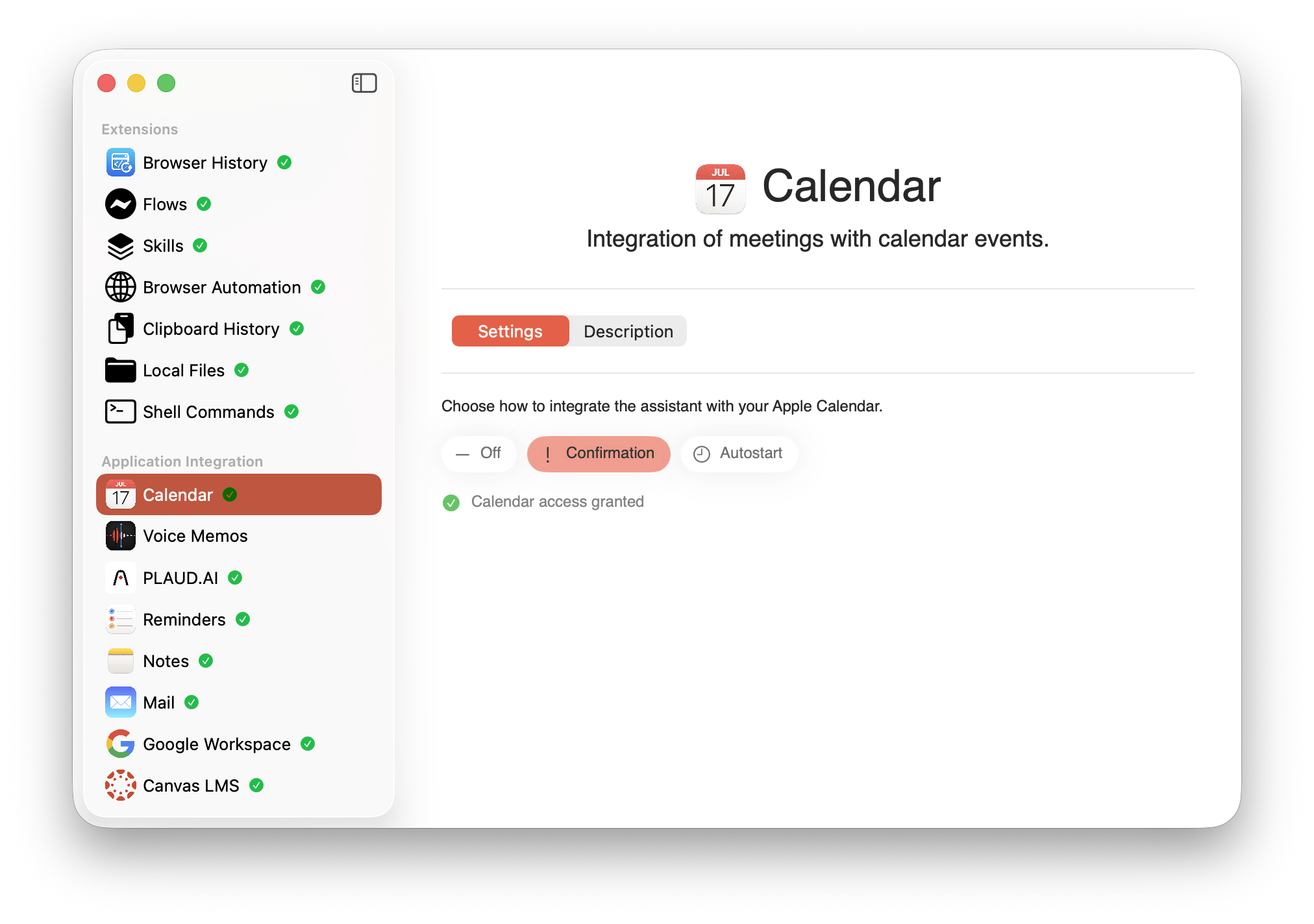
The Apple Calendar settings screen in AideAI: choose Off, Confirmation, or Autostart, then confirm that calendar access is granted.
On this screen, you choose how the app should behave with your Apple Calendar.
You can see three modes:
- Off: Calendar integration is disabled
- Confirmation: AideAI alerts you when a meeting begins and prompts you to start recording
- Autostart: AideAI initiates recording automatically at the time set in your calendar
You will also see the calendar permission status below the mode selector. Once access is granted, the screen shows Calendar access granted.
When Confirmation is enabled, AideAI can surface a meeting prompt in the island area right when a scheduled event starts, as long as that calendar event contains a link to an online meeting such as Zoom, Google Meet, or a similar service.

Example of the confirmation widget that appears when a calendar event includes an online meeting link.
This prompt is useful because it appears at the moment when the meeting actually matters. You do not have to remember to go back into the app and start the workflow manually.
There is also a red countdown bar on the widget. It shrinks over 30 seconds, and if you do not interact with the prompt during that time, the notification closes automatically.
How to set up Apple Calendar integration in AideAI
The setup is straightforward:
- Open
Extensions & MCPin AideAI. - Select
Calendarin the app integrations list. - Choose the behavior you want:
Off,Confirmation, orAutostart. - Grant calendar access when macOS prompts you.
- If access was denied earlier, use the button in AideAI to reopen the relevant privacy settings in macOS.
- Confirm that the screen shows
Calendar access granted.
For many students, Confirmation is the best starting point. It gives you a useful prompt when a meeting starts without making the app too aggressive. Autostart is a stronger option if you already have a stable routine and want the app to begin recording automatically for scheduled meetings.
What the Apple Calendar side looks like
This is the kind of standard Calendar window many Mac users already rely on as their source of truth for scheduled events:
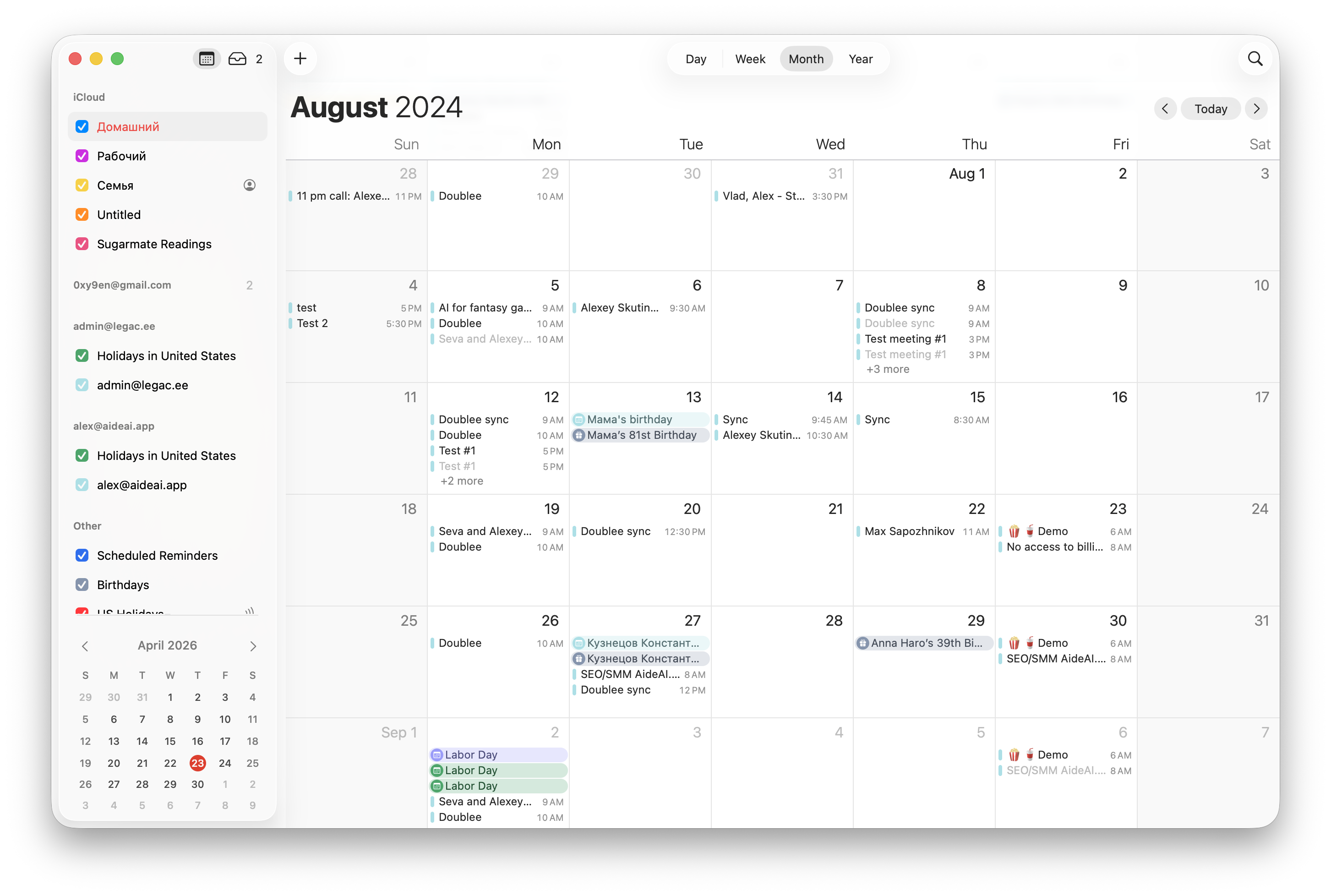
Example of the standard Apple Calendar app window on macOS.
That is why this integration is useful. It does not ask students to rebuild their schedule in a separate tool. It connects AideAI to the calendar workflow they already use on Mac.
Which mode should you choose?
Here is the simplest way to think about it:
- Choose Off if you do not want AideAI interacting with calendar-driven meeting behavior at all.
- Choose Confirmation if you want a safer, prompt-based workflow before recording starts.
- Choose Autostart if you want the most proactive setup and trust your scheduled meetings to drive recording automatically.
If you are not sure, start with Confirmation. It gives you the clearest middle ground between convenience and control.
Free vs Premium
The important value here is the integration itself, and that is part of the broader AideAI product story rather than a narrow premium gimmick.
For students, the first question is not "Is this advanced?" It is "Will this make my real workflow less fragile?"
That is why the Apple Calendar integration matters. It makes scheduled meetings more actionable inside AideAI instead of leaving the assistant disconnected from your actual calendar.
Why this helps with real student outcomes
Used well, this integration can help students:
- miss fewer meeting details
- start recording at the right moment more consistently
- reduce manual setup before classes and calls
- keep meeting notes more connected to the event they came from
- make scheduled time more useful inside the assistant
That is the real reason to connect Apple Calendar. It is not about adding another feature toggle. It is about reducing friction at the exact moment when academic context is live.
Try AideAI
If Apple Calendar is already where your classes, meetings, and deadlines live, connecting it to AideAI is one of the fastest ways to make the assistant feel more grounded in your real schedule.
Try AideAI, connect Apple Calendar, and start with Confirmation if you want the safest default. If you want the broader integrations story, read All the Places Your Student Life Already Lives - Connected. If you want help turning calendar context into daily priorities, read What Should I Do Today? A Better Way to Plan Your College Work. For plan details, visit Pricing.