 AideAI
Best Student Productivity App for Mac: What Actually Holds a Semester Together
Search for "best student productivity app for Mac" and you get the same short list: task managers, note apps, focus timers, and a chatbot in a browser tab.
Those tools can each be fine. Together they often recreate the same problem — your semester still lives in five places, and you are the integration layer between them.
Canvas holds deadlines. Notes hold lecture thoughts. Docs hold drafts. Calendar holds time. Mail holds the professor clarification. The productivity app holds… a task list that does not know any of that unless you type it in again.
This is a buyer guide for Mac students who want one primary workflow, not a logo ranking. For native-app positioning in depth, read Why a Native Mac App Feels Better Than Another Browser Tab. For wiring materials, deadlines, and notes after you pick a stack, read How to Connect Class Materials, Deadlines, and Notes.
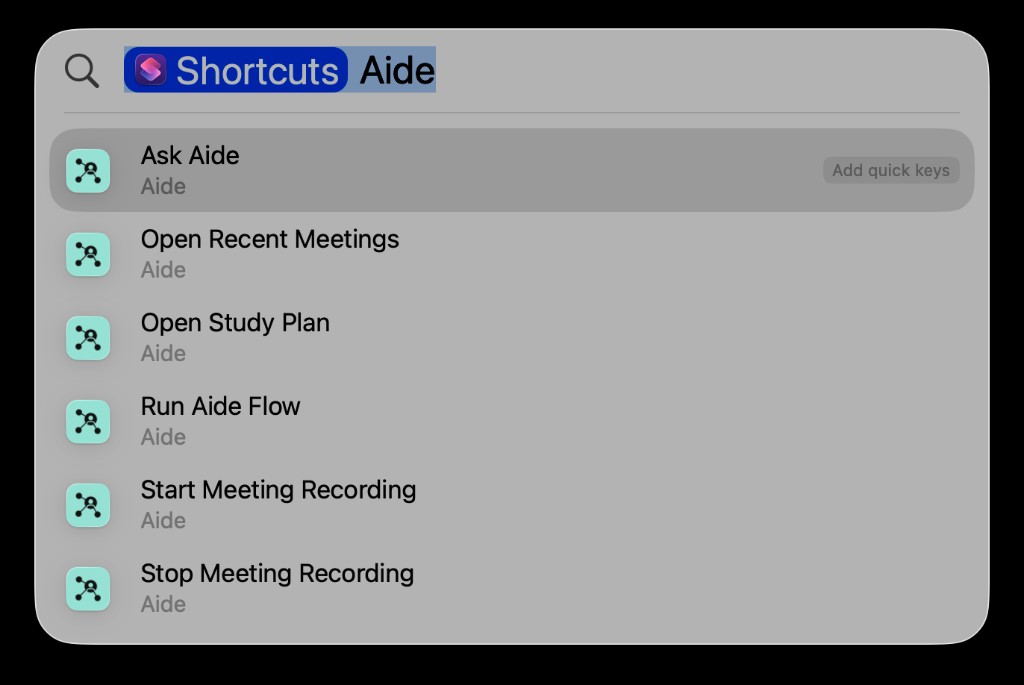
On Mac, productivity is not only about lists — it is about reaching the assistant, recordings, and study context without losing momentum in the tab stack.
Three Failures That Expose A Weak "Productivity App"
Before comparing categories, picture what breaks in a real week:
The Sunday plan that ignores Canvas.
You beautifully organize tasks in a todo app. Monday, an assignment appears in a course you have not opened. Your list was never wrong — it was incomplete.
The notes app that becomes a archive.
You capture reliably all term. When the problem set references "what the professor said about feedback loops," you search Notes, Google Drive, and Voice Memos separately.
The AI tab that resets every session.
You get a great explanation once. Next week you paste the syllabus again, re-explain your courses, and rebuild the same prompt. Productivity becomes prompt maintenance.
If the app does not connect to where academic truth lives, it optimizes the wrong layer.
Five Categories Mac Students Actually Shop In
These are tradeoff buckets — not brand scores.
Dedicated task managers
Examples: Things, Todoist, Apple Reminders (with or without AI wrappers).
Good at: capturing tasks, due dates, and recurring habits in a clean list.
Weak at: knowing what changed in Canvas overnight, which PDF is the real rubric, or what your lecture notes said — unless you manually duplicate everything.
Best when: your obligations are mostly self-generated (research, job, personal projects) and the LMS is a small slice of your week.
Mac note: Reminders integrates natively; Apple Reminders in AideAI lets an assistant search and create reminders without replacing Reminders as the store.
All-in-one note workspaces
Examples: Notion, Obsidian, Craft, Apple Notes.
Good at: long-form notes, databases, second-brain aesthetics.
Weak at: staying the source of truth for official deadlines and submissions. You still live in Canvas or Classroom for grades.
Best when: you want one beautiful knowledge base and accept manual LMS syncing — or you use notes mainly for personal projects, not course compliance.
Mac note: Apple Notes is where many students already capture class context. A connected assistant can search Notes without migrating your library — see Apple Notes Integration for Students.
LMS-first or Google-only tools
Examples: Classroom add-ons, Canvas-adjacent Chrome extensions, Drive-centric workflows.
Good at: life inside one ecosystem when your school standardizes on it.
Weak at: mixed stacks (Canvas + Classroom), local PDFs, Mail, Voice Memos, and Mac-native planning when you leave the browser.
Best when: 90% of your semester truly lives in Google or one LMS — and you rarely touch anything else.
For Classroom-specific comparison, read Best AI Tools for Google Classroom Students.
Focus and time-blocking apps
Examples: session timers, website blockers, calendar-first planners.
Good at: protecting attention once you already know what to work on.
Weak at: deciding what deserves attention when three courses shifted since Tuesday.
Best when: prioritization is solved elsewhere and you need execution discipline.
Pair with What Should I Do Today? A Better Way to Plan Your College Work if daily prioritization is the gap — not focus timing.
Mac-native AI assistant (connected stack)
Examples: AideAI and similar "assistant plus integrations" Mac apps.
Good at: connecting LMS, Calendar, Notes, Mail, files, lectures, and planning in one workflow on the Mac where coursework actually happens.
Weak at: being the lightest possible single-purpose todo app with zero setup.
Best when: fragmentation is the pain — not missing a prettier task list.
This is the category AideAI targets: productivity as connected academic context, not another silo. Built-in extensions (Canvas, Classroom, Calendar, Notes, local files, and more) are on Free.
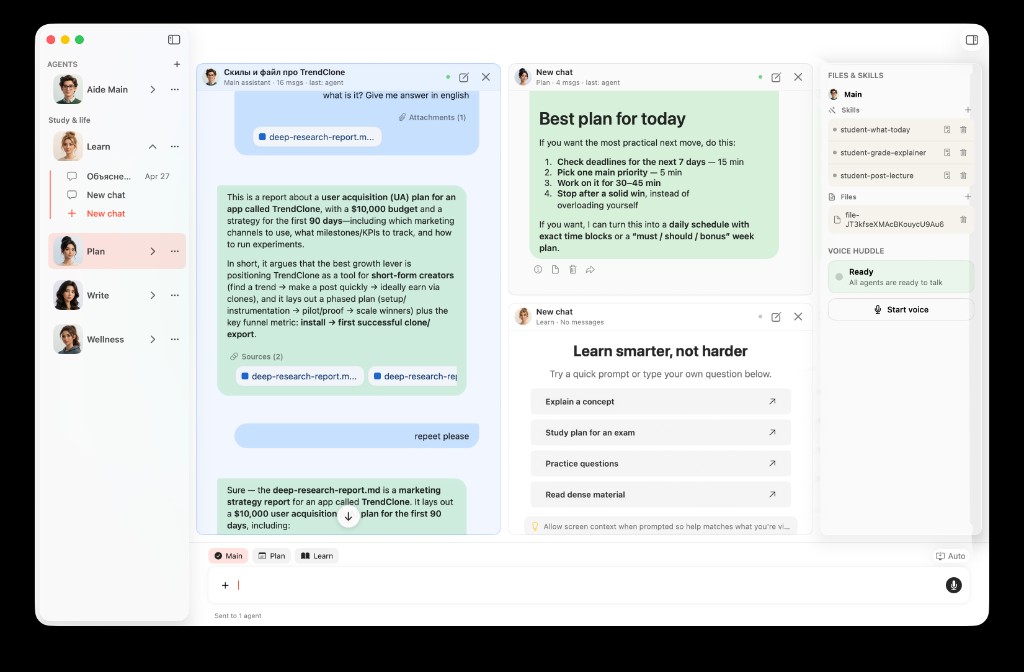
A Mac assistant can split study, plan, write, and wellness into focused agents while sharing connected context — instead of one generic chat for everything.
Six Questions Before You Commit
1. Where do official deadlines live?
If the answer is Canvas or Classroom, your productivity app should connect there — or you will re-type deadlines forever.
2. Where do materials live?
Docs, PDFs, slides, and rubrics need a path into study sessions, not just a link in the LMS you open manually.
3. Where do your notes live?
If it is Apple Notes, prefer tools that search it locally rather than asking you to migrate.
4. Does it help on Tuesday night, not only Sunday planning?
Semester visibility matters midweek when due dates move. Read How to Finally See Everything Going On in Your Semester.
5. Does it stay on the Mac where you work?
Essays, problem sets, and recordings often happen outside the browser. Native access (Spotlight, menu bar, local files) reduces tab tax.
6. Does AI reset every session?
Connected context beats a blank chatbox. For lecture-specific comparison, read Best AI Note Taker for College Lectures.
Where AideAI Fits — And Where It Does Not
AideAI is strongest when:
- you use a Mac for real coursework (not phone-only capture)
- deadlines and materials split across LMS, Docs, and local files
- you want Plan, Learn, Write, and Wellness agents instead of one generic chat
- you want Study overview, Today, and What changed for semester visibility
- you prefer connecting existing tools (Notes, Calendar, Canvas) over migrating into a new notebook
AideAI is not trying to be:
- the prettiest standalone todo list with zero LMS setup
- a phone-first recorder that ignores Mac study workflows
- a browser extension that only works while Canvas is open
Honest tradeoff: setup takes longer than installing a timer app. The payoff is fewer nights rebuilding context from five apps.
Free Vs Premium For Student Productivity
On Free, you can connect core extensions, use Study overview, run planning and study chat, record and transcribe lectures, and attach files — enough to hold a semester together.
Premium adds stronger models, built-in web search, image generation, realtime voice, and advanced transcription limits. Useful for heavy terms; not required to connect Canvas or Classroom on day one.
Details: What Premium Adds to AideAI — and What You Already Get for Free and Pricing.
Practical Picks For Three Mac Setups
Canvas + Notes + Calendar (typical undergrad):
Connect LMS, Calendar, and Notes first. Use Study overview and the materials-deadlines-notes wiring guide. Add local files when PDFs pile up.
Google Classroom + Docs (high school or mixed Google school):
Start with Google Classroom and Google Workspace. Use the Classroom buyer guide for tool comparison within Google-heavy stacks.
Grad student / researcher (files + Mail + lectures):
Prioritize local files, Mail, lecture capture (Turn Lectures Into Notes), and Activity Log recall. LMS may be secondary.
Try Connection, Not Another List
Pick the failure that hurts most this week — missed LMS change, lost note, or blank AI chat.
Fix that layer first: sync Canvas, search Notes, or connect Calendar. Run one assignment through a connected thread.
If the semester feels slightly more legible — not perfect, just less scavenger hunt — you have a better answer than "best app" listicles give.
Download AideAI Free on Mac. Compare plans on Pricing.