 AideAI
Best AI Tools for Google Classroom Students: What Actually Helps on Mac
Search for "best AI tools for Google Classroom students" and you get the same pattern: ranked lists of chatbots, Chrome extensions, and homework helpers that all promise to make school easier.
The rankings rarely ask what Google Classroom students actually need: course context that stays connected to Docs, deadlines, and the Mac where you do the work.
Classroom tells you what was posted. It does not automatically turn that into a plan, explain a reading, or help you draft in the Doc your teacher linked. That gap is where AI tools either help — or add another disconnected tab.
This is a buyer guide, not a logo tournament. For Classroom setup in AideAI, read Google Classroom in AideAI: Course Updates and Materials in Your Study Workflow. For the broader connected-stack story, read All the Places Your Student Life Already Lives — Connected.
Three Moments That Expose A Weak Classroom AI Tool
Before comparing apps, picture failures Google Classroom students actually hit:
The assignment-with-a-Doc-link.
Your teacher posts coursework in Classroom. The real work lives in a Google Doc. A tool that only reads the Classroom announcement misses the rubric, the template, and the draft you are supposed to edit.
The Thursday-night scramble.
Three courses posted updates since Tuesday. You remember one deadline. You forgot the quiz announcement in the course you have not opened since Monday. A generic chatbot cannot help until you manually paste every update.
The explain-this-reading request.
You need help understanding the PDF your teacher attached — but the explanation should connect to what was said in Classroom and what is due Friday. One-off chat starts from zero every time.
If the tool does not connect Classroom to the rest of your stack, you are still the integration layer.
Four Categories Students Actually Compare
Browser-only Classroom helpers
Good at: quick answers while you have Classroom open in Chrome.
Weak at: connecting to Docs you edit on Mac, local PDFs, calendar blocks, or a semester-wide study picture.
Best when: you need a one-off hint and live entirely in the browser.
Generic AI chat
Good at: explaining a concept or summarizing text you paste in.
Weak at: knowing what changed in your courses, which Doc is the real assignment, or what is due without you rebuilding context every session.
Best when: you already have the material in front of you and need a single explanation — not ongoing course tracking.
Classroom-only notebooks
Good at: organizing coursework inside one product tied to Google.
Weak at: pulling in Apple Notes, local files, Mail, Voice Memos, or Mac-native planning workflows.
Best when: your whole semester truly lives in Google and you rarely leave it.
Mac-native assistant with Google sign-in
Good at: Classroom + Workspace context inside the same assistant you use for planning, writing, files, and study on Mac.
Weak at: being the lightest possible browser extension with zero setup.
Best when: you use Classroom but do real work across Docs, Drive, Calendar, Notes, and local files — and want one assistant that can see connected context.
This is where AideAI fits: Google Classroom and Workspace through the same sign-in, plus extensions for Calendar, Notes, Mail, local files, and more — available on Free, not locked behind Premium.
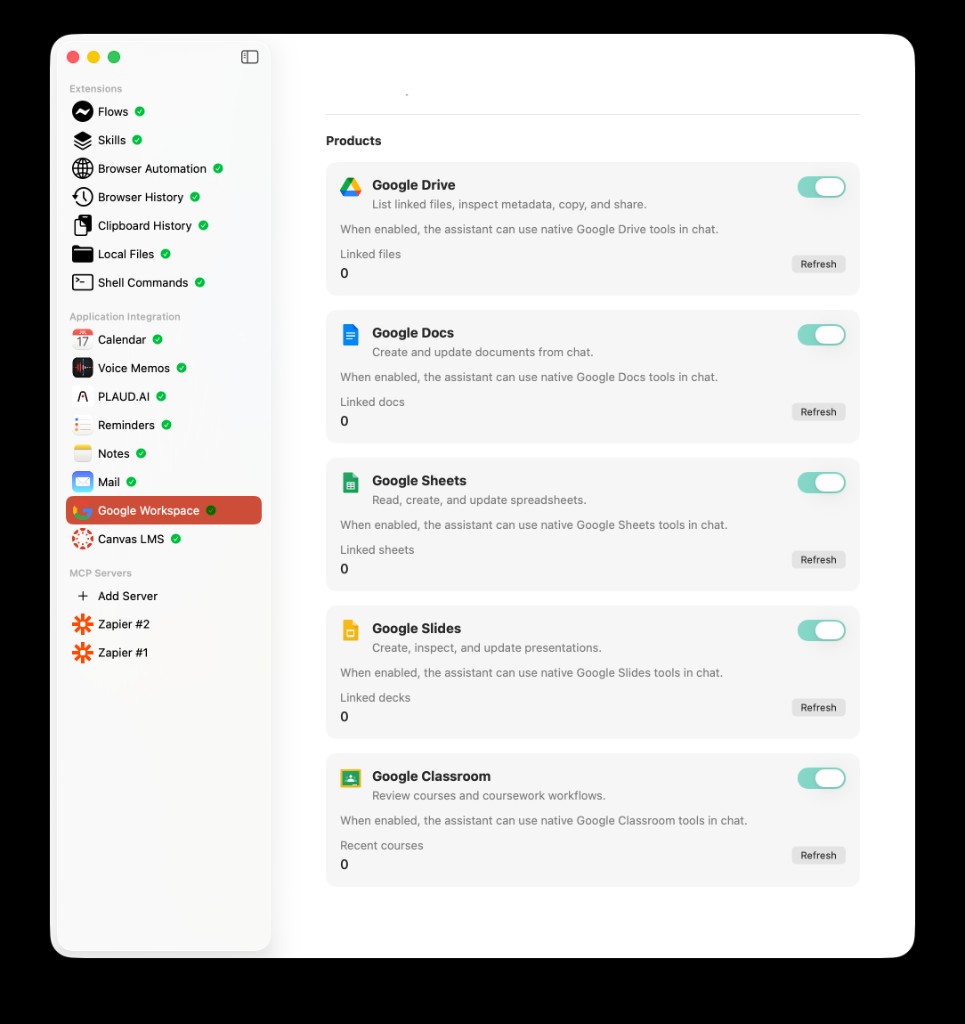
Classroom students often need more than the course feed — Docs, Drive, and Slides are where the actual work happens, and a useful AI tool should connect both layers.
Five Questions Before You Pick
1. Does it see coursework, or only answer generic questions?
Classroom context — assignments, announcements, materials — should feed planning and study, not require copy-paste every night.
2. Can it work with the Google Doc your teacher linked?
Read Google Workspace in AideAI for how linked files work with drive.file access — explicit files, not your entire Drive.
3. Does it help you decide what matters tonight?
Tracking assignments is different from understanding them. For a weekly rhythm, read How to Keep Track of Canvas Assignments With AI — the playbook applies to mixed Canvas + Classroom stacks too.
4. Does it connect to semester visibility?
Study overview and course health matter when you juggle multiple classes. Read How to Finally See Everything Going On in Your Semester.
5. Does it stay useful on the Mac where you actually work?
If essays and problem sets happen in Docs, Notes, or local PDFs, a browser-only helper may not follow you.
Where AideAI Fits — And Where It Does Not
AideAI is strongest for Google Classroom students on Mac who want Classroom and Workspace inside a broader assistant:
- Google Classroom for courses, coursework, announcements, and materials in Study context
- Google Workspace for Docs, Sheets, Slides, and Drive files you explicitly connect
- Plan and Write modes for what to do tonight and how to approach assignments
- Calendar, Notes, Mail, local files when your semester is not 100% Google
Classroom remains the source of truth for official coursework. AideAI does not replace submitting assignments in Classroom. It helps you see what changed, plan around deadlines, and work from connected files without rebuilding context in every chat.
It is not optimized for "smallest Chrome extension, zero setup, never leave the browser." If that is your entire workflow, a lightweight browser helper may feel simpler — as long as you accept manual context every time.
Free Vs Premium For Classroom Work
On Free, you can connect Google Classroom and Workspace, use core chat and modes, enable extensions, and run planning and study workflows from real course context.
Premium adds stronger models, built-in web search, image generation, realtime voice, and advanced transcription — useful for heavier work, not required to connect Classroom in the first place.
Details: What Premium Adds to AideAI — and What You Already Get for Free and Pricing.
Practical Picks For Three Setups
Classroom + Docs only:
Connect Classroom and link the Docs your teachers assign. Ask what changed, what is due, and for help outlining or clarifying — inside the same thread where you attach the Doc.
Classroom + mixed school stack:
Some courses in Classroom, some in Canvas, files on your Mac, deadlines in Calendar. Prefer an assistant that connects multiple sources. Start with All the Places Your Student Life Already Lives — Connected.
"What should I do tonight?" is the daily question:
Pair Classroom context with daily planning. Read What Should I Do Today? A Better Way to Plan Your College Work.
Try Connected Context, Not Another Chat Tab
Pick one assignment due this week. Connect Classroom. Link the Google Doc. Ask what the coursework is really asking for and what to do first tonight.
If that feels faster than opening Classroom, copying the prompt into a blank chat, and explaining your week from memory — you have your answer.
Start with AideAI Free on Mac. Compare plans on Pricing.