 AideAI
From Meeting Notes to Working Code: How CS Students Can Use AideAI with Codex

Your team agrees on a deploy plan in a 25-minute Zoom.
Two days later, the pull request implements something adjacent—not wrong enough to reject, not faithful enough to merge without a third meeting.
That gap is rarely a coding skill problem. It is a handoff problem: decisions live in audio, chat, and half-remembered action items, while the coding tool only sees the project files.
AideAI and OpenAI Codex close that handoff on your Mac.
The handoff students actually lose
CS coursework and club projects produce a familiar trail:
- Someone records or joins a project sync.
- Notes land in three places (Notes, Slack, a doc nobody opens).
- The person writing code starts from memory plus whatever is in the ticket title.
- Open questions get treated as requirements.
- Code review becomes archaeology.
Pasting a raw transcript into a chat does not fix this. Transcripts mix jokes, abandoned ideas, and firm commitments. You need confirmed scope, not a wall of speech-to-text.
What AideAI + Codex is for
AideAI already helps you turn lectures and meetings into notes, summaries, and action items. Connecting Codex is the next mile: take that meeting context into a coding session without retyping everything.
In AideAI, open Apps → Codex. When setup is done, Status shows Ready, and you choose what Codex may use—starting with Meetings.
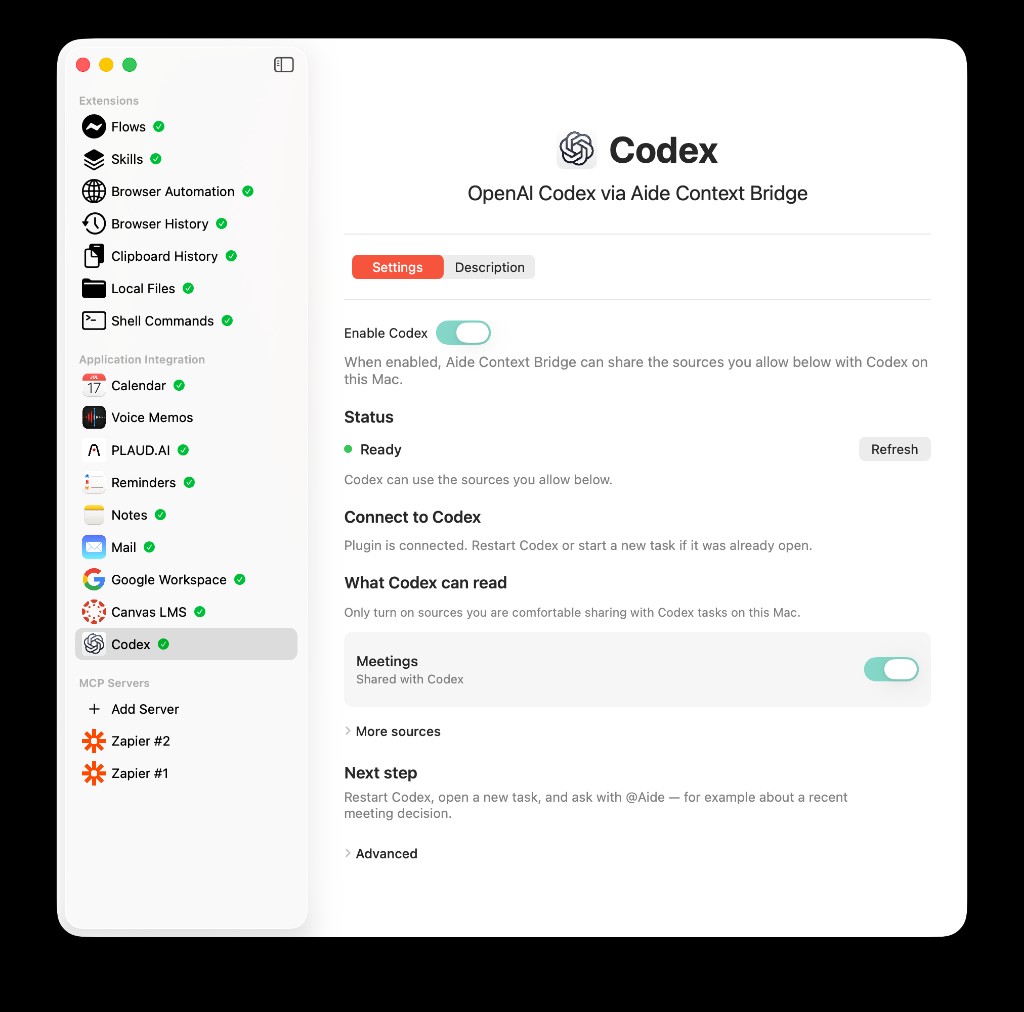
Codex settings in AideAI: enable the connection, confirm Status is Ready, share Meetings, then ask in Codex with @Aide.
In plain language:
- AideAI keeps your meetings and other sources you allow
- on the same Mac, Codex can ask AideAI for that context when you use
@Aide - Codex still does the coding work: edit files, run tests, prepare a pull request
The useful loop looks like this:
meeting → confirmed decisions → code → tests → pull request
Not “AI heard the call and shipped code unsupervised.”
What you keep in AideAI vs what Codex does
AideAI holds the evidence. Capture the sync, keep it searchable, and decide which sources Codex may read under What Codex can read.
Codex does the implementation. Once scope is clear, it works in your project like a normal coding assistant.
You are not dumping your whole semester into a random cloud connector by default. AideAI stays open on your Mac, and you choose the sources. Details: What Codex Can Read from AideAI — and What Stays Local.
A student-sized example
Imagine a three-person team building a class project dashboard.
In the sync you decide:
- ship a pilot release behind a feature flag
- keep the old screen until everyone has the flag
- write a quick smoke test before merging
- postpone the settings redesign (interesting, not decided)
Without this setup, someone often ships the redesign “while they’re in there.” With AideAI + Codex, you ask with @Aide what was decided, separate decisions from ideas, confirm the scope, then implement only the pilot path.
Step-by-step: Turn a Project Sync into a Pull Request Without Losing Decisions.
When this workflow is worth it
It pays off when:
- the meeting actually changed requirements
- more than one person will touch the code
- you already record or import project calls
- the project files are where delivery happens
It is overkill when:
- the task is solo homework with a clear PDF prompt
- there was no meeting—only a Canvas description
- you only need an explanation, not code changes
For study help without coding, stay in Learn. For Canvas and calendars, start from student integrations.
How setup fits (short version)
Use the Mac download of AideAI from the website (this Codex connection is not in the App Store build):
- Open Apps → Codex
- Turn on Enable Codex
- Install the plugin when prompted
- Turn on Meetings (and only other sources you want)
- Restart Codex, start a new task, ask with
@Aide
Full walkthrough: Connect OpenAI Codex to AideAI.
This is different from Add MCP Server, which connects outside tools into AideAI. Codex is for coding the other way: let Codex use the AideAI context you allow on this Mac.
Honest limits
- Available in the Mac website download, not the App Store build
- AideAI must be running when Codex asks for context
- You still confirm scope before treating an idea as a requirement
- Meeting quality depends on whether the call was captured in AideAI
If that matches how you already work—Mac, recorded syncs, real projects—this is one of the clearest assistant + coding loops for student teams.
Try the loop this week
- Record your next project sync in AideAI.
- Connect Codex with the setup guide above.
- Ask
@Aidewhat was decided about the next shippable slice. - Confirm scope, then let Codex implement.
- Open the pull request with decisions, files, and tests named in the description.
Download AideAI for Mac, open Apps → Codex, and keep the meeting attached to the code that ships.