 AideAI
Add MCP Server in AideAI: Connect External Tools to Your Student Assistant

AideAI already connects to many built-in sources: files, browser context, calendars, reminders, Google Workspace, Canvas, and more.
But some workflows live outside the built-in extension list. You may use a research database, a team tool, a private API, a custom campus service, or an automation system that can expose tools through the Model Context Protocol.
That is what Add MCP Server is for.
It lets you connect an external MCP server to AideAI by providing a server name, URL, and access token. Once connected and enabled, the assistant can discover the server's tools and use them when they are relevant to your request.
What MCP Means In AideAI
MCP stands for Model Context Protocol.
In practical terms, an MCP server is a bridge between an AI assistant and an external service. The server describes the tools it offers, and the assistant can call those tools when the user asks for something that requires that service.
An MCP server might expose tools for:
- searching a database
- creating a task
- reading project records
- sending a message
- checking a status page
- updating a document
- calling an internal API
- triggering an automation
- working with a third-party app
AideAI's role is to connect to the server, verify that tools can be loaded, and make the enabled server available to assistant workflows.
Why Students Might Use MCP Servers
Most students do not need to think about protocol details.
The useful question is:
Can my assistant reach the tool or service where this work already happens?
MCP can help when a class, project, lab, club, or personal workflow depends on a tool that is not built into AideAI yet.
Examples:
- a custom study tracker
- a team issue tracker
- a lab inventory system
- a private course API
- a research data service
- a CRM or outreach tool
- a project management workspace
- a workflow automation backend
Instead of asking the assistant to guess from pasted screenshots or copied text, you can connect a real tool interface through MCP.
Add MCP Server vs Built-In Extensions
Built-in AideAI extensions are designed for common student workflows. They know how to work with specific systems like Browser History, Local Files, Apple Calendar, Google Workspace, Canvas LMS, and Shell Commands.
Add MCP Server is different. It is a general connector for external MCP-compatible servers.
Use a built-in extension when AideAI already supports the service directly.
Use Add MCP Server when:
- the service is external or custom
- the service exposes an MCP endpoint
- you have a server URL
- you have an access token
- you want AideAI to discover and use that server's tools
This makes MCP a flexible extension layer rather than a replacement for the built-in integrations.
What The Add MCP Server Screen Does
The Add MCP Server screen is the entry point for creating external server connections.
It gives you two choices:
Add newfor a custom MCP serverAdd new Zapierfor Zapier's MCP server preset
Choose Add new when you already have a custom MCP endpoint and token.
Choose Add new Zapier when you want the Zapier-specific setup flow with Zapier's server URL already handled for you.
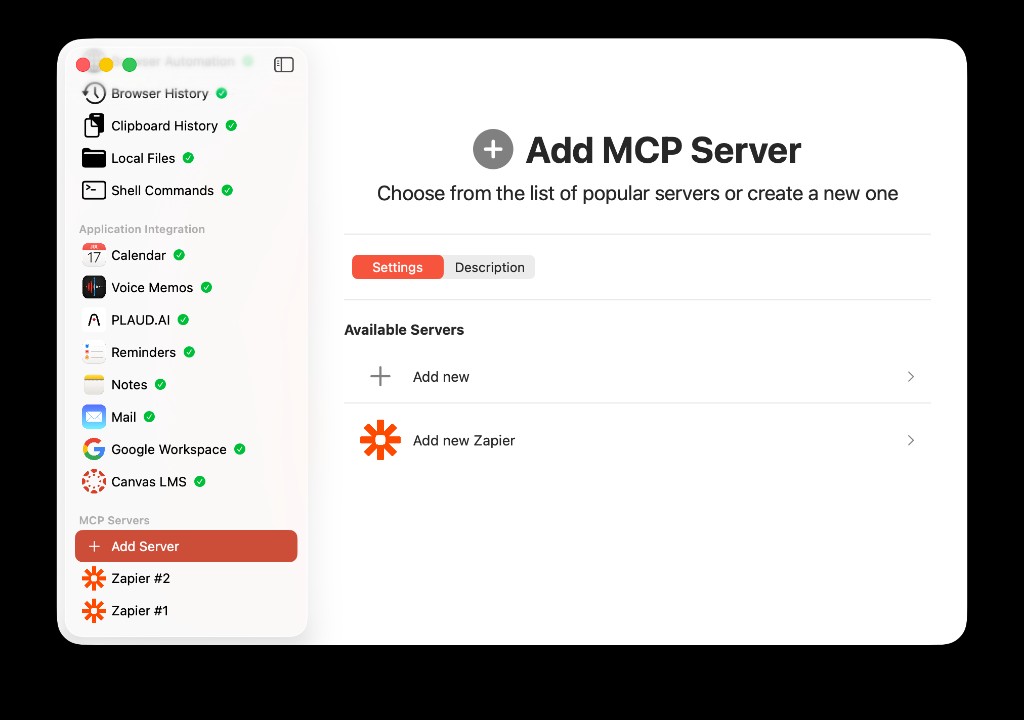
The Add MCP Server screen lets you choose between a custom MCP server and the Zapier MCP preset.
Custom MCP Server Settings
When you create or edit a custom MCP server, the settings screen contains the important fields and actions.
Enable MCP Server
Existing servers have an Enable MCP Server toggle.
When enabled, the assistant can use that server's tools. When disabled, the server remains saved in AideAI, but the assistant should not call its tools.
This is useful when you want to keep a server configured but temporarily prevent it from being used.
Name
Name is the label AideAI uses for the server.
Use a name that is easy to recognize later, especially if you connect more than one MCP server.
Examples:
Research DatabaseClub TasksLab APICampus ToolsPersonal Automations
The name also helps distinguish tool failures or tool lists when more than one MCP server is connected.
URL
URL is the MCP server endpoint.
AideAI validates that the URL uses http or https. The connect button is disabled if the URL is missing or invalid.
Use the exact URL provided by the server owner or service documentation. If the server is deployed by your team, confirm whether the endpoint requires a path such as /api/mcp, /mcp, or another route.
Authentication
Authentication is where you enter the access token for the MCP server.
By default, the token field is hidden. Use the eye button only when you need to verify or edit the value.
The token should have the permissions needed for the tools you expect to use. If the token lacks access, AideAI may connect but individual tools may fail.
Connect
Connect verifies the server.
When you click it, AideAI attempts to fetch the MCP tool list using the server URL, name, and access token. If the tool list loads successfully, AideAI saves the server and stores the access token securely.
If connection fails, check:
- the URL
- the token
- the token permissions
- network connectivity
- whether the server is running
- whether the server supports the MCP endpoint you entered
Connected Status
After a successful connection, AideAI shows a connected status.
This means the server details have been accepted and the tool list could be retrieved at connection time. It does not guarantee every future tool call will always succeed, because remote services can still change, expire tokens, or reject a specific action.
Save
For an existing server, Save verifies the updated settings and saves changes.
Use it after changing the name, URL, token, or enabled state.
Delete
Delete removes the MCP server from AideAI and deletes the saved token for that server.
Use this when you no longer want the assistant to have access to that external tool set.
How Tokens Are Handled
AideAI stores the access token for the server using Keychain storage.
That matters because MCP tokens often grant access to external systems. You should treat them like passwords or API keys:
- do not paste them into ordinary chat messages
- do not share screenshots that reveal them
- use tokens with limited permissions when possible
- rotate tokens if they may have been exposed
- delete unused servers
- disable servers when you do not want tools available
The eye button is for local editing convenience, not for sharing.
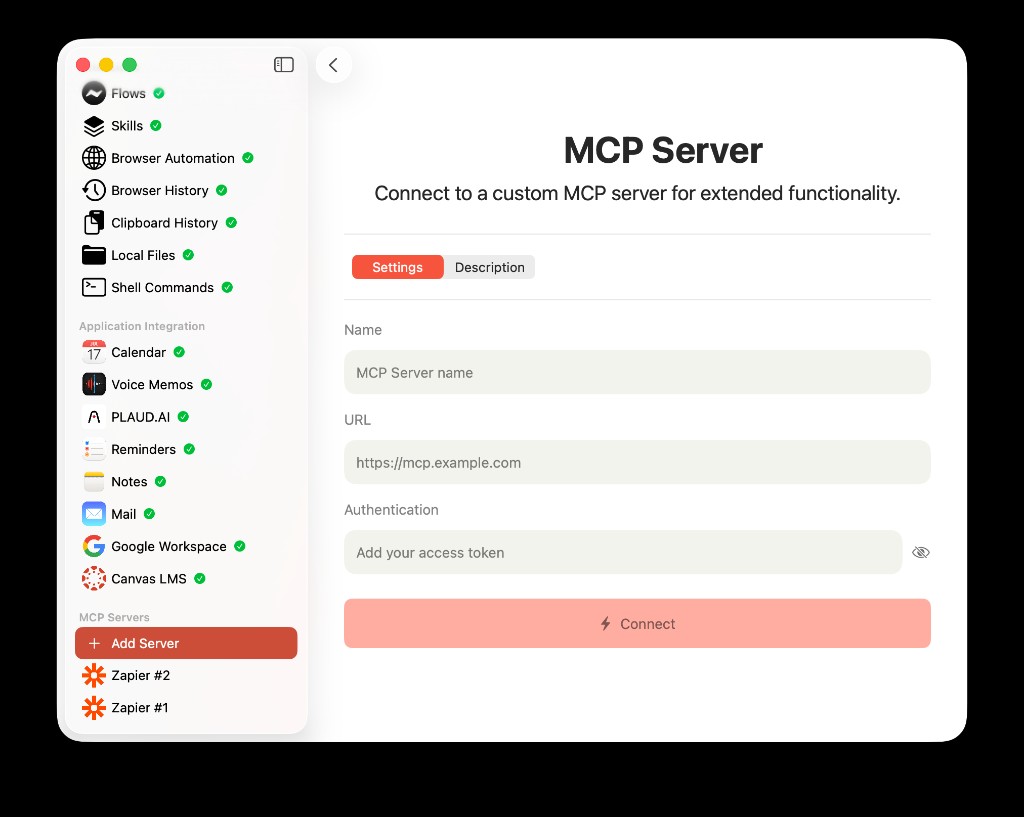
Custom MCP setup requires a server name, MCP endpoint URL, and access token before AideAI can verify the tool list.
What Happens After You Connect
After the server is connected and enabled, AideAI can include that MCP server when sending assistant requests.
The assistant can then use the server's tools when they match what you ask for.
For example:
Add a task to my project board for the biology lab report.
or:
Check the status of the dataset import.
or:
Look up the record for this research item.
The exact behavior depends entirely on what tools the MCP server exposes and what permissions your token grants.
Good Use Cases
Custom MCP servers are useful when a workflow is too specific for a general built-in extension.
Examples:
- a class project tool that stores issues or tasks
- a research group API that exposes datasets or experiment metadata
- a campus-specific system that has no public integration
- an internal automation server maintained by a club or team
- a personal productivity backend you control
- a custom bridge to a SaaS tool not yet supported directly in AideAI
The best MCP servers expose focused tools with clear names and predictable results.
Security And Trust
Only connect MCP servers you trust.
An MCP server can expose tools that read, create, update, or trigger actions in external services. AideAI can call those tools only when the server is enabled and available, but the server itself is still a trusted integration point.
Before connecting a server, consider:
- who operates the server
- what data the server can access
- what actions its tools can perform
- whether the token is scoped narrowly
- whether the URL uses HTTPS
- whether you can revoke or rotate the token
- whether the server logs tool calls
For school, work, lab, or club systems, follow the policies of that organization.
Troubleshooting
If a custom MCP server does not connect, start with the basics.
The URL may be invalid. AideAI expects an http or https URL.
The token may be missing or wrong. Re-enter it and use the eye button only if you need to confirm the value.
The token may not have enough permissions. Check the server's documentation or admin page.
The endpoint may be wrong. Some services use a dedicated MCP path rather than the root domain.
The server may be offline. Try opening the service's status page or checking with the server owner.
The server may load tools but fail later. That usually means a specific tool call needs different permissions, different inputs, or the external service rejected the operation.
MCP Server vs Zapier MCP
Use Add new when you have a custom MCP server URL and token.
Use Add new Zapier when you want to connect Zapier's MCP server and use tools backed by Zapier-connected apps.
Zapier is a specific MCP provider with a known server URL and a dedicated API key flow. Custom MCP is the flexible option for any compatible server.
Try AideAI
If your study or project work depends on tools outside AideAI's built-in extension list, Add MCP Server gives you a way to connect those tools through MCP.
For app automation through Zapier, read Zapier MCP in AideAI: Connect Your Assistant to Thousands of Apps. For reusable workflows inside AideAI, read AideAI Skills: What They Are, How to Get Them, and How They Relate to OpenClaw-Style Packs. For plan details, visit Pricing.