 AideAI
Zapier MCP in AideAI: Connect Your Assistant to Thousands of Apps

Student work often stretches across many apps.
You may track tasks in one place, send messages in another, update spreadsheets, schedule events, file notes, manage forms, log outreach, or move records between tools for a club, class, research group, or side project.
Zapier exists to connect those apps. Zapier MCP brings that automation layer into AideAI, so your assistant can use Zapier-backed tools when you ask it to do real work across connected services.
What Zapier MCP Does
Zapier MCP is a ready-made MCP server option inside AideAI.
Instead of entering a custom MCP endpoint manually, you choose Add new Zapier, get an API key from Zapier, paste it into AideAI, and connect.
After that, the server appears in the AideAI sidebar as a Zapier MCP server. You can enable or disable it, edit the key, save changes, or delete the connection.
Why This Matters
Many assistants are good at drafting text, summarizing pages, or answering questions. The hard part is connecting that reasoning to the apps where work actually happens.
With Zapier MCP, AideAI can be connected to app actions exposed through your Zapier MCP setup.
Depending on your Zapier account, connected apps, and configured permissions, that can support workflows such as:
- creating tasks
- sending messages
- updating records
- adding rows to spreadsheets
- scheduling events
- moving information between tools
- logging outreach
- triggering app workflows
- managing data in services that Zapier supports
The exact available actions depend on what Zapier exposes through your MCP server and what your Zapier account is allowed to access.
Zapier MCP vs Custom MCP Server
Zapier MCP is a preset.
AideAI already knows the Zapier MCP server URL:
https://mcp.zapier.com/api/mcp/mcp
That means you do not need to manually enter the server URL. You only need a name and a Zapier API key.
Use Zapier MCP when:
- you want to connect many SaaS apps through Zapier
- you already use Zapier
- you want a guided API-key flow
- you do not want to host your own MCP server
- your workflow depends on app actions rather than a custom backend
Use a custom MCP server when:
- you have your own MCP endpoint
- your team or lab hosts a private MCP server
- the service is not routed through Zapier
- you need a custom tool set with a custom URL
What You Need Before Setup
Before connecting Zapier MCP in AideAI, make sure you have:
- a Zapier account
- access to Zapier MCP
- the apps or actions you want Zapier to expose
- a Zapier API key from
mcp.zapier.com - AideAI installed on your Mac
If a Zapier action requires another app account, that app must be connected and authorized in Zapier.
How To Set Up Zapier MCP In AideAI
In AideAI:
- Open
Extensions & MCP. - In the
MCP Serverssection, chooseAdd Server. - Select
Add new Zapier. - Enter a recognizable
Name, such asZapierorZapier #1. - Click
Get API Key. - Sign in to Zapier and create or copy the MCP API key.
- Paste the key into AideAI.
- Click
Connect. - After connection succeeds, enable the Zapier MCP server from the sidebar when you want AideAI to use it.
The Get API Key button opens:
https://mcp.zapier.com/mcp/servers?client=aide
This is the Zapier page used to create or manage the key for AideAI.
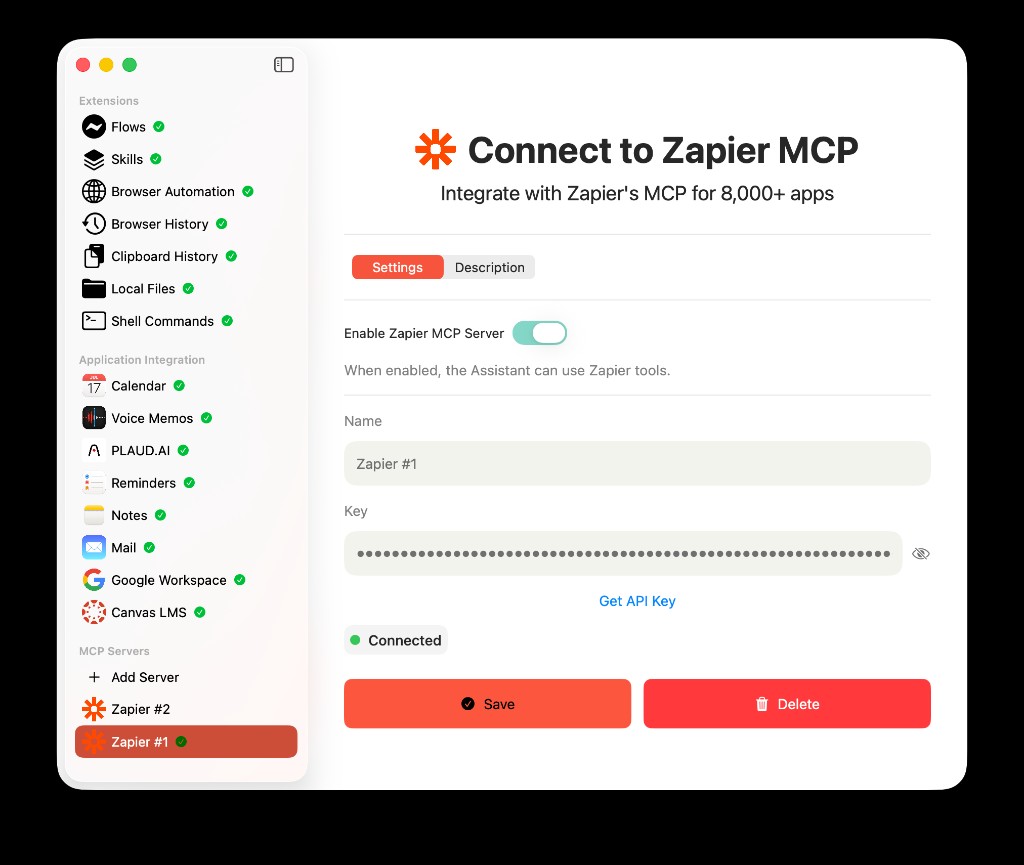
Zapier MCP settings keep the setup focused: enable the server, name it, paste the API key, verify connection, then save or delete the connection when needed.
Zapier MCP Settings Reference
The Zapier settings screen is intentionally simpler than a custom MCP server screen.
Enable Zapier MCP Server
Existing Zapier connections show an Enable Zapier MCP Server toggle.
When enabled, the assistant can use Zapier tools. When disabled, the connection remains saved but AideAI should not call Zapier tools.
This is useful when you want to keep the key saved but temporarily prevent app actions.
Name
Name is the label shown in AideAI.
If you connect more than one Zapier server, use names that explain their purpose:
Zapier #1Personal ZapierResearch ZapierClub OperationsOutreach Automations
A clear name makes it easier to understand which server is being used when tools are loaded or when an error mentions a server.
Key
Key is where you paste the Zapier MCP API key.
The field is hidden by default. Use the eye button only when you need to verify or edit the key.
The key should be treated like any other API credential. It can grant access to Zapier-connected tools and actions, depending on how your Zapier account is configured.
Get API Key
Get API Key opens Zapier's MCP server page for AideAI.
Use it when:
- you have not created a key yet
- you need to copy the key again
- you need to manage your Zapier MCP server settings
- you want to confirm which apps and actions are available
Connect
Connect verifies the key by asking Zapier for the available MCP tools.
If the connection succeeds, AideAI saves the Zapier MCP server and stores the key securely.
If it fails, check that:
- the key was copied correctly
- your Zapier account has MCP access
- the Zapier MCP server is configured
- required apps are connected in Zapier
- the key has not been revoked
Connected Status
After a successful connection, AideAI shows a connected status.
This means AideAI was able to retrieve the Zapier MCP tool list. Future actions still depend on app permissions, Zapier availability, and the specific tool inputs.
Save
For an existing Zapier server, Save verifies and saves updated settings.
Use it after changing the name or key.
Delete
Delete removes the Zapier MCP server from AideAI and deletes the saved key for that connection.
Use it when you no longer want AideAI connected to that Zapier MCP setup.
What You Can Ask
Zapier MCP is most useful when you ask for an action that maps to a connected app.
Examples:
Create a follow-up task for my group project.
or:
Add this outreach lead to my tracker.
or:
Send a draft update to the project channel.
or:
Schedule a reminder event for the meeting.
or:
Log this research contact in the right app.
The assistant can reason about the request, but Zapier controls which app actions are actually available.
Example Student Workflows
Club And Team Operations
Student clubs often run on shared tools: forms, spreadsheets, messaging, calendars, and task boards.
Zapier MCP can help connect AideAI to those operational apps so the assistant can turn conversation into follow-up actions.
Research And Outreach
If you manage outreach lists, research contacts, or project records, Zapier MCP can help move structured information into the right system.
For example, after drafting an email or summarizing a meeting, you can ask AideAI to log the contact or create a follow-up item if Zapier exposes the right action.
Personal Productivity
Zapier can connect personal productivity tools that AideAI does not directly integrate with yet.
This can help with tasks, calendars, notes, trackers, or databases that are part of your personal workflow.
Lightweight App Automation
Some workflows do not need a custom MCP server.
If Zapier already supports the apps involved, Zapier MCP can be a faster path than building and hosting your own connector.
Privacy, Permissions, And Safety
Zapier MCP can affect real external apps, so permissions matter.
Before enabling it, consider:
- which apps are connected to Zapier
- what actions your Zapier MCP server exposes
- whether the key has access to sensitive data
- whether actions can send messages, update records, or create public changes
- whether you should keep the server disabled until needed
- whether the Zapier key should be rotated or deleted later
Do not paste your Zapier key into ordinary chat. Enter it only in the Zapier MCP settings field.
For important actions, review what the assistant is about to do. Zapier is powerful because it can act across apps, but that also means you should treat it as a real automation surface.
Troubleshooting
If Zapier MCP does not connect, start with the key.
The key may be missing, expired, revoked, or copied incorrectly. Use Get API Key to return to Zapier and confirm the current key.
If connection succeeds but a specific action fails, check the connected app in Zapier. The app may need reauthorization, a required field may be missing, or the action may not be enabled for your MCP server.
If AideAI does not appear to use Zapier, make sure the Zapier MCP server is enabled in the sidebar.
If multiple Zapier servers exist, check the name so you know which one is active.
If you no longer use the connection, delete it from AideAI and revoke or rotate the key in Zapier.
How Zapier Fits With Other AideAI Extensions
Zapier MCP is strongest for app actions and cross-service automation.
Other AideAI extensions are better for native local or academic context:
- Browser History helps find pages you already visited.
- Browser Automation opens and reads live pages.
- Local Files searches documents on your Mac.
- Google Workspace works with selected Docs, Sheets, Slides, and Drive files.
- Canvas LMS brings course and assignment context into AideAI.
- Skills package repeatable assistant workflows.
Zapier MCP complements those extensions by connecting AideAI to the broader app ecosystem.
Try AideAI
If your student workflow already depends on apps connected through Zapier, Zapier MCP can turn AideAI into a more practical action layer.
For custom MCP endpoints, read Add MCP Server in AideAI: Connect External Tools to Your Student Assistant. For reusable assistant workflows, read AideAI Skills: What They Are, How to Get Them, and How They Relate to OpenClaw-Style Packs. For plan details, visit Pricing.