 AideAI
AideAI Skills: What They Are, How to Get Them, and How They Relate to OpenClaw-Style Packs
If you are trying to build repeatable assistant behavior without rewriting the same long instructions every time, AideAI Skills are the right primitive to learn.
This article is a product instruction for people who want the full picture: what a skill is, where it comes from, how it connects to the OpenClaw-style SKILL.md ecosystem, and what AideAI adds on top. If you only want a short student-friendly angle, you can start with a lighter blog post and come back here when you are ready to go deeper.
What a Skill is in AideAI (human terms)
A Skill is a packaged workflow for the assistant. It is usually shipped as a SKILL.md file with:
- a name and description
- optional structured metadata (for requirements and product behavior)
- the actual instructions the model (or a tool) should follow
Think of it as: "the assistant playbook for a specific job" that you can import once and reuse, instead of pasting a giant prompt for every new chat.
Skills are not the same thing as files you upload to a chat for vector context. File uploads give the model material to read. Skills give the model a reusable way of working when that work is a good match for a skill pack.
Native vs OpenClaw-compatible (compat) imports
AideAI can import skills in two import modes that matter for real workflows:
- Native skills are
SKILL.mdwritten for AideAI-first conventions. - Compat (OpenClaw-compatible) skills are
SKILL.mdfiles that include OpenClaw-style metadata (often under anopenclawobject in the front matter) and/or other compatibility hints the app recognizes.
You do not need to memorize the parser rules. The practical takeaway is: AideAI is intentionally compatible with a shared packaging style so you can move packs between tools that support the same SKILL.md conventions, while still getting AideAI-specific status, eligibility, and UI around those packs.
The Skill Editor shows what that looks like in practice: you paste or edit SKILL.md, pick a source mode (Auto, Compat, or Native), and the draft preview summarizes dispatch mode, requirements, and eligibility (for example, ready to activate when checks pass). Metadata can reference openclaw for requirements, exactly like packs built for the broader ecosystem.
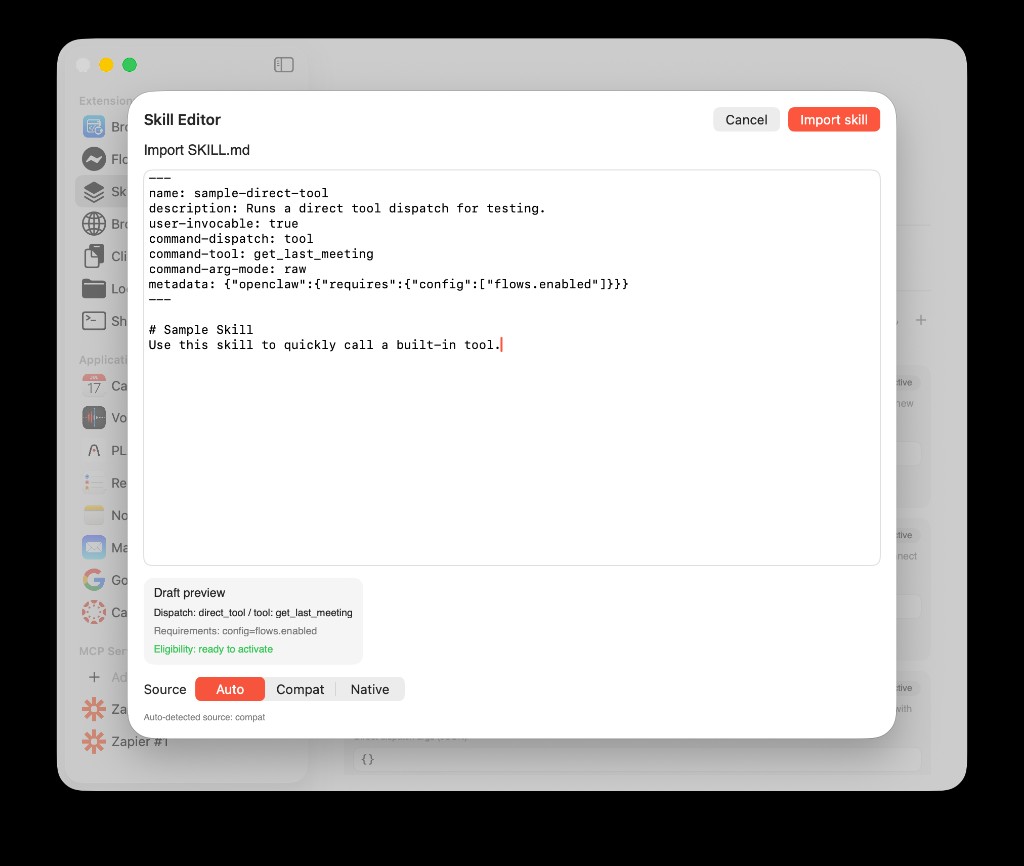
Skill Editor: import a SKILL.md, see parsed dispatch and requirements, and choose how the file should be interpreted (for example, Auto with “Auto-detected source: compat”).
Where skills come from: discovery, sources, and precedence
AideAI does not treat skills as random loose files. It discovers SKILL.md files in configured sources and then builds a snapshot the UI can show reliably.
Source precedence (highest wins if the same skill name shows up in multiple places):
workspace(OpenClaw-style workspace locations on your machine)managed(Aide-managed local storage)bundled(skills shipped inside the app)extra(additional paths from configuration or user settings)
Duplicate name resolution uses a normalized skill name, not "whatever folder looked first in Finder."
In practice, that is how AideAI stays predictable when you are iterating locally: the workspace copy can win over bundled defaults while you are testing changes.
Extensions & MCP → Skills: the screen you will actually use
Open the menu item Extensions & MCP, then choose Skills. The header reads OpenClaw-compatible Skill Packs — that is the same interoperability story: skills are not a proprietary silo.
This Skills screen is the home for:
- the skill list, IDs, and active state
- per-skill Direct dispatch args (JSON), run / docs / delete actions
- import (+) and Refresh snapshot
- tabs for Settings, Description, and Executions
When the list loads, a status line like Snapshot v1 | skills=… | sources: … tells you what the last discovery pass saw (for example, bundled skills vs workspace).
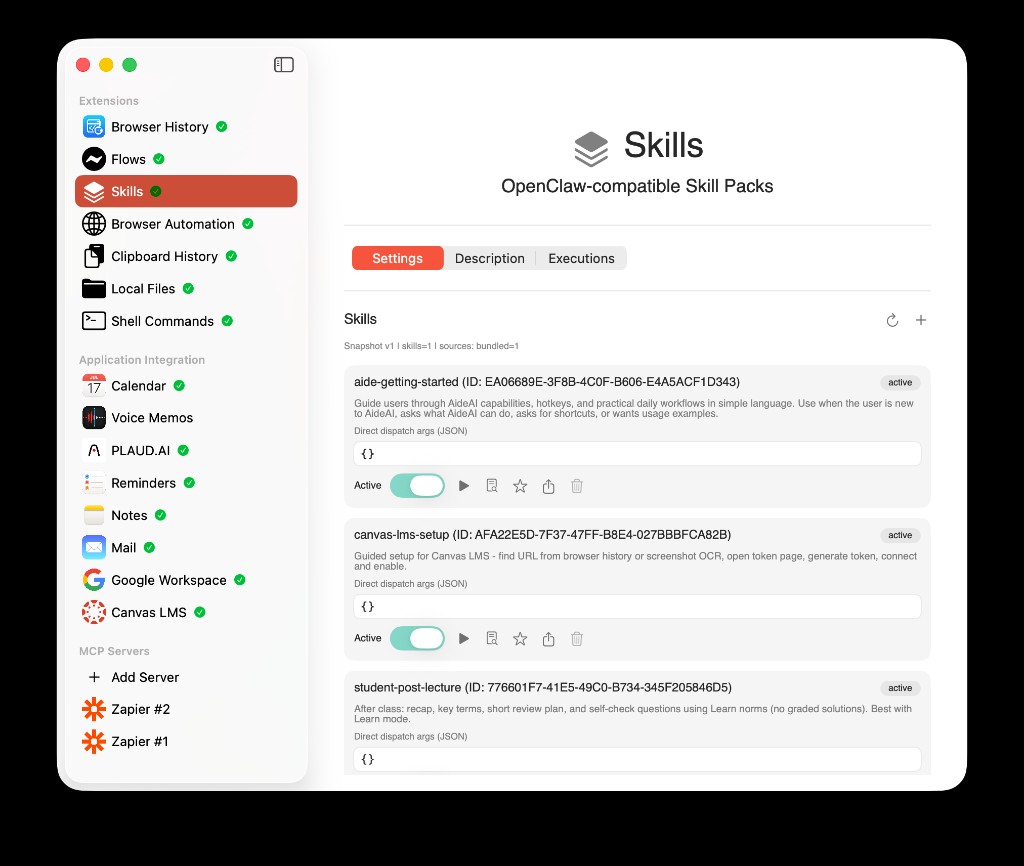
Skills (first tab, Settings): bundled and other sources appear as cards; the snapshot line shows version and per-source counts. Use Refresh or + at the top right to rescan or add skills.
Refresh skill snapshot (why it exists)
AideAI can also refresh automatically when SKILL.md files change, but a manual Refresh skill snapshot is the explicit "re-scan everything now" button.
That matters when:
- you added a new folder
- you edited a skill on disk
- you suspect the UI and disk state drifted apart
Executions: what actually ran
The Executions tab is your transparency log. For each run you can see the skill name, the command (for example a built-in tool name), SUCCESS (or failure), timestamps, and a short pipeline such as event_received → policy_checked → dispatched → completed. That last part matters: Aide is not firing arbitrary tools in secret — you can see policy and dispatch steps.
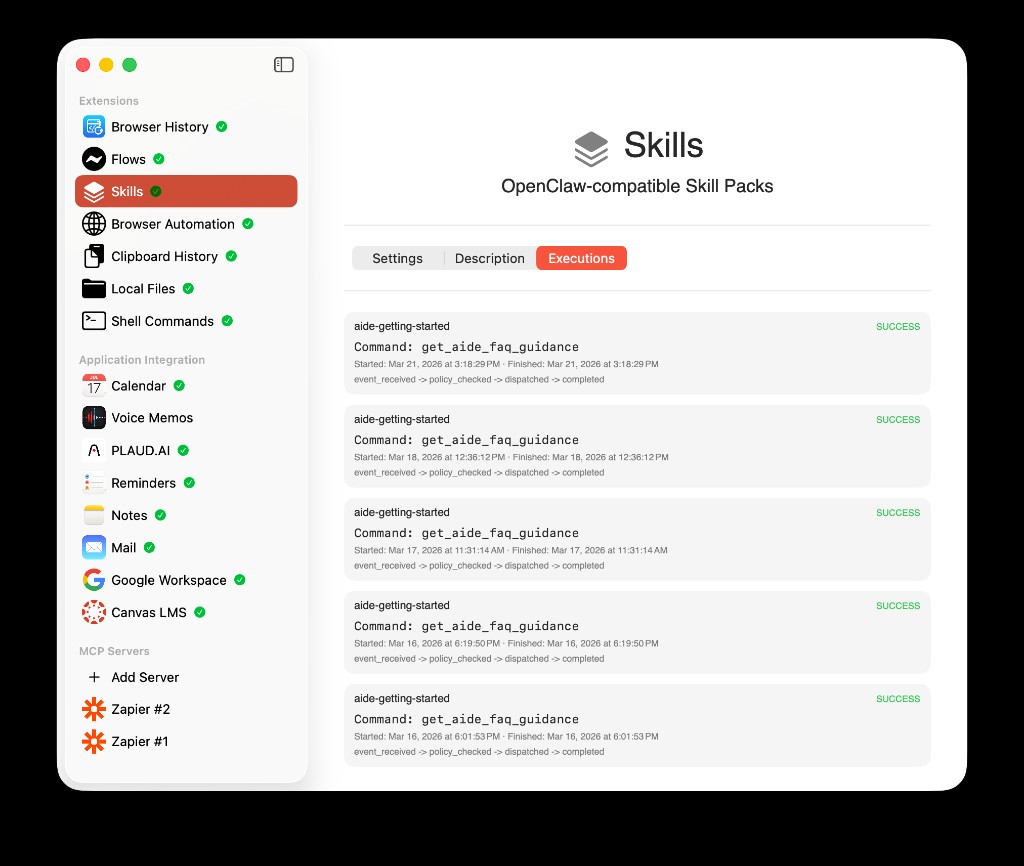
Executions: confirm which skill ran, which tool was called, and that execution went through policy_checked before dispatched.
Readiness, eligibility, and "needs setup"
Skills often encode requirements: environment variables, binaries, config flags, or OS constraints.
If requirements are not satisfied, the product should surface needs setup-style status rather than pretending the skill is fully usable. The exact phrasing in UI can evolve, but the model is always the same: a skill is honest about prerequisites (the Skill Editor preview is the fastest place to see that before activation).
How a skill "runs": model instructions vs direct tool dispatch
AideAI skills can be wired in more than one way, but there are two big ideas to keep straight:
- Model-invocation style skills are primarily about adding structured instructions to the model context (subject to limits and policy).
- Direct-tool skills can be set up to run a concrete tool path in a more deterministic way, and the chat UI may show a Run now-style path when the skill is active and appropriate.
A helpful rule: "direct tool" behavior is a product feature with explicit UX. It is not a hidden way to run tools silently without the product surfaces users expect.
Creating a skill from chat (drafts and confirmation)
AideAI can help you go from a description to a real skill with tool-assisted drafting and a safety-minded confirmation step. At a high level, the story looks like this:
- you ask for a new skill
- the assistant can produce a draft with a preview
- you confirm when you are ready, instead of the app auto-saving a powerful workflow silently
The exact control names in UI may vary slightly by build, but the point is product philosophy: skills are high-impact, so save is a deliberate action. Importing via the Skill Editor (see above) is the path for bringing an existing SKILL.md into the library.
Attached Skills: the same pack, but scoped to a chat or an agent
Attached Skills are the runtime layer on top of the skill library.
They let you say:
- "for this chat thread, always consider these skills first," and/or
- "for this agent, use these as defaults"
In agent settings (Prompts), Default Attached Skills lists the packs that follow that agent into every new chat, until you change them. Use + to pick from skills already in your library; remove with the trash icon. The help text explains that these skills are attached by default for that agent.
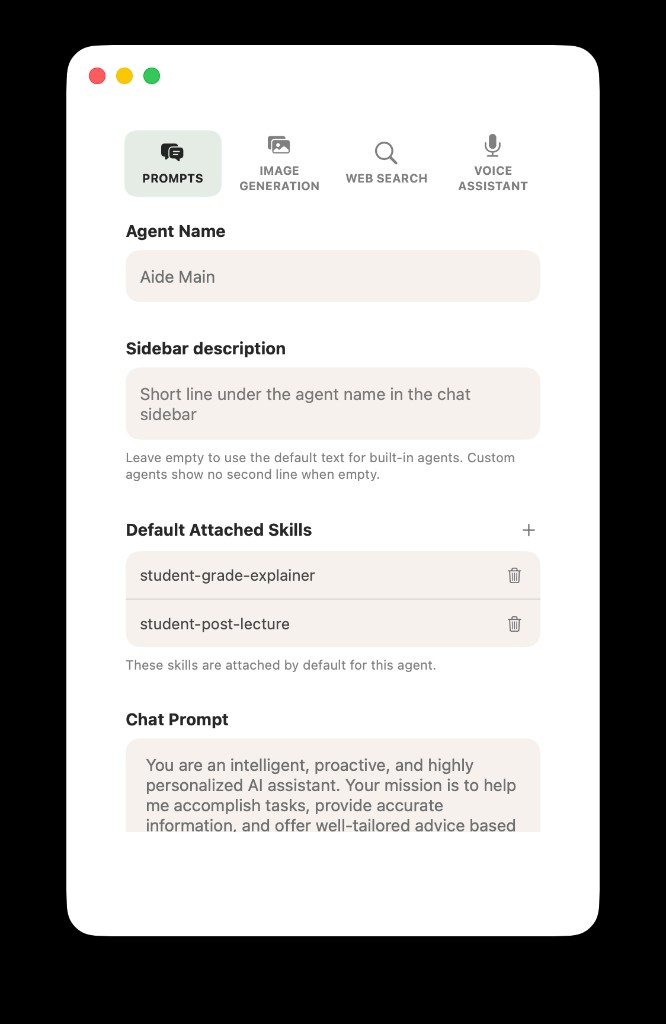
Default Attached Skills (agent): skills that apply to this agent by default (example: student-grade-explainer, student-post-lecture).
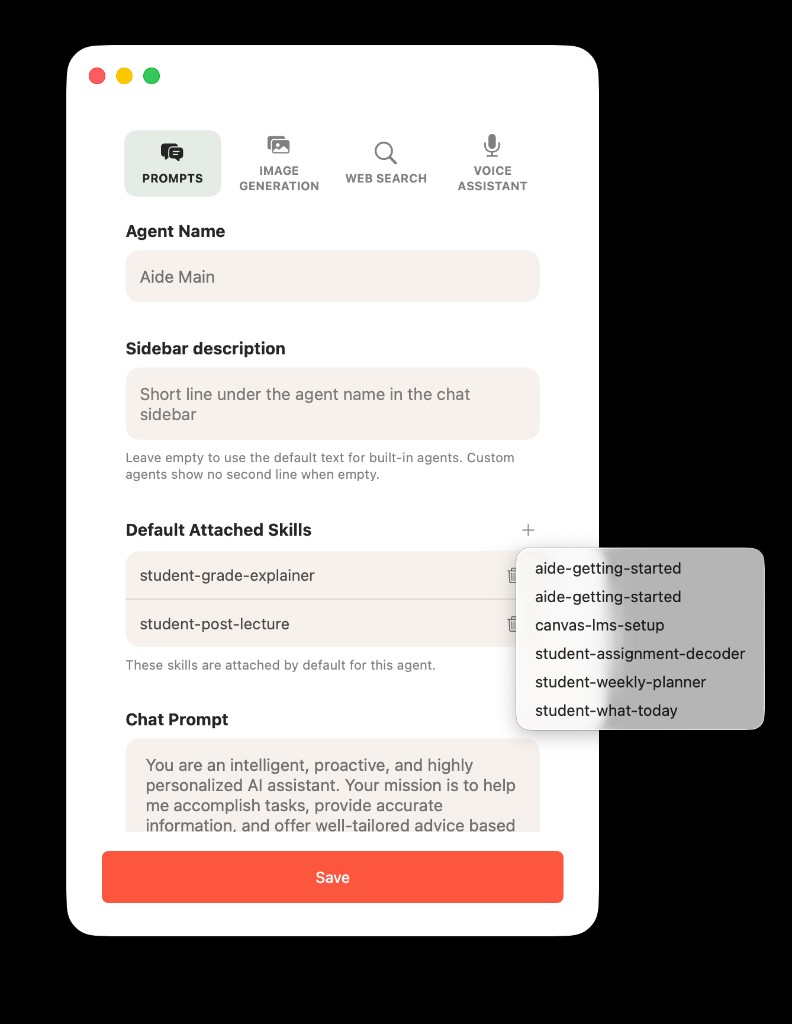
Tapping + opens the library: only skills you have already discovered/imported show up here.
Per-thread control lives under chat attachments (for example Attached Files and Skills). There you can add skills to this conversation only, separate from file uploads. Skills and files are different rows: files bring documents into context; skills bring playbooks. You can remove a skill from the thread when you no longer want it.
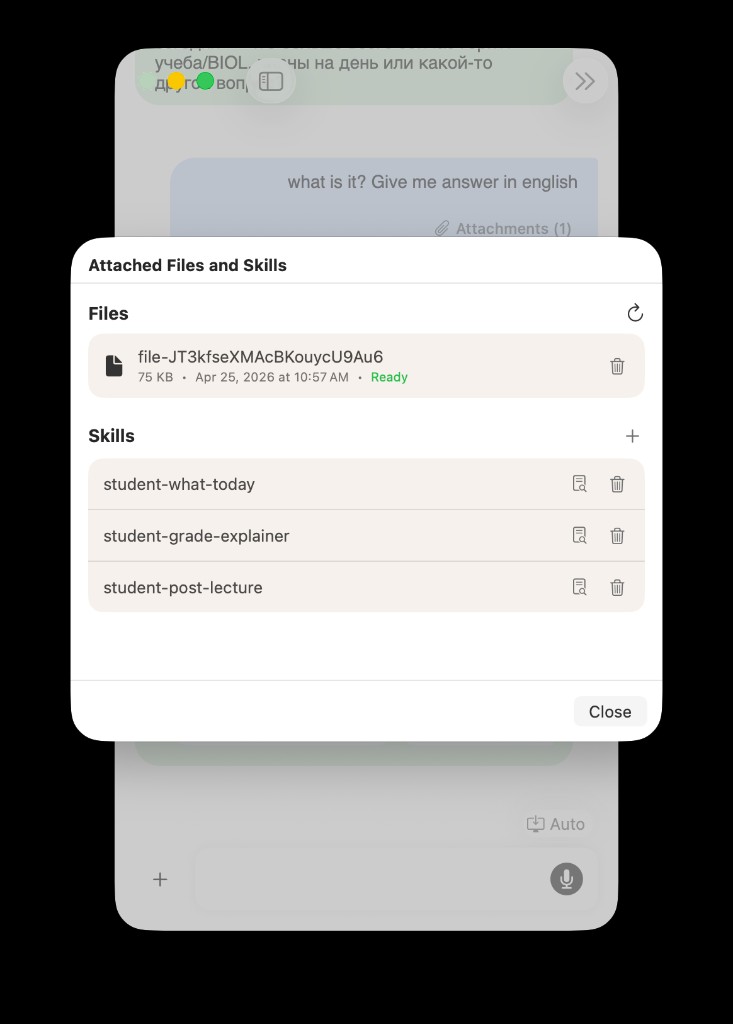
Per-thread: Attached Files and Skills — mix thread-local skills with uploaded files. Example skill names: student-what-today, student-grade-explainer, student-post-lecture.
AideAI merges thread and agent lists with rules (and lets you override inherited defaults per thread where supported). Then a resolver applies product limits so prompts stay safe and stable.
Current limits in the product model are in the same ballpark as: ~1200 characters per skill text slice, ~3000 total for the attached-skill block, and up to 3 included skills for a request, with transparent handling when content must truncate or skills must be excluded.
Voice and chat are intended to stay aligned in spirit; meeting flows may be more conservative depending on the surface.
Explainability: what actually influenced a reply
When a trace exists, AideAI can show a per-turn explainability view for an assistant message (the info control in the same row as copy / delete / share, shown on hover on desktop). The popover is titled Skills for this reply and shows:
- how many skills were evaluated and included in the prompt
- total characters in skill context
- which agent was used
- per skill: Included (or other dispositions), This chat vs Agent default, and per-skill character counts
It is a practical answer to: "What playbook was actually in play for this response?"
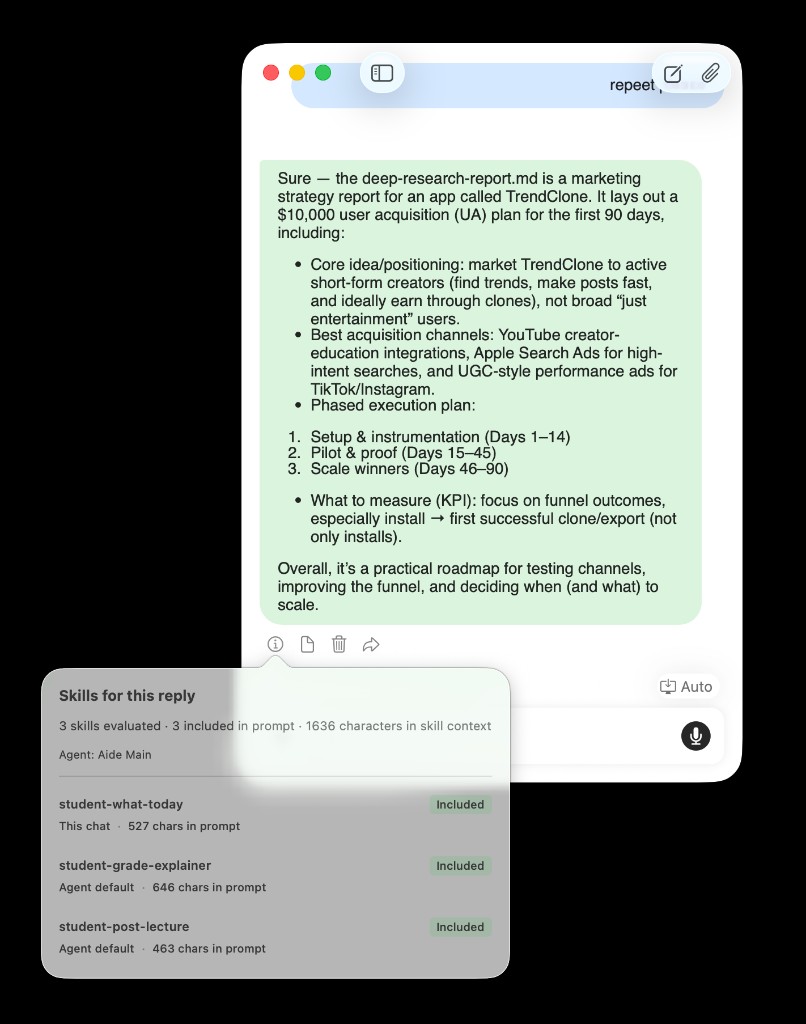
Explainability: one thread might combine a skill attached in This chat with Agent default skills — all reflected in the popover.
AideAI vs a generic "OpenClaw world": what is the same, what is not
What is the same idea
- The packaging unit is still fundamentally
SKILL.mdplus structured metadata, and the ecosystem is converging on shared conventions. - The portability bet is real: a pack can be moved between tools that understand the same format.
What is different
- AideAI is a full macOS app with a student and productivity workflow around chat, files, meetings, and extensions, not a single generic agent runtime.
- AideAI adds app-native surfaces: a dedicated Skills area, import modes, snapshot discovery, attached skills for a thread, eligibility status, and Run now-style entry points where appropriate.
- AideAI is opinionated about safety and clarity (save confirmations, direct-tool visibility, and explainability rather than "silent" behavior).
If you are coming from a repo full of SKILL.md files and OpenClaw-style metadata, the mental model is: bring the packs, let AideAI host them, then attach them to the work you are doing (a class chat, an agent, a run-now path).
Start using Skills in AideAI
The fastest path is:
- Open Extensions & MCP → Skills and make sure the snapshot looks current (Refresh if needed).
- Import a pack with + / Skill Editor, or create a draft from chat if you are iterating.
- If you need a stable playbook, set Default Attached Skills on the agent and/or add skills under Attached Files and Skills for the current thread.
For students who do not need the OpenClaw deep dive, the clearest "why" is still about reusable study workflows rather than file formats.
Start with AideAI and open Extensions & MCP → Skills when you are ready. If you want a student-facing angle on reusable workflows first, read What Should I Do Today? A Better Way to Plan Your College Work and Use AI to Understand Class Material Faster, Not Just Generate Answers. If you are mixing skills with class materials, Local Files in AideAI: Search PDFs, Docs, Notes, and Class Materials on Your Mac is the right complement. For plan details, visit Pricing.