 AideAI
How to Automate Repetitive Student Work with AideAI Flows
Some study work should not wait for you to remember it.
The recap after a lecture. The evening handoff. The weekly review. The reminder that should come out of a meeting. The note that should be updated after a routine check-in. The webhook that sends a summary to the tool where your project actually lives.
Those are not questions. They are routines.
AideAI Flows are for the routines that should run because something happened, because the clock says it is time, or because you press one button.
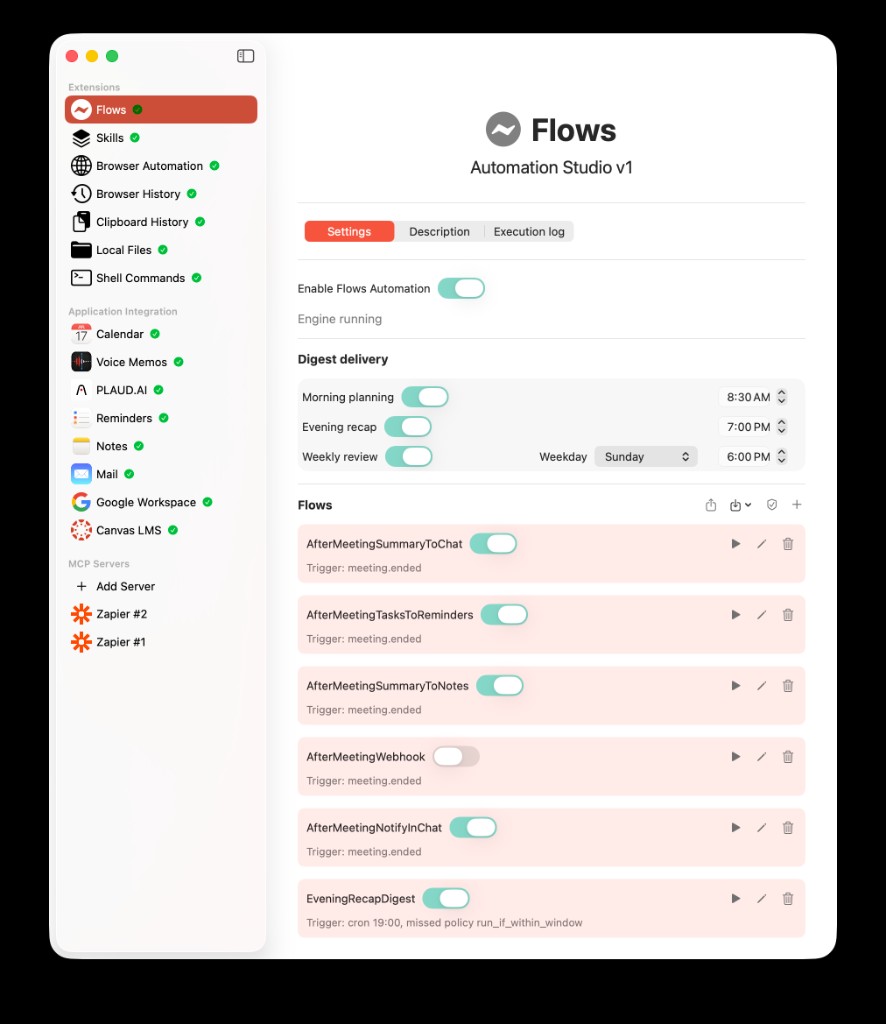
Flows Automation Studio keeps recurring routines visible: digest delivery, enabled flows, triggers, manual run buttons, editing, and execution logs all live in one place.
The Field Guide Version
A Flow is a small automation inside AideAI.
The model is:
Trigger → Actions → Output
A trigger starts the flow. Actions run in order. Output can stay in the execution log, publish to chat, or do both.
Output can also have its own language setting. Keep it on Default to use the existing app and transcription language behavior, or choose a specific language when a routine should always write in that language. For example, an after-meeting summary flow can listen to whatever was recorded and still publish the final chat summary in Russian.
That makes Flows different from asking the assistant a question. A chat starts when you type. A Flow starts when a condition is met: a meeting ends, a schedule fires, or you manually run a configured routine.
For students, the practical question is not "Can I automate everything?"
The better question is:
Which routine keeps happening often enough that AideAI should handle the handoff?
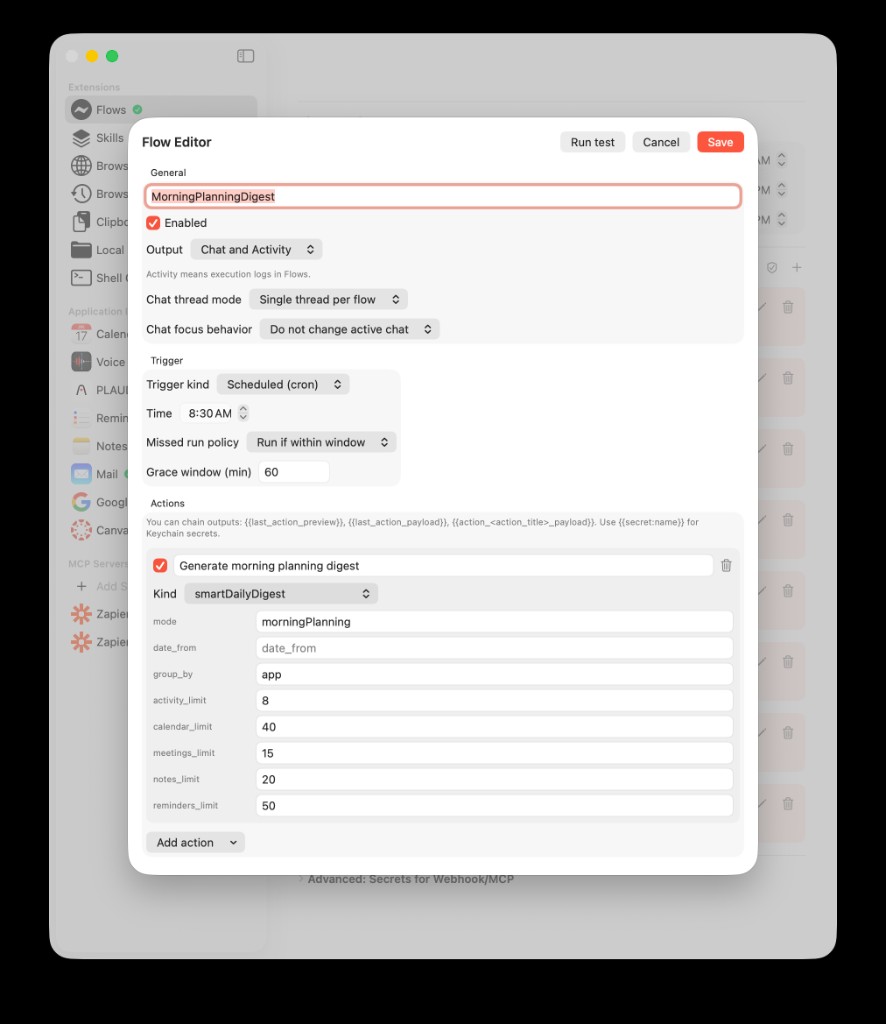
The Flow Editor modal uses Settings-style cards: General, Output, Chat (when chat output is enabled), Safety, Trigger, and Actions. This example configures a scheduled morning planning digest with Smart daily digest output to chat and Activity.
The Flow Editor
Open Apps → Automation → Flows, then click Edit flow on a row (or New flow to start from scratch). The Flow Editor sheet is organized into labeled cards with label-left / control-right rows.
Header: Flow Editor · Run test · Cancel · Save
Use Run test to validate the draft and send a one-off execution to the execution log (and chat, if configured) without closing the editor.
General — Flow name and Enabled toggle.
Output — Short description of Activity vs Chat, then Output (Activity only, Chat only, or Chat and Activity) and Output language (Default or a specific language for model-generated text).
Chat (shown when output includes chat) — Chat agent, Chat thread mode (single thread per flow vs new chat for each run), and Chat focus behavior (auto-focus chat window vs do not change active chat).
Safety — Require confirmation before privileged actions (external writes, skill runs, and similar steps are skipped on scheduled runs until you confirm a manual run).
Trigger — Trigger kind (Manual run, Meeting ended, or Scheduled). For scheduled flows: Time, Missed run policy, and Grace window (min) for catch-up after sleep.
Actions — Ordered steps as collapsible cards (chevron, step number, localized action kind title, delete on the right). Expand a step to edit Enabled, Action kind, Action title, and action-specific fields (for example Research brief and Max items for Web research digest — not raw internal keys like webResearchDigest). Use Add action at the bottom to pick the next step from a menu. Template-variable hints appear only inside expanded actions that support them (webhooks, email, Notes, and similar).
Built-in digest schedules (morning, evening, weekly) are toggled on the main Flows screen under Digest delivery. Open the built-in digest flow in the Flow Editor when you need to change output routing, chat agent, or action parameters.
Five Student Routines Worth Automating
1. The After-Class Handoff
The moment after class is easy to waste.
You close the call, save the recording, tell yourself you will review it later, and move on. Later becomes tomorrow. Tomorrow becomes the weekend. The lecture becomes a file instead of study material.
A Flow can turn the end of a meeting into a handoff:
- generate a meeting summary
- extract follow-up items
- post the result to chat
- create reminders from action items
- send a payload to an external workspace if your project uses one
The goal is not to replace review. It is to make review start from something usable.
For the lecture side of this workflow, read How to Turn Lectures Into Notes, Summaries, and Action Items.
2. The Morning Start
Some days go wrong before the first assignment starts.
You open your Mac and immediately have too many options: a class, a reading, a reminder, a meeting, a half-finished draft, and one deadline you are trying not to think about.
A scheduled Flow can make the morning less blank.
Depending on the routine, a Flow can generate a smart daily digest, publish it to chat, and keep the full result in Activity so you can return to it later. The value is timing: the system brings the planning moment to you instead of waiting for you to ask the perfect question.
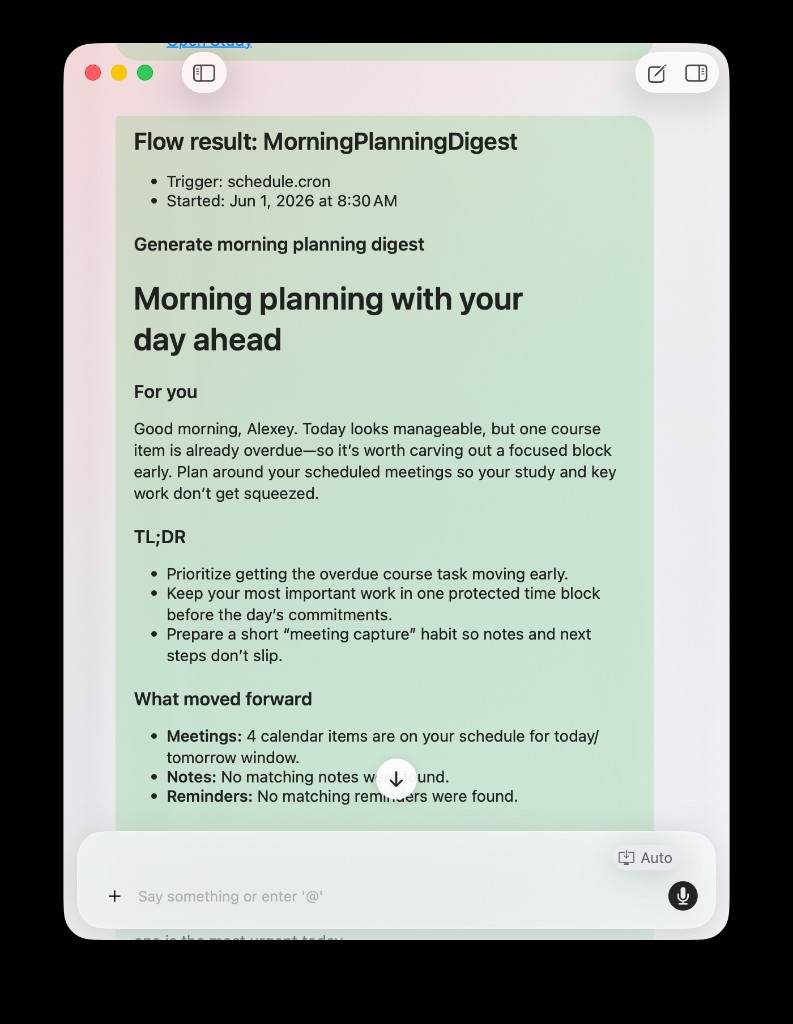
A scheduled Flow can publish a morning planning digest into chat, so the routine ends with something you can read and act on.
If the morning digest is the product moment you care about most, read How to Use a Daily and Weekly Study Digest to Stay on Top of College.
3. The Evening Carryover
Unfinished work becomes risky when it disappears quietly.
An evening Flow can be a handoff to tomorrow:
- summarize what stayed open
- post a recap into a chat thread
- create a reminder for the next concrete step
- leave the full execution details in Activity
This is not a productivity ritual for its own sake. It is a way to stop half-done work from becoming invisible.
A good evening flow should be short. If it creates more work than it saves, it is not doing its job.
4. The Weekly Reset
Weekly planning is valuable and easy to skip.
By Friday or Sunday, the question is bigger than "what is next?" It is:
- which class is becoming risky?
- what did I keep postponing?
- what patterns showed up this week?
- what should next week focus on first?
A scheduled weekly Flow can generate a review and publish it to a stable chat thread. That matters because the thread becomes a record, not just a notification.
The point is not to make the app nag you. It is to make the semester easier to steer.
5. The Project Or Club Update
Not all student work stays inside AideAI.
A class project, research group, club, or outreach workflow may live in Slack, Zapier, Make, n8n, a spreadsheet, a task board, or a custom API.
Flows can send outbound requests through webhooks or dispatch payloads to a configured MCP server. That makes them useful when a recurring academic event should also update an external system.
Example:
After a research meeting ends, summarize the meeting, create reminders for action items, and send the summary to the project automation endpoint.
That is where Flows become more than personal productivity. They become a bridge from AideAI's academic context to the systems where a team works.
For broader external-tool context, read Add MCP Server in AideAI: Connect External Tools to Your Student Assistant and Zapier MCP in AideAI: Connect Your Assistant to Thousands of Apps.
Flows, Skills, And Digests Are Not The Same Thing
These features can overlap in a student's mind because all three make work repeatable.
But they repeat different things.
A Skill is a reusable way for the assistant to work. It answers: "How should the assistant handle this kind of task?"
A Digest is a prepared summary for a specific planning or review moment. It answers: "What do I need to know now?"
A Flow is an automation chain. It answers: "When this happens, what should AideAI do next?"
In practice:
- Use a Skill when you want the assistant to follow a familiar playbook in chat.
- Use a Digest when you want a morning, evening, or weekly academic snapshot.
- Use a Flow when you want the routine to run from a trigger, schedule, or manual command.
For Skills, read One-Click Study Workflows: How Skills Save Students Time. For Digests, read How to Use a Daily and Weekly Study Digest to Stay on Top of College.
What Happens When A Flow Runs
Flows are designed to be visible, not magical.
Each run creates execution history. You can inspect whether the flow started, which actions ran, what failed, and what payload or preview was produced.
That matters because automation without observability creates anxiety. If a flow creates reminders, posts to chat, sends a webhook, or dispatches to MCP, you need a record of what happened.
AideAI supports output choices:
- keep results only in Activity
- publish results to chat
- do both
In the Flow Editor Chat section, a Flow can use Single thread per flow or New chat for each run, and choose Auto-focus chat window or Do not change active chat.
That makes a difference. A morning digest might deserve a stable thread. A test run might belong only in Activity. A meeting follow-up might need to open chat so you can act immediately.
Reliability Is Part Of The Feature
Automation is only useful if it fails clearly.
Flows include guardrails that matter for real student use:
- draft validation before save or run
- preflight checks before manual runs
- execution logs with per-action status
- retry and backoff support for webhook actions
- Keychain-backed secret placeholders such as
{{secret:name}} - missed-run behavior for scheduled flows when the Mac was asleep
That last point is important. Student laptops sleep. A scheduled automation should not pretend the world is a server that is always awake.
For scheduled Flows, missed runs can be skipped, run after wake, or run only if they are still within a grace window.
This is the difference between a toy automation and a routine you can trust during a busy semester.
When Not To Use A Flow
Flows are not the right answer for every repeated task.
Do not make a Flow when:
- you just need one quick answer
- you want to think through a problem conversationally
- the work changes too much each time
- the action should not happen without you reviewing it
- you are still figuring out what the routine should be
Start in chat. If the pattern repeats, consider a Skill. If the pattern should run on a trigger, schedule, or button, then it may be a Flow.
That progression keeps automation honest.
A Simple First Flow
Start with one routine that already happens.
Not the most ambitious automation. Not the one with five external services. Pick the routine that costs you attention every week.
In the Flow Editor, a good first Flow might look like this:
Manual morning check-in
- General — name the flow (for example
Morning check-in). - Output — Chat and Activity; leave Output language on Default unless you want a fixed language.
- Chat — Single thread per flow; Do not change active chat if you prefer a quiet notification.
- Trigger — Manual run.
- Actions — Add action → Smart daily digest; expand the step and set Mode to
morningPlanningif needed. - Save, then Run test once to confirm the execution log and chat output.
After-class handoff
- Trigger — Meeting ended.
- Actions — Generate summary, then Create action-item reminders (two steps, in order).
- Output — Chat and Activity.
Weekly review on a schedule
- Trigger — Scheduled; set Time (for example Sunday 18:00) and Missed run policy.
- Actions — Smart daily digest with Mode
weeklyReview. - Output — Chat and Activity; in Chat, use Single thread per flow.
Once the routine is useful, expand the Actions list: Send webhook, Append to note, MCP dispatch, or chain outputs with template variables inside expanded steps.
Running A Flow From Spotlight
Some Flows are best when they feel like commands.
AideAI exposes Run Aide Flow through Spotlight and Shortcuts for enabled manual flows. That means a routine can be launched from the keyboard without opening the Flows screen first.
Examples:
Run weekly review.
or:
Run evening recap.
or:
Run my after-class workflow.
For the native Mac entry-point view, read Use AideAI from Spotlight: A Faster Way to Start Study Work on Mac.
Explore Flows
Flows are for the student routines that should not depend on memory alone.
If a piece of study work keeps following the same pattern, ask whether it should be a chat, a Skill, a Digest, or a Flow.
Use chat for thinking. Use Skills for repeatable assistant behavior. Use Digests for recurring academic summaries. Use Flows when the routine should run because something happened, because it is time, or because you pressed one command.
That is where automation starts to feel less like a feature and more like a quieter semester.
For related workflows, read Meet Agent Desk: A Multi-Agent Workspace for Students, One-Click Study Workflows: How Skills Save Students Time, and How to Turn Lectures Into Notes, Summaries, and Action Items. For plan details, visit Pricing.