 AideAI
Use AideAI from Spotlight: A Faster Way to Start Study Work on Mac
The fastest student workflow is often the one that does not make you stop and look for the right app window.
When you are about to join a class, review notes, plan your day, or capture a lecture, every extra step creates friction. You have to find the app, open the right screen, click the right button, and remember what you were trying to do in the first place.
That is why AideAI supports system actions through Spotlight and Shortcuts on Mac.
Instead of switching context, you can press Cmd + Space, type an AideAI action, and run it from the same place you already use to open apps, find files, and start system tasks.
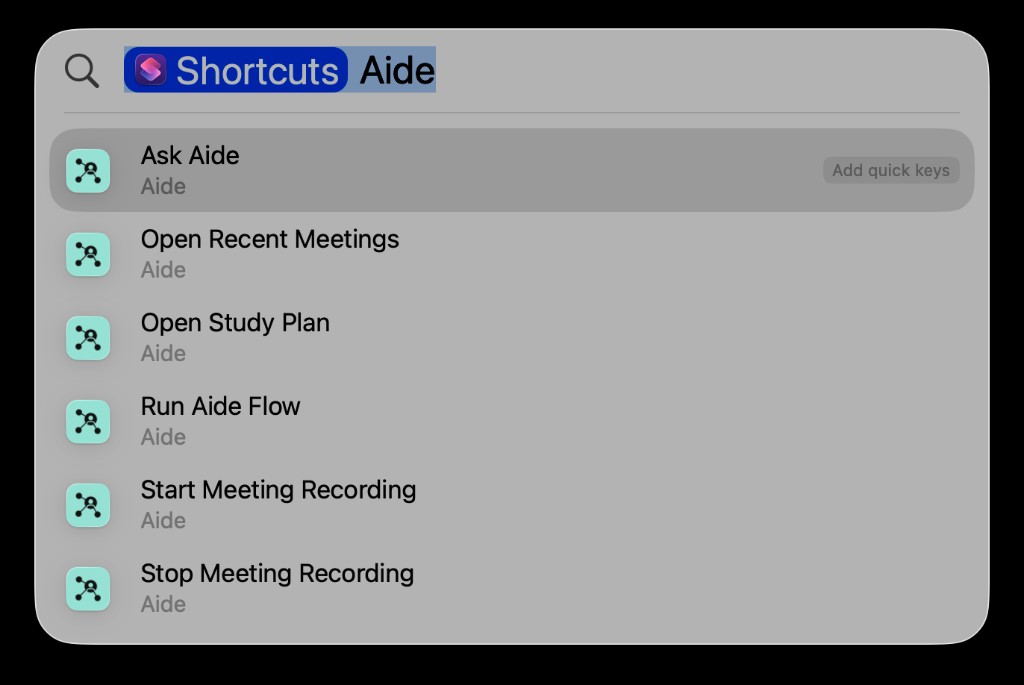
AideAI actions appear in Spotlight alongside other system actions.
The problem: small switches break study momentum
Student work is already fragmented.
You might start the day in Calendar, jump into Canvas, open a PDF, look through Google Drive, answer a message, and then try to remember what you were supposed to study next.
Even when you have the right tools, there is still a hidden cost: getting to the right action at the right moment.
For example:
- You want to ask your assistant something, but the chat window is hidden.
- A lecture is starting, but you have to remember where the recording button is.
- You need your Study plan, but you are currently in a document or browser tab.
- You want to run a routine workflow, but you do not want to dig through settings.
None of those steps is hard by itself. But repeated all day, they make your study system feel heavier than it should.
That is where native Mac access matters.
Why Spotlight is a better launch point
Spotlight is already one of the fastest ways to do things on Mac. It is keyboard-first, always available, and does not require you to move your hands to the mouse.
With App Intents, AideAI can expose useful actions directly to Spotlight and Shortcuts.
That means AideAI is not only available through:
- the menu bar
- the Notch widget
- keyboard shortcuts
- the main chat window
It can also show up as system actions you can search and run.
For students, the difference is simple: you can start the action where your hands already are.
What you can run from Spotlight
AideAI currently exposes a focused set of actions:
| Action | What it does |
|---|---|
Ask Aide | Opens AideAI chat with your prompt ready to go |
Start Aide Meeting Recording | Starts recording a class, lecture, or meeting |
Stop Aide Meeting Recording | Stops the current recording |
Open Aide Study Plan | Opens the Study window |
Open Aide Recent Meetings | Opens your recorded meetings |
Run Aide Flow | Runs an enabled manual Flow |
These actions are intentionally practical. They are not a long list of internal features. They are the moments where a student most often wants to move quickly.
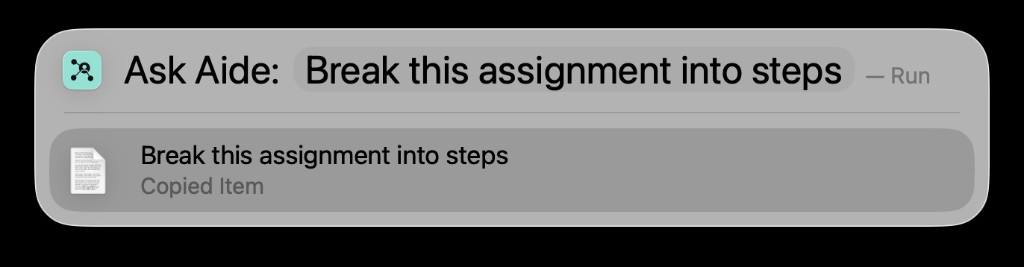
Ask Aide can accept a prompt directly from Spotlight.
Scenario 1: ask without hunting for the chat window
Imagine you are reading a dense assignment prompt and want help turning it into a plan.
Instead of opening AideAI first, you can:
- Press
Cmd + Space. - Type
Ask Aide. - Enter your question.
- Open the chat with your prompt already filled in.
That is useful when you want to keep the flow lightweight.
You can ask things like:
Break this assignment into steps.
or:
Help me understand what this prompt is asking for.
or:
Turn this into a study plan for tonight.
The point is not that Spotlight replaces chat. It gives you a faster door into chat.
Scenario 2: start recording when class begins
Lecture and meeting capture only helps if you remember to start it.
With Spotlight actions, recording can become easier to trigger from the keyboard:
- Press
Cmd + Space. - Type
Start Aide Meeting Recording. - Press Enter.
AideAI starts the recording flow and checks whether the runtime state actually changes before reporting success. If something is not ready, such as permissions or recording setup, the action can return a clearer status instead of pretending everything worked.
That matters because recording is a trust-sensitive workflow. Students need to know whether audio capture actually started.
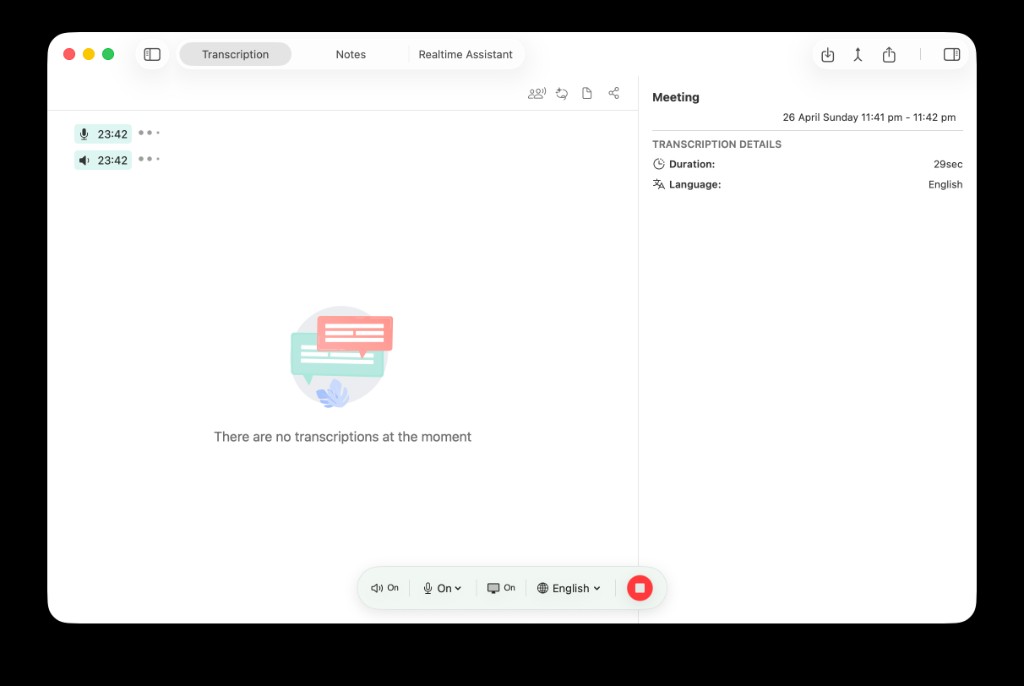
After starting recording, AideAI opens the meeting view and shows the live recording controls.
Scenario 3: jump straight into Study
Some days, the most important question is not "what can AI do?" It is:
What should I do next?
That is what the Study window is for. It brings together academic context like upcoming work, recent changes, course health, and next actions.
With Spotlight, you can open it directly:
- Press
Cmd + Space. - Type
Open Aide Study Plan. - Press Enter.
That makes Study feel less like a destination buried inside the app and more like a quick command for getting oriented.
This is especially useful before:
- starting homework
- planning the evening
- reviewing what changed in your classes
- deciding which assignment needs attention first
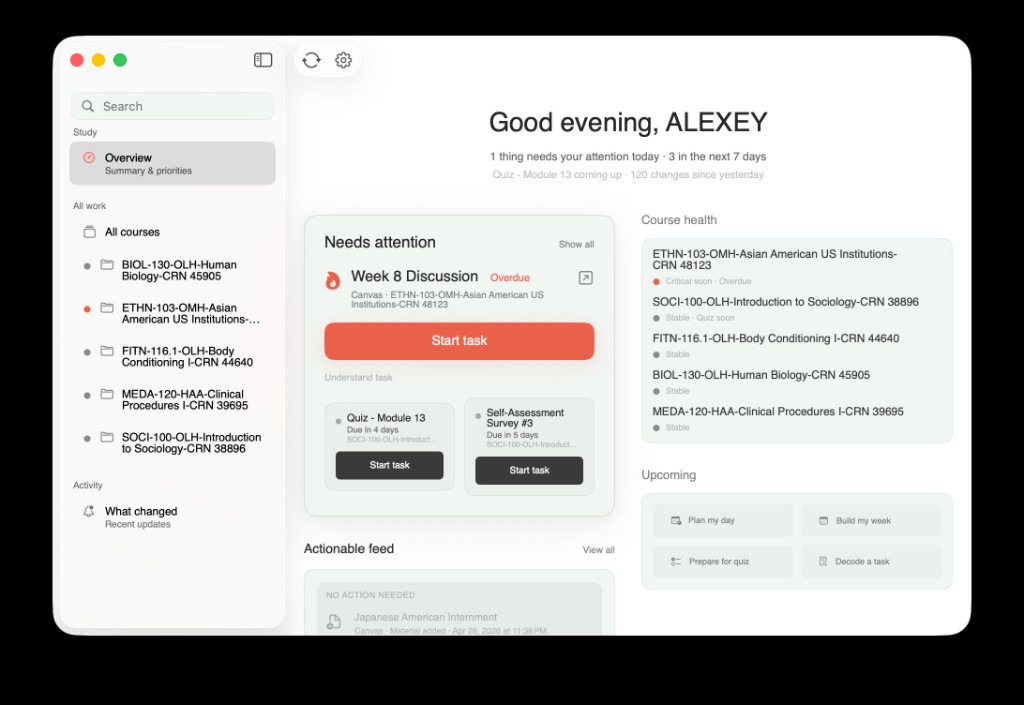
Open Aide Study Plan jumps straight into the Study overview, including priorities, course health, and upcoming actions.
Scenario 4: run repeatable workflows with AideAI Flows
Students often repeat the same workflows:
- summarize what happened today
- prepare a weekly study review
- turn a meeting into follow-up actions
- publish a digest into chat
AideAI Flows are designed for that kind of repeatable routine. With Run Aide Flow, Spotlight can suggest enabled manual flows and let you start one without opening the Flows screen first.
That makes routines feel more like commands:
Run weekly review.
or:
Run evening recap.
or:
Run my after-class workflow.
The action only suggests flows that are enabled and set up for manual runs, so you do not have to pick from irrelevant scheduled or event-driven automations.
Spotlight, hotkeys, and the menu bar all have different jobs
This feature does not replace existing ways to use AideAI.
It gives you another entry point.
Here is the simplest way to think about it:
| Entry point | Best for |
|---|---|
| Menu bar | Browsing app sections and settings |
| Notch widget | Quick visual status and meeting access |
| Hotkeys | Actions you use constantly |
| Spotlight | Actions you want to search and run by name |
| Shortcuts | Automations and multi-step workflows |
That balance is important. A native Mac assistant should not force every user into one interaction style.
Some students prefer hotkeys. Some prefer the menu bar. Some live in Spotlight. AideAI works better when it meets those habits instead of replacing them.
Why this matters for students on Mac
The bigger idea is that AideAI should feel like part of your Mac, not another web app you have to remember to open.
That matters because student work happens in motion:
- a lecture starts
- a deadline changes
- a professor clarifies something
- a document needs revision
- a study session turns into planning
When the assistant is available through system surfaces like Spotlight and Shortcuts, it is easier to use at the moment you need it.
That is the real value of native access. It reduces the distance between intention and action.
Free vs Premium
Spotlight and Shortcuts access is part of the native AideAI workflow. The value is not about locking a basic launcher behind a paid tier. It is about making the app faster and more natural to use on Mac.
Premium can still add more power in other areas, such as advanced models, web search, image generation, realtime voice, and other high-capacity features.
But the core idea here is simple: if AideAI is installed on your Mac, it should be easy to reach.
Try AideAI from Spotlight
If you use a Mac for school, small workflow improvements add up quickly.
Try opening Spotlight and running one simple action:
Ask Aide
or:
Open Aide Study Plan
or:
Start Aide Meeting Recording
The goal is not to add another place to manage. It is to make the assistant available from the place you already use to start things on Mac.
If you want to see how AideAI helps plan daily academic work, read What Should I Do Today? A Better Way to Plan Your College Work. If you want to learn how recordings become useful notes and summaries, read How to Turn Lectures Into Notes, Summaries, and Action Items. If you want the broader integrations story, read All the Places Your Student Life Already Lives - Connected.
Download AideAI for Mac and try the Spotlight workflow with your next study session.