 AideAI
Too Many Tabs? Use AideAI to Work With What You're Already Reading
Student research often starts in the browser and ends in a mess of tabs.
You open a course page, a few articles, a PDF, a documentation page, a school portal, a forum answer, a Google result, and one source you swear you will come back to later. Then the actual work begins: writing the paper, finishing the lab, planning the project, or understanding what the assignment asks.
The problem is not that students lack information. The problem is that useful web context gets scattered across tabs, history, bookmarks, and pages that only make sense while you are signed in.
AideAI helps turn that browser chaos into usable study context.
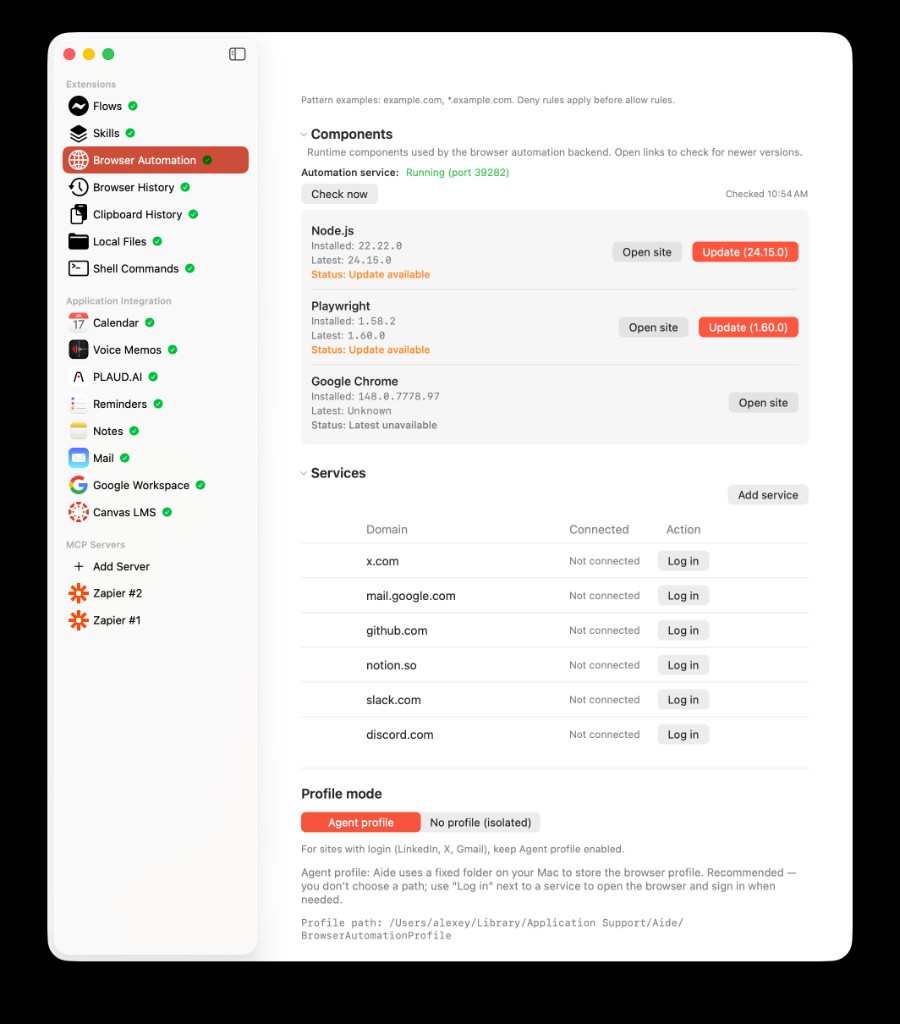
Browser work is not just about opening pages. AideAI can help recover pages you already visited, read live web content, and use that context in study conversations.
The Problem
Students do a lot of real work in the browser:
- reading sources for essays
- checking course portals
- opening PDFs and lecture pages
- comparing articles
- researching examples
- reviewing documentation
- looking up forms, deadlines, and instructions
- switching between school accounts and personal research
But browsers are built for navigation, not for turning messy research into a clear academic workflow.
You might remember:
the article I read last week about attention and learning
or:
the documentation page with the setup command
or:
the assignment page that explained the grading criteria
or:
the source I opened in Safari but forgot to bookmark
Those memories are useful, but they are not always easy to search by URL or title.
Why The Usual Workflow Breaks Down
The default student browser workflow creates friction at every step.
If you need a page you already saw, you open history and guess the right keyword. If the page is live, you copy text into chat. If there are three sources, you repeat that process three times. If the page requires login, the assistant cannot see it unless you manually describe it. If the page is dynamic, a simple copy-paste may miss the important content.
That means the student becomes the browser integration layer:
- Find the old page.
- Reopen it.
- Copy the relevant text.
- Remove navigation and unrelated content.
- Paste it into chat.
- Explain what the page is for.
- Repeat for every source.
By the time you ask the real question, you have already spent energy reconstructing context.
What AideAI Does Differently
AideAI treats the browser as a source of study context.
That includes two related but different workflows:
- Browser History helps find pages and bookmarks you already opened.
- Browser Automation helps AideAI open, read, and work with live webpages.
Together, they cover the two most common browser problems:
- "Where was that page I found earlier?"
- "Can you work with this page right now?"
This matters because browser research is rarely a single clean link. It is usually a trail: old searches, saved bookmarks, current tabs, course pages, documents, articles, and signed-in services.
Recover Pages You Already Opened
Browser History is useful when the page exists somewhere in your past browsing, but you cannot remember the exact title or URL.
You can ask questions like:
Find the article I opened last week about cognitive load.
or:
Show me pages from my university domain I visited this month.
or:
Find the GitHub repo I opened for my data visualization project.
or:
Search bookmarks for my economics paper sources.
AideAI can search local browser history and bookmarks across supported browsers, then help you recover the trail instead of starting over.
For the detailed setup, read Browser History in AideAI: Find the Pages, Research, and Bookmarks You Already Opened.
Work With Live Web Pages
Browser Automation is useful when the page needs to be opened and read now.
That might be:
- an article you want summarized
- a course page with assignment instructions
- a documentation page for a programming class
- a signed-in portal page
- a dynamic page that changes after scrolling
- a resource list with links you want collected
- a form or setup page you need explained
Instead of asking you to manually copy everything into chat, AideAI can use Browser Automation to open a page, inspect its content, follow the workflow, and bring relevant context back into the conversation.
You can ask:
Open this article and summarize the argument for my essay.
or:
Read these three links and tell me which one is most useful.
or:
Open this course page and explain what I need to submit.
or:
Check this documentation page and find the setup steps.
For the full walkthrough, read Browser Automation in AideAI: Let Your Assistant Open, Read, and Work With Web Pages.
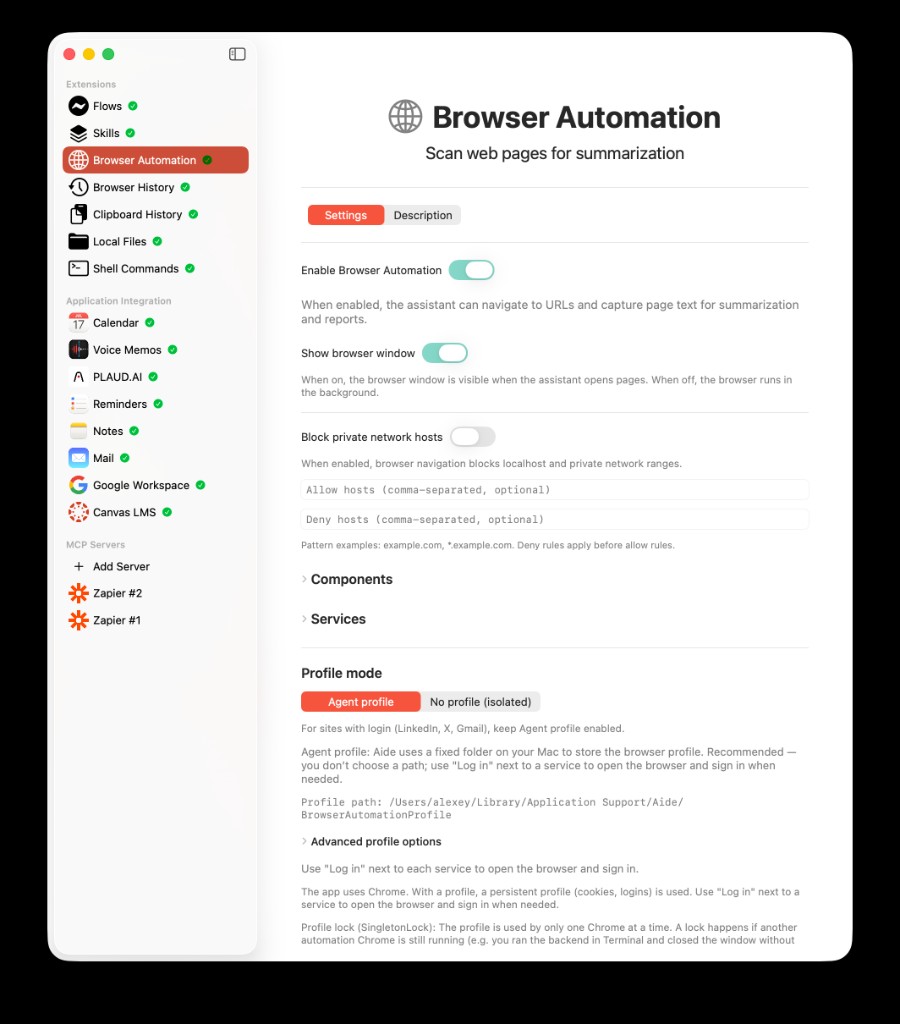
Browser Automation gives AideAI a controlled way to work with live web pages when the current page is the context.
A Real Student Research Workflow
Imagine you are writing a paper on how attention affects learning.
Your browser context includes:
- a few articles you opened last week
- one PDF from a course reading list
- a university library page
- two sources from Google Scholar
- a notes page in your school portal
- a documentation-style page with citation rules
Without browser-aware help, you spend the first part of the session trying to reconstruct what you already found.
With AideAI, you can work in stages.
First, recover the research trail:
Find pages I opened last week about attention, learning, and cognitive load.
Then open the most relevant sources:
Read these three pages and compare the main claims.
Then turn the web context into an academic output:
Build an outline for my paper using the strongest source from this set.
That sequence is different from asking a generic AI chat for "an essay about attention." It uses the work you already did in the browser.
Browser Context Helps More Than Just Essays
Browser assistance is useful anywhere student work depends on web pages.
Course Portals
Class instructions often live on web pages, not in neat documents.
AideAI can help read an assignment page, pull out the deliverables, identify dates, and turn instructions into next actions.
Research Projects
Research usually involves many partial sources. Browser History helps recover what you saw; Browser Automation helps inspect what is currently open.
This is especially helpful when you remember the idea from a source but not the exact title.
Programming Classes
Programming assignments often involve documentation, error messages, GitHub pages, package instructions, and examples.
Instead of manually copying pages into chat, you can ask AideAI to open the relevant documentation and find the exact command, API behavior, or setup step.
Group Work
Group projects create scattered links: shared docs, task boards, forms, meeting pages, and resource lists.
Browser-aware assistance can help reconnect those links to the actual project question.
Admin Tasks
Not all student work is academic writing.
Sometimes you need to understand a financial aid page, a registration form, a housing portal, or a scholarship requirement. Browser Automation can help read the page and explain what information is needed.
Browser History vs Browser Automation
Use Browser History when you need to find something you already visited.
Use Browser Automation when you need AideAI to work with a live page now.
They are strongest together:
- Browser History helps recover the page.
- Browser Automation helps read or act on the page.
- Chat turns the result into notes, summaries, plans, or writing help.
This is why browser context belongs next to the rest of your study workflow. It connects web research with the documents, notes, recordings, and tasks you already use.
For a broader view of connected student context, read All the Places Your Student Life Already Lives - Connected and Use PDFs, Notes, Docs, and Audio as Real AI Context.
Privacy And Control
Browser context can be sensitive.
Your history, bookmarks, signed-in pages, course portals, and private tools may reveal personal information or school data.
AideAI is designed around user-controlled sources:
- enable only the browser sources you want to use
- choose when Browser Automation should work with a page
- use allow/deny controls for websites where appropriate
- avoid asking the assistant to access pages that contain sensitive information unrelated to the task
- review important actions before relying on them
Browser assistance is most useful when it is selective. Bring in the page or research trail that matters for the current task, not your entire online life.
What To Try First
Start with one browser problem you already have.
If you lost a source, ask AideAI to search your browser history by topic, date, domain, or browser.
If you have a live page open, ask AideAI to summarize it, extract the key instructions, compare it with another page, or turn it into notes.
Good first prompts:
Find the page I opened last week about spaced repetition.
or:
Open this article and give me the strongest quotes for my paper.
or:
Read this assignment page and turn it into a checklist.
or:
Compare these two sources and tell me which one is better for my argument.
The goal is not to browse more. The goal is to make the web pages you already use become part of your study system.
Try AideAI
If too much of your schoolwork lives in tabs, history, bookmarks, and course websites, AideAI can help turn browser context into study output.
Use Browser History to recover pages you already opened. Use Browser Automation to work with live web content. Then ask AideAI to turn that context into summaries, outlines, checklists, source comparisons, or next actions.
For setup details, read Browser History in AideAI: Find the Pages, Research, and Bookmarks You Already Opened and Browser Automation in AideAI: Let Your Assistant Open, Read, and Work With Web Pages. For plan details, visit Pricing. visit Pricing.