 AideAI
Browser Automation in AideAI: Let Your Assistant Open, Read, and Work With Web Pages

Most student work eventually touches the web.
You open class portals, articles, documentation, research databases, GitHub issues, forms, Google pages, social feeds, and private tools that only work after login. A normal AI chat cannot see those pages unless you copy text into the prompt. That breaks the workflow right when the web page is the context.
Browser Automation lets AideAI use a dedicated browser to open pages, read their contents, interact with page elements, and help you turn live web context into useful study output.
It is different from Browser History. Browser History helps AideAI find pages you already visited. Browser Automation helps AideAI work with the page itself.
The Problem
Students often ask questions like:
Summarize this article for my essay.
or:
What does this assignment page ask me to do?
or:
Compare these three links and pull out the strongest sources.
or:
Open this documentation page and find the setup steps.
Without browser access, the assistant needs you to do the manual work:
- Open each page.
- Copy the relevant text.
- Paste it into chat.
- Repeat for every link.
- Remove navigation, ads, and unrelated content.
- Explain what the page is supposed to be used for.
That is slow, especially for long articles, dynamic pages, feed-style sites, or pages that require login.
What Browser Automation Adds
Browser Automation gives AideAI a controlled browser workflow.
With Browser Automation enabled, the assistant can:
- navigate to a URL
- read the text content of the current page
- collect page links when useful
- scroll long pages and feeds to load more content
- capture a browser-page screenshot
- inspect interactive elements through an accessibility-style snapshot
- click buttons or links by element reference or selector
- fill form fields by element reference or selector
- wait for pages, selectors, URLs, or dynamic UI conditions
- open, list, focus, and close automation-browser tabs
- close the automation browser when the task is done
- fall back to opening a URL in your default browser if automation is unavailable
This is useful when the work depends on a real web page, not just a remembered URL.
What It Is Good For
Browser Automation is especially helpful for research and web-based class work.
You can use it to:
- summarize articles and long webpages
- extract key points, quotes, definitions, and dates
- compare multiple links before writing
- inspect assignment pages or documentation
- collect useful links from a resource page
- read content from dynamic pages after scrolling
- help with setup flows that happen in a browser
- work with websites where you are already signed in
- capture a screenshot of a browser page for visual review
For example, you can ask:
Open this article and summarize the argument in bullet points.
or:
Read these three links and tell me which one is most useful for my economics paper.
or:
Open the docs page and find the exact install command.
or:
Go to this portal page and tell me what information it needs.
The value is not just opening a page. The value is that AideAI can continue working with what it finds there.
Live Page Reading
The most common workflow is simple:
- You send AideAI a URL.
- Browser Automation opens the page.
- AideAI captures the page text.
- AideAI summarizes, extracts, explains, or compares the content.
This is useful for:
- articles
- documentation
- course pages
- public PDFs opened in the browser
- knowledge base pages
- resource lists
- search result pages
- project pages
The assistant can include links from the page when that helps you navigate from a source page to a more specific resource.
Dynamic Pages And Infinite Scroll
Some pages do not load everything at once.
Feeds, comment threads, dashboards, social pages, and search pages may reveal more content only after scrolling. Browser Automation supports scrolling so AideAI can load additional content before taking another page snapshot.
For feed-style pages, the assistant can scroll repeatedly and stop after enough posts or items are loaded.
This makes Browser Automation useful for pages where one initial page load is not enough.
Interacting With Pages
Browser Automation can do more than read.
When a page requires interaction, AideAI can inspect the page structure and target interactive elements. It can then click buttons, follow links, or fill fields.
This supports workflows like:
- opening a sign-in page for a service
- clicking through a setup flow
- filling a search box
- switching tabs or panels on a page
- expanding collapsed content
- waiting for a result to appear
- navigating multi-step pages where the useful content is behind a button
This is not meant to make web actions invisible. It is meant to reduce repetitive clicking when you intentionally ask the assistant to work with a page.
For sensitive actions, you should still review what is happening before submitting important forms, changing account settings, paying, deleting, or sending messages.
Signed-In Websites And Agent Profile
Many useful student pages are not public.
You may need to be signed in to:
- Gmail
- GitHub
- Notion
- Slack
- Discord
- X
- a school portal
- a course website
- a private documentation space
Browser Automation supports profile modes.
Agent profile is the recommended mode. AideAI uses a persistent browser profile folder on your Mac, so cookies and logins can stay available across sessions. You can use Log in next to a service to open the automation browser, sign in, and let future assistant requests use that authenticated session.
No profile keeps sessions isolated. This is useful for public pages, but it will not keep you signed in.
Custom path is available for advanced users who want to manage the browser profile folder themselves.
This profile is separate from your normal browsing profile. It gives the assistant a controlled web environment without requiring you to copy cookies or use your everyday browser window.
Services List
The Browser Automation settings include a Services section.
Predefined services include:
- X
- Gmail
- GitHub
- Notion
- Slack
- Discord
You can also add custom services by display name, domain, and optional login URL.
The Services list helps you manage where the automation browser has signed-in access. It can show whether a domain appears connected in the current profile, and it gives you a direct Log in action for services that require authentication.
Browser Window Visibility
Browser Automation can run visibly or in the background.
When Show browser window is on, you can see the browser window as the assistant opens pages and navigates. This is helpful for setup flows, login, debugging, and any task where you want visual confirmation.
When it is off, the browser runs in the background. This is useful for straightforward page reading and summarization when you do not need to watch the page.
For login and trust-sensitive flows, visible mode is usually better.
Tabs, Screenshots, And Waiting
Browser Automation includes several practical controls for real web work.
Tabs help AideAI manage multiple pages at once:
- open a new tab
- list open tabs
- focus a specific tab
- close a tab
Screenshots help when visual layout matters. AideAI can capture the browser page, including full-page screenshots when needed.
Wait controls help with dynamic pages. The assistant can wait for:
- page load states
- a selector to appear
- an element to become visible
- the URL to include a value
- a JavaScript predicate to become true
These details matter because modern websites often load content asynchronously. Browser Automation gives the assistant a way to wait for the page to be ready instead of reading too early.
Setup In AideAI
In AideAI:
- Open
Extensions & MCP. - Select
Browser Automation. - Turn on
Enable Browser Automation. - If AideAI reports missing components, use
Install missing components. - Choose whether the browser window should be visible.
- Keep
Agent profileenabled if you want signed-in sites to work. - Use
Log innext to a service when a website requires authentication. - Add custom services for school portals or private tools you use often.
- Ask AideAI to open, read, summarize, compare, or inspect a URL.
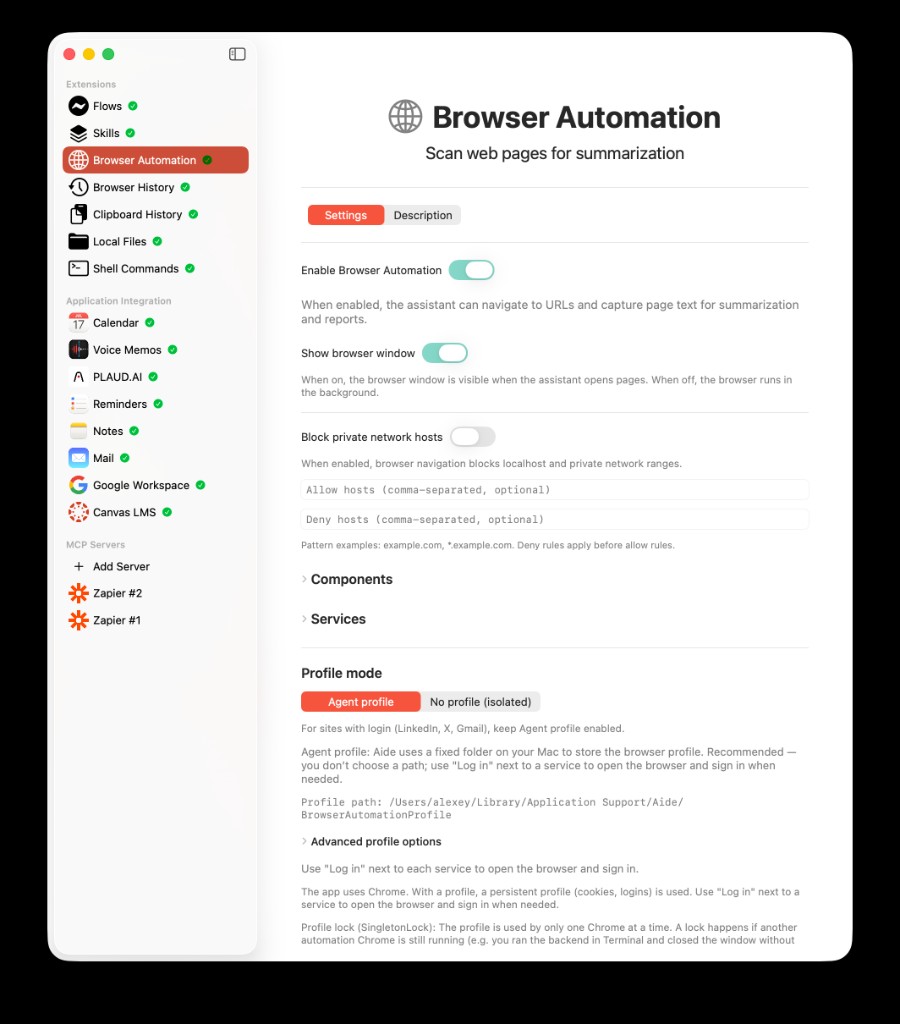
Browser Automation settings let you control browser visibility, host safety rules, runtime components, service logins, and profile mode.
Browser Automation uses runtime components for the automation backend. The settings page can check component status, show whether the automation service is running, and update components when needed.
Browser Automation Settings Reference
The settings screen has several groups. Each one controls a different part of the automation browser.
Enable Browser Automation
Enable Browser Automation turns the extension on or off.
When enabled, AideAI can navigate to URLs, capture page text, summarize web pages, inspect page structure, and use browser tools when a request needs live web context. When disabled, AideAI should not use the automation browser.
If required runtime components are missing, AideAI can show a missing-components sheet. Use Install missing components to install them automatically, Check again after installation or manual fixes, or Cancel if you do not want to enable the extension yet.
Show Browser Window
Show browser window controls whether the automation browser is visible.
Turn it on when you want to watch what the assistant is doing, sign in to a website, debug a page, or review sensitive steps. Turn it off when you want the browser to run in the background for straightforward reading and summarization.
Block Private Network Hosts
Block private network hosts prevents browser navigation to localhost and private network ranges.
This is useful when you do not want the assistant's browser to access local development servers, router pages, private LAN addresses, or internal network tools.
Allow Hosts And Deny Hosts
Allow hosts and Deny hosts are optional comma-separated host pattern fields.
Use Allow hosts when you want Browser Automation to stay within a known set of domains. Use Deny hosts when you want to block specific domains. Pattern examples include example.com and *.example.com.
Deny rules apply before allow rules, so a denied host remains blocked even if a broader allow pattern exists.
Components
The Components section shows the runtime pieces used by the browser automation backend.
It includes:
- automation service status, such as whether the backend is running and which port it uses
Check nowto refresh component and service status- installed component versions
- latest available component versions
- component status, such as up to date, update available, latest unavailable, or not installed
Open sitelinks for component project pagesUpdateactions when an update is available
This section is mainly for setup, maintenance, and troubleshooting. In normal use, you should not need to change it often.
Services
The Services section manages websites where the automation browser may need a signed-in session.
Each service has:
- a domain
- a connected state
- an action such as
Log inorRemove
Use Log in to open the automation browser at that service's login page. After you sign in, the Agent profile can reuse that session later. Use Remove to remove a discovered service from the visible list. For custom services, the trash button deletes the custom entry.
Add service lets you add a service manually with:
- display name
- domain
- optional login URL
This is useful for school portals, private course tools, internal dashboards, or any signed-in site that is not in the predefined list.
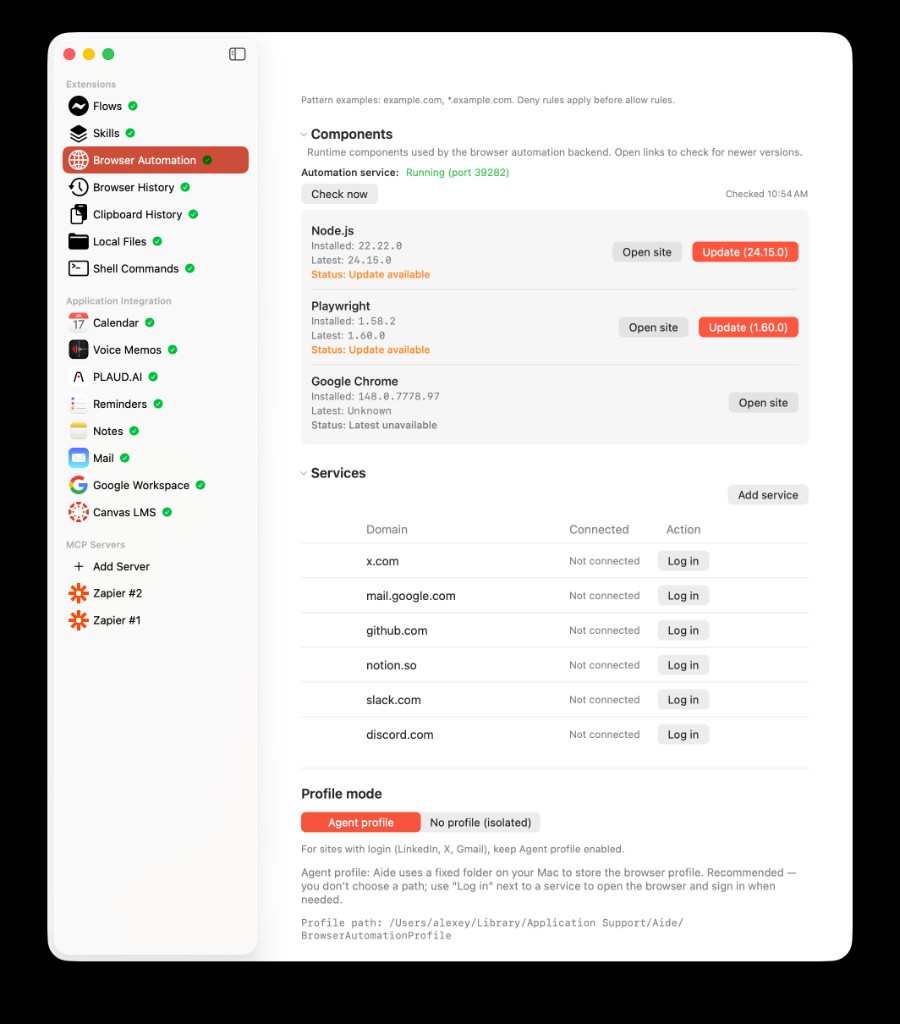
The Components and Services sections show backend status, available updates, predefined login services, and the Agent profile used for signed-in pages.
Profile Mode
Profile mode controls whether the automation browser keeps cookies, logins, and session data.
Agent profile is recommended for sites with login. AideAI uses a fixed profile folder on your Mac, and the Profile path line shows where that folder lives. This lets you sign in once and reuse that session later.
No profile (isolated) starts clean browser sessions. It is best for public pages where you do not want cookies or persistent logins.
Advanced profile options exposes Custom path, which lets you choose a browser profile folder yourself. This is useful only if you already manage a separate automation profile or want full control over where the profile is stored.
Profile Lock, Browser Window, And Backend Debugging
The profile can be used by only one automation Chrome instance at a time. If another automation browser is still running, the profile may be locked.
The profile section includes recovery and debugging controls:
Close automation browserstops the backend so the next request can start cleanly.Open browser windowopens a visible automation browser window, useful when links open but you cannot see the browser.Run backend manually (advanced)shows the command for starting the automation backend yourself.Debug: backendincludesStart backend,Stop backend, andCheck statuscontrols for troubleshooting.
Most students will not need the manual backend or debug controls. They are there for cases where the automation service is stuck, a previous run crashed, or you are diagnosing a local setup issue.
Privacy And Safety Controls
Browser Automation is powerful, so control matters.
AideAI gives you several ways to limit and understand browser access:
- you can enable or disable Browser Automation
- the automation browser is separate from your normal browser
- you can use no-profile mode for isolated public-page sessions
- you can use Agent profile only when signed-in access is useful
- you can see or hide the browser window
- you can close the automation browser
- you can add allowed host patterns
- you can add denied host patterns
- you can block private network hosts such as localhost and private LAN ranges
- you can manage service logins from the settings screen
The allow and deny host fields are useful when you want Browser Automation to stay within a known set of sites or avoid specific domains. Deny rules apply before allow rules.
Block private network hosts is useful if you do not want automation navigating to local development servers, router pages, or private network addresses.
Browser Automation vs Browser History
Browser History and Browser Automation are related, but they answer different questions.
Use Browser History when you want to find something you already visited:
- "What page did I read last week?"
- "Find my bookmarks about statistics."
- "Show pages from
github.comI opened yesterday."
Use Browser Automation when you want the assistant to work with a page now:
- "Open this article and summarize it."
- "Read this page and extract action items."
- "Click through this setup page with me."
- "Open the portal and tell me what fields it asks for."
In practice, they work well together. Browser History can recover the URL. Browser Automation can open the page and inspect it.
Common Use Cases
Summarizing Long Articles
Send AideAI a URL and ask for a summary, outline, critique, or list of key claims.
This is useful before deciding whether a source belongs in an essay.
Extracting Details From Documentation
Ask AideAI to open a documentation page and find the setup steps, parameters, commands, limitations, or examples.
This is useful when technical docs are long and nested.
Comparing Multiple Sources
Send several links and ask AideAI to compare them.
The assistant can open pages one by one, read the relevant content, and help you decide which source is strongest.
Working With Signed-In Pages
Use Agent profile and log in to the service first.
Then AideAI can help with pages that are not publicly visible, such as private project pages, logged-in feeds, internal docs, or school portals.
Helping With Setup Flows
Some integrations require web setup. Browser Automation can open the required page, wait for dynamic content, inspect buttons and fields, and guide the setup step by step.
For example, AideAI uses Browser Automation in guided Canvas setup flows when appropriate.
Common Setup Issues
Browser Automation can fail for predictable reasons.
The automation backend may not be installed. Use Install missing components.
The automation service may not be running. Use the Components section to check status, or restart the runtime services.
The page may require login. Use Agent profile, then Log in next to the service.
The profile may be locked. This can happen if another automation browser is still running. Close the automation browser or stop the backend, then try again.
The page may load slowly. Ask AideAI to wait, or retry after the page finishes loading.
The page may hide content behind interaction. Ask AideAI to inspect the page, click the relevant control, or scroll.
Host rules may block navigation. Check allowed hosts, denied hosts, and private-network blocking.
Why This Helps Students
Browser Automation reduces the gap between "I found something on the web" and "I can use it in my work."
It helps students:
- turn articles into notes
- understand assignment pages faster
- pull details out of documentation
- compare research sources
- work with signed-in class tools
- avoid copy-paste loops
- keep web research inside the same assistant workflow
- combine browser context with files, calendar, Canvas, Google Workspace, and local notes
The web is where much of student work already happens. Browser Automation helps AideAI meet that work where it is.
Try AideAI
If you want your assistant to work with live web pages instead of waiting for copied text, enable Browser Automation in Extensions & MCP.
For past browsing context, read Browser History in AideAI: Find the Pages, Research, and Bookmarks You Already Opened. For the broader integrations story, read All the Places Your Student Life Already Lives - Connected. For plan details, visit Pricing.