 AideAI
Browser History in AideAI: Find the Pages, Research, and Bookmarks You Already Opened

Browser history is often the hidden notebook of student work.
You search for sources, open documentation, read course pages, compare articles, check examples, skim papers, and save useful bookmarks. Later, when you actually need the page again, you may remember the idea but not the title, URL, browser, or exact search term.
That is why the Browser History extension matters. It lets AideAI search your local browser history and bookmarks so the assistant can help you recover the web context you already touched.
AideAI does not replace your browser. Safari, Chrome, Firefox, and Arc remain where browsing happens. AideAI adds an assistant layer on top: it helps you ask natural-language questions about pages you visited, domains you used, bookmarks you saved, and research trails you may have forgotten.
The Problem
Student research rarely happens in one clean tab.
Your browser may contain:
- course pages you opened earlier in the week
- articles for an essay
- documentation for a programming assignment
- PDFs found through search
- pages from Canvas, Google Classroom, or a school portal
- GitHub repositories and Stack Overflow answers
- bookmarks for recurring class resources
- half-remembered sources you forgot to save
That browsing context is useful, but it is easy to lose.
In a disconnected workflow, you have to reconstruct it manually:
- Open browser history.
- Guess the right keyword.
- Try a few domains.
- Check multiple browsers.
- Reopen likely pages.
- Search bookmarks separately.
- Copy links back into chat or notes.
That is a lot of work before the actual studying, writing, or debugging can continue.
Why The Usual Approach Breaks Down
Browser search works best when you remember the exact page.
Student memory usually works differently.
You may remember:
the article about attention and learning from last week
or:
the documentation page where I found the Swift example
or:
the site with the economics chart
or:
the bookmark folder where I saved research links
Those are intent-shaped memories, not URL-shaped memories.
The problem gets worse when you use more than one browser. Safari may have the class portal, Chrome may have Google Docs and documentation, Arc may have research spaces, and Firefox may have older project tabs. If your assistant cannot see that history, it starts from a blank prompt even though your browser already contains clues.
What AideAI Does Differently
AideAI's Browser History extension indexes local browser history and bookmarks so the assistant can search them when web context matters.
With Browser History enabled, AideAI can help with:
- searching visited pages by topic or title
- filtering history by browser
- filtering history by domain
- filtering history by date range
- returning visit dates and visit counts
- searching bookmarks by title or URL
- filtering bookmarks by browser
- filtering bookmarks by folder, including common folders like Favorites or Reading List
- syncing browser history incrementally
- running a full sync for a specific browser when needed
This turns the browser from a place you manually retrace into a searchable context source.
Supported Browsers
AideAI supports browser history and bookmarks from:
- Safari
- Chrome
- Firefox
- Arc
The settings screen detects installed browsers and lets you enable only the browsers you actually use.
That matters because student workflows are often split. You may use Safari for everyday browsing, Chrome for school accounts, Arc for research spaces, and Firefox for a specific class or project. Browser History lets AideAI search across the sources you choose instead of assuming everything lives in one browser.
History Search
History search is useful when you remember what a page was about, but not where it lives.
You can ask:
What page did I read last week about cognitive load?
or:
Find the GitHub repo I opened for my data visualization project.
or:
Show pages from
stanford.eduI visited this month.
or:
Find the documentation page I opened about Swift concurrency.
The assistant can return matching pages with useful metadata such as title, URL, visit date, visit count, browser, and domain.
That makes it easier to recover a research trail without reopening every browser history panel yourself.
Bookmark Search
Bookmarks are different from history.
History tells you what you visited. Bookmarks tell you what you intentionally saved.
With Browser History enabled, AideAI can search bookmarks by:
- title
- URL
- browser
- folder
You can ask:
Show my bookmarks about statistics.
or:
Find bookmarks in my Reading List about machine learning.
or:
Show Safari bookmarks for school portals.
or:
Find Chrome bookmarks related to scholarships.
This is useful because bookmarks often become long-term memory for class resources, but they are easy to underuse when they sit outside the assistant workflow.
Auto Sync And Manual Sync
When Browser History is enabled, AideAI can auto-sync every 5 minutes.
The settings screen also gives per-browser controls:
- enable or disable each detected browser
- see how many items are indexed
- see the last sync time
- sync new history for a browser
- run a full sync for all available history in that browser
Incremental sync is useful for everyday use. Full sync is useful when you just enabled a browser and want AideAI to index older history too.
How To Set Up Browser History In AideAI
In AideAI:
- Open
Extensions & MCP. - Select
Browser History. - Turn on
Enable Browser History Integration. - Grant Full Disk Access when macOS asks.
- Enable the browsers you want AideAI to search.
- Let auto-sync run, or use the per-browser sync menu.
- Ask about pages, domains, dates, bookmarks, or research trails.
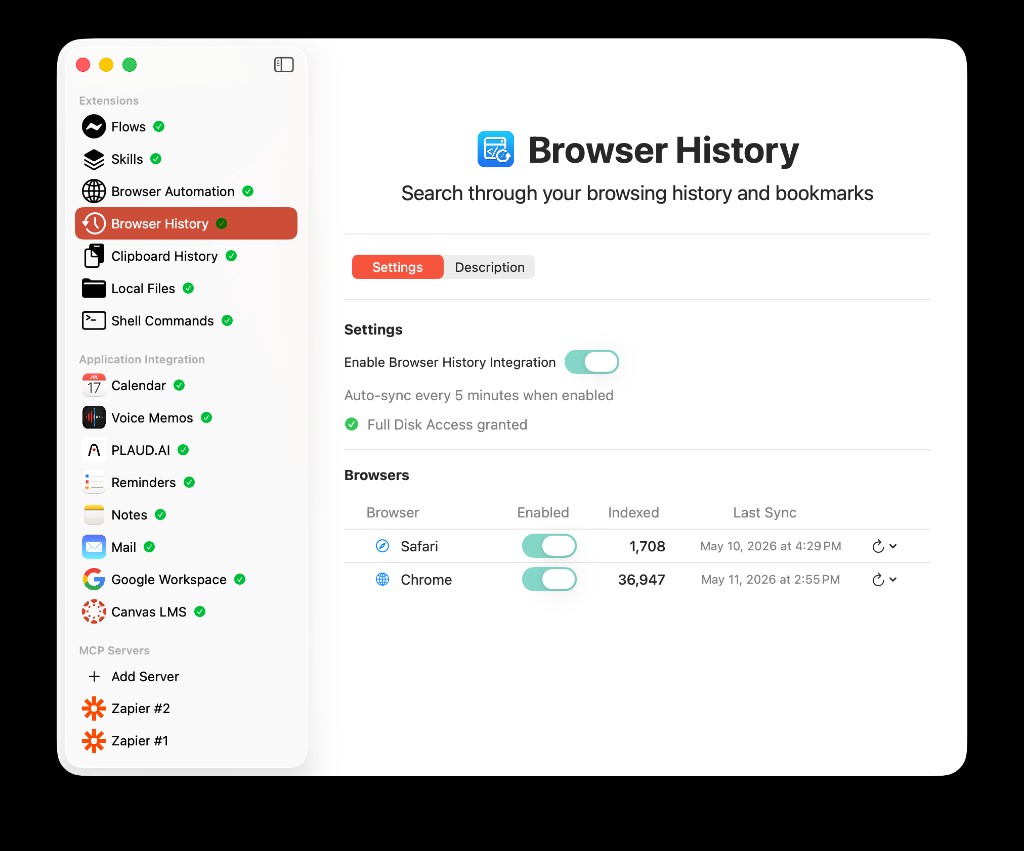
Browser History settings let you enable the integration, confirm Full Disk Access, choose browsers, and see indexed counts with last sync times.
Full Disk Access is required because browser history databases live in protected locations on your Mac. Without that permission, AideAI cannot reliably read browser databases.
What You Can Ask
Once Browser History is enabled, you can ask questions in normal language.
For example:
Find pages I visited last week about behavioral economics.
or:
What was the documentation page I opened about OAuth redirect URLs?
or:
Show my bookmarks about college applications.
or:
Find pages from
github.comI visited yesterday.
or:
Search Chrome history for React examples.
or:
Find my Reading List items about climate change.
The assistant can turn vague browsing memory into a concrete list of pages and bookmarks.
Example Workflow: Recovering Research For An Essay
Imagine you are writing an essay and remember reading a useful article last week.
You do not remember the title. You only remember that it mentioned memory, attention, and learning.
Without Browser History, your workflow looks like this:
- Open browser history.
- Search several keywords.
- Scroll through dates.
- Check multiple browsers.
- Reopen pages until one looks right.
- Copy the link back into your notes.
With Browser History enabled, you can ask:
Find pages I visited last week about attention and learning.
AideAI can search indexed browsing history, return likely pages, and help you continue the essay from the source you already found.
Example Workflow: Finding Documentation Again
Browser History is also useful for technical work.
If you are debugging a project, you may open several documentation pages, GitHub issues, package docs, and Stack Overflow answers. The page that solved the problem may not be bookmarked.
You can ask:
Find the documentation page I opened about Next.js caching.
or:
Show GitHub pages I visited yesterday for this project.
That helps you recover the exact technical source without repeating the same web search.
Example Workflow: Course Portals And LMS Links
Student life often includes many portals:
- school login pages
- Canvas or Classroom URLs
- library systems
- course websites
- professor pages
- submission portals
Browser History can help AideAI find the URLs you already used.
For example:
Find the Canvas page I opened for my biology course.
or:
Show school portal pages I visited this week.
This can also support setup flows. If another AideAI integration needs a school-specific URL, browser history can help identify likely candidates instead of asking you to remember the exact domain.
Browser History vs Browser Automation
Browser History and Browser Automation are related, but they solve different problems.
Use Browser History when the question is about what you already visited or saved:
- pages from last week
- bookmarks about a topic
- a domain you used before
- research trails you want to recover
Use Browser Automation when the assistant needs to interact with a live page:
- open a site
- click through a flow
- read the current page
- work with a signed-in browser session
- help with web-based setup
In real workflows, they can work together. Browser History can find the page. Browser Automation can open it and inspect what is currently there.
Privacy And Control
Browser history is sensitive, so control matters.
AideAI is designed around local access and user choice:
- you choose whether Browser History is enabled
- you choose which browsers are enabled
- browser data is read locally from browser databases
- Full Disk Access is required by macOS for protected browser files
- you can sync new items or run a full sync per browser
- you can turn the extension off when you do not want browser context available
Browser History should be used as context when it helps answer your question. It does not mean every browsing detail should be included in every response.
Common Setup Issues
Browser History setup can fail for a few predictable reasons.
Full Disk Access may not be granted. If AideAI cannot read browser databases, grant access in:
System Settings -> Privacy & Security -> Full Disk Access
The browser may not be installed or detected. The settings screen only enables supported browsers that are present on your Mac.
The browser may not have synced yet. Use per-browser sync controls or wait for auto-sync.
The relevant history may be old. Use Full Sync (All History) for that browser if you need older entries.
The query may be too broad. Add a domain, browser, date range, or more specific topic.
Bookmarks may live in a specific folder. Try folder names like Favorites, Bookmarks Bar, Bookmarks Menu, or Reading List depending on the browser.
Why This Helps With Real Student Outcomes
Browser History is not just a convenience feature.
It helps students:
- recover sources they forgot to save
- find research trails by topic
- reuse bookmarks more effectively
- get back to course pages faster
- remember documentation used in technical assignments
- connect web research to writing, studying, and planning
- reduce time lost reopening tabs and repeating searches
The real value is that AideAI can work with the web context you already created instead of starting every question from scratch.
Try AideAI
If your studying, research, and project work already happen across browser tabs, Browser History can make AideAI much more useful.
Try AideAI, enable Browser History in Extensions & MCP, grant Full Disk Access, and enable the browsers you use most. If you want the broader integrations story, read All the Places Your Student Life Already Lives - Connected. For plan details, visit Pricing.