 AideAI
Meet Wellness in Aide: Your Mac Work Rhythm, Without the Noise
You know the feeling.
You worked for hours. You were “on” all afternoon. You even cleared a few messages between tasks. And yet, when you finally stop, you cannot explain why you feel drained—or what would actually help before you start again tomorrow.
That gap is not laziness. It is missing context.
Most productivity tools count tasks. Fewer tools help you see the shape of a day: long stretches without a real break, meetings stacked back-to-back, attention jumping between apps, work bleeding past the hour you meant to stop.
Wellness in AideAI is built for that quieter problem—not another dashboard shouting numbers at you, but a Mac-native read on your work rhythm and one practical next step when it matters.
Where Wellness lives now
Open the Study & life section in the chat sidebar and start a thread with the Wellness agent.
If your build is in the rollout cohort, the empty chat is not a blank prompt list anymore. It becomes a chat home: a single screen that answers three questions in order:
- How does today feel so far? (a plain-language status—not a scary “score out of 100”)
- What facts explain that? (today’s active work, focused time, meetings, time since your last meaningful break)
- What is one sensible next step? (accept a suggestion, ask why, or talk it through)
Below that, a compact week preview shows your recent rhythm—active minutes by day, meeting load, and after-hours time—without pretending a partial week is a full pattern.
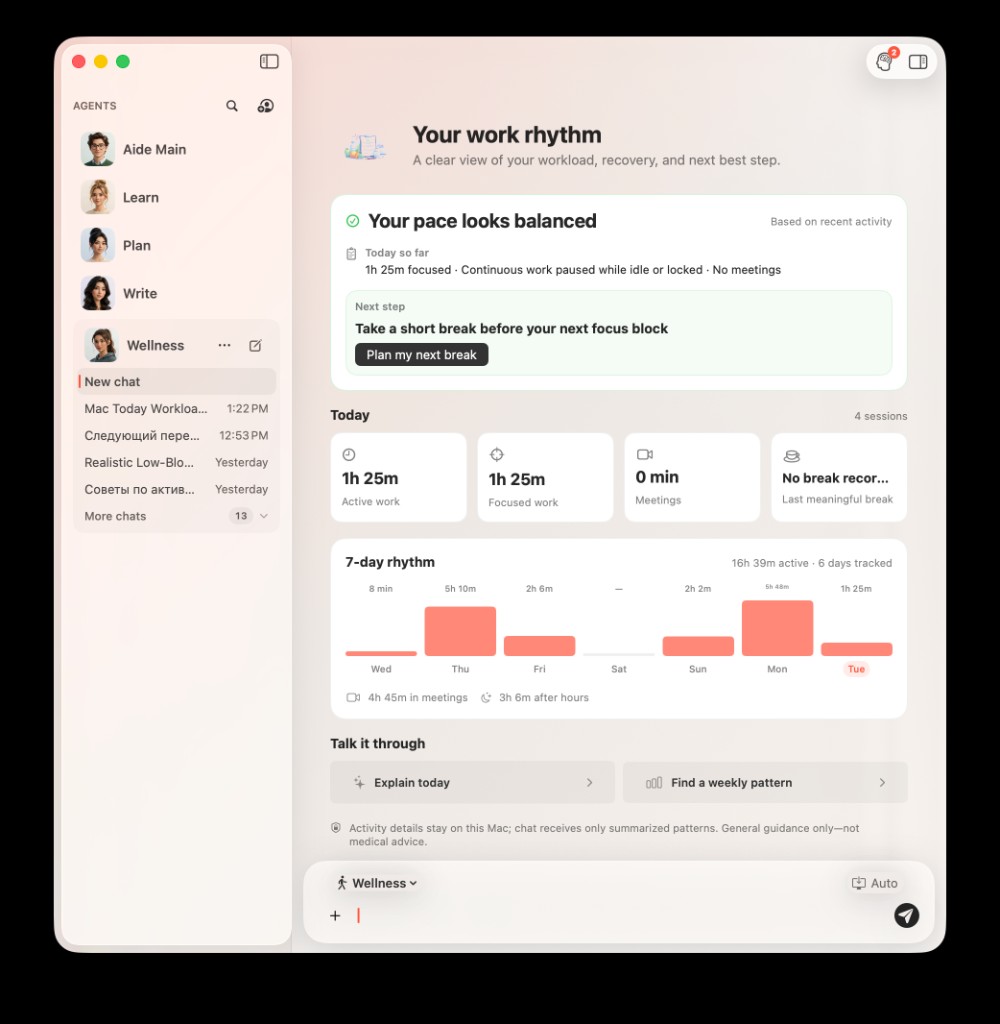
The Wellness chat home: a plain-language status, today’s active and focused work, a seven-day rhythm preview, and one next step—without a raw load score as the headline metric.
This is intentionally not a separate “Wellness window” or a menu item you have to hunt for. The agent is the entry point. Accept on a wellness notification opens the same chat home, so you land in one consistent place.
What happens in the background (and what does not)
When you turn on the wellness runtime in the agent’s Settings → Wellness tab, AideAI reuses activity signals it already collects on your Mac—work sessions, idle time, meeting load, context switches—through the same local-first pipeline described in Remember What You Saw, Read, and Worked On.
No new permissions are required for the MVP.
What Wellness adds is interpretation:
- meaningful breaks vs. micro-pauses
- continuous work that pauses when you lock the screen or step away
- a load level you can understand in words (low, moderate, elevated, high)
- optional notifications when a long stretch suggests a stretch, a walk, or closing the laptop
What Wellness does not do:
- diagnose medical or mental health conditions
- replace a clinician or emergency services
- send window titles, keystrokes, or message content to the model
- claim precision it cannot support (reading at your desk and AFK look similar to idle detection—that is fine for gentle nudges, not for clinical claims)
The first time you engage deeply, you will see the wellness disclaimer: general lifestyle guidance only. That boundary stays in the product on purpose.
For a broader framing of sustainable study habits, read How to Stay Productive in College Without Burning Out. For how Wellness can reuse facts you saved elsewhere, see How Plan Remembers Your Workouts and Wellness Uses Them Later.
One status, one step—not another KPI dashboard
We deliberately avoided making “0–100 load” the hero metric.
Students and knowledge workers already live inside scores, grades, streaks, and inbox counts. Wellness chat home shows a semantic status and the observable factors behind it—continuous work, meetings, focus time, last break—so the UI reads like an explanation, not a judgment.
When the week is still sparse (fewer than four days of data), the UI says so. Early patterns should feel tentative, not authoritative.
Primary actions stay short:
- try the suggested next step
- ask Why this?
- open a focused chat about today, your next break, or the week so far
Starter chips stay secondary so they do not compete with the one recommendation that already matters.
Settings: you choose the ceiling
Everything personal about Wellness is controlled from the agent’s own settings—not a buried global preference pane. Open the Wellness agent, choose Settings, and select the Wellness tab (alongside General, Prompts, and the other agent options).
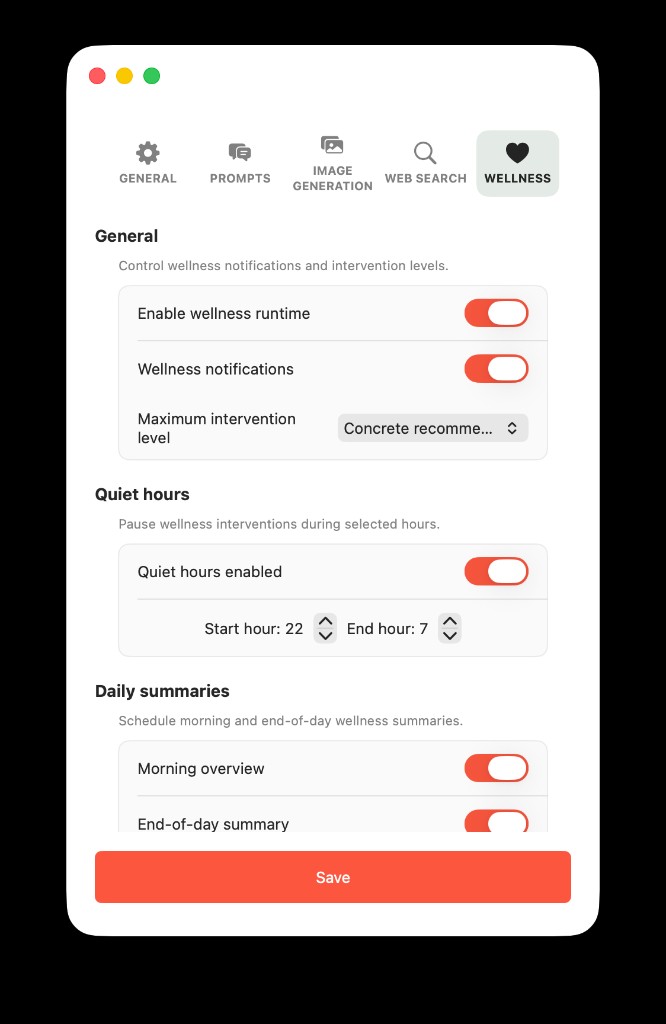
Agent Settings → Wellness: enable the runtime, cap intervention strength, set quiet hours, and choose morning/end-of-day summaries.
The tab groups controls into three blocks:
General
- Enable wellness runtime — turns local observation and chat-home insights on or off for this Mac.
- Wellness notifications — allows (or pauses) intervention pushes while the runtime stays active.
- Maximum intervention level — sets how strong nudges can get, from observe-only up through concrete recommendations and stronger action offers. You stay in control of how assertive Wellness feels.
Quiet hours
- Quiet hours enabled — pauses wellness interventions during the hours you pick.
- Start hour / End hour — in the screenshot, 22:00–07:00: no stretch or workload nudges overnight; morning summaries can still follow your separate daily-summary toggles.
Daily summaries
- Morning overview — one template check-in after unlock (respecting your earliest-hour setting).
- End-of-day summary — a winding-down summary when the day ends or you go idle late; can defer with Still working? if you are not done yet.
Tap Save when you change anything. If macOS notification permission is off for AideAI, Settings surfaces a warning so you know why pushes may not arrive.
Notifications when you want them—not a second inbox
Optional wellness notifications sit on a simple ladder from quiet observation to stronger nudges. You control the ceiling in Settings (maximum intervention level), plus quiet hours and morning/end-of-day summaries if those help your routine.
Actions are meant to be low friction:
- Accept — note the suggestion and return to chat home
- Snooze — remind me later
- Dismiss — not now; category cooldown prevents spam
- Discuss — continue in Wellness chat with sanitized context when you are online
Template notifications still work offline; the conversational layer enriches when the network is available. We will cover notification workflows in more detail in a follow-up post.
Rollout: gradual on purpose
Mac Wellness Agent ships behind mac_wellness_agent_enabled in Remote Config. Default is off until we are confident in acceptance rates, dismiss rates, and crash-free sessions during dogfood.
That means:
- update AideAI to a build that includes Wellness
- you may not see the feature immediately even on the latest version
- internal testers and early cohorts get access first, then a wider percentage
If chat home shows that Mac insights are unavailable, the Wellness agent still works for general lifestyle questions—the personalized rhythm layer simply is not enabled for your account yet.
What to try first
If Wellness is enabled for you:
- Open Study & life → Wellness and read today’s status block.
- Open Settings → Wellness for the agent and turn on the runtime when you are ready.
- Work normally for a day or two before judging the week preview—partial data is expected.
- When a notification arrives, try Accept or Discuss and notice that both paths land in the same agent thread.
We are rolling this out carefully because trust matters more than novelty. Wellness should feel like a calm mirror on your Mac day—not surveillance, not therapy, not another place to fail.
Next in this series:
- How to Find Wellness in AideAI and What the Chat Home Shows
- What Aide Sees on Your Mac for Wellness
- Smart Breaks: Wellness Notifications, Accept, and Discuss
- Under the Hood: How Wellness Runtime Works on Mac
For pricing and what is included today, visit Pricing.