 AideAI
How to Find Wellness in AideAI and What the Chat Home Shows
If you read Meet Wellness in Aide: Your Mac Work Rhythm, Without the Noise, you already know the why. This post is the how: where Wellness lives, what each block on chat home means, and how settings change what you see.
There is no Open Wellness menu item and no separate Wellness window. The agent is the product surface.
Step One: Open The Wellness Agent
- Open AideAI on your Mac.
- In the chat sidebar, expand Study & life (Russian UI: Учёба и жизнь).
- Start a new chat with the Wellness agent.
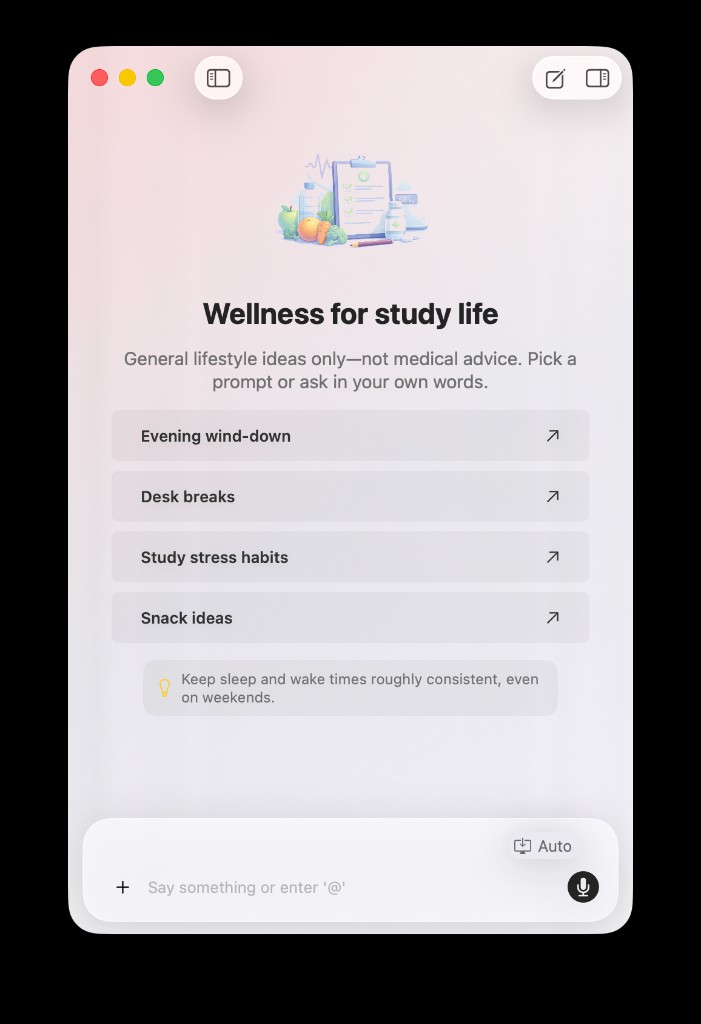
If Wellness is enabled for your rollout cohort, an empty chat is not a blank prompt box. It becomes chat home — a single screen built to answer three questions before you type anything.
Step Two: Read Chat Home Top To Bottom
Think of chat home as an annotated status card, not a dashboard.
1. Plain-language status
The headline is a semantic read on your day — balanced pace, elevated load, winding down, and similar wording. It is not a scary score out of 100.
Wellness deliberately avoids making raw load the hero metric. You should read this block as “how today feels so far,” not as a grade.
2. Today so far
This is the evidence behind the status:
- Active work — time in real work sessions today
- Focused work — estimated deep-work portion (a heuristic cap inside active work)
- Meetings — calendar-backed meeting load
- Time since last meaningful break — minutes since a break Wellness considers real, not a five-second alt-tab
If you wonder why the status says one thing while you “feel fine,” start here. The facts often explain the mismatch.
3. One next step
The primary recommendation is singular on purpose: stretch, walk, meeting buffer, end workday, focus protection, or a generic rest nudge.
Actions stay short:
- try the suggestion
- ask Why this?
- open a focused chat about today, your next break, or the week
Starter chips sit below the hero action so they do not compete with the one step Wellness thinks matters most.
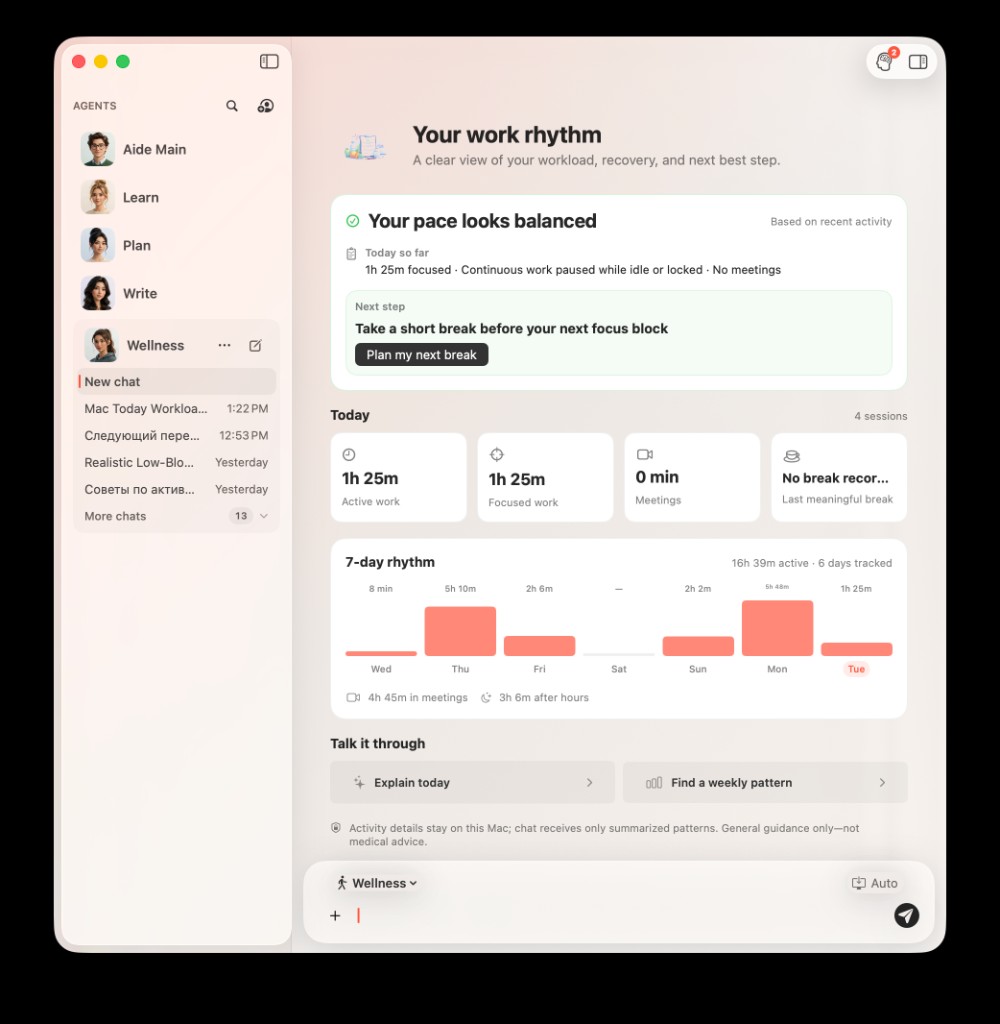
Chat home reads top-down: status → today’s facts → one recommendation → optional week preview.
4. Week rhythm preview
The compact seven-day strip shows active minutes, meeting load, and after-hours time per day.
Important nuance: if you have fewer than four days of data, the UI stays tentative. Early patterns should feel provisional, not authoritative. Give it a few normal workdays before treating the week strip as a verdict.
Step Three: Turn On The Runtime (When You Are Ready)
Personal controls live in the agent’s own settings — not a buried global pane.
- Open the Wellness agent.
- Choose Settings.
- Open the Wellness tab (alongside General, Prompts, and other agent options).
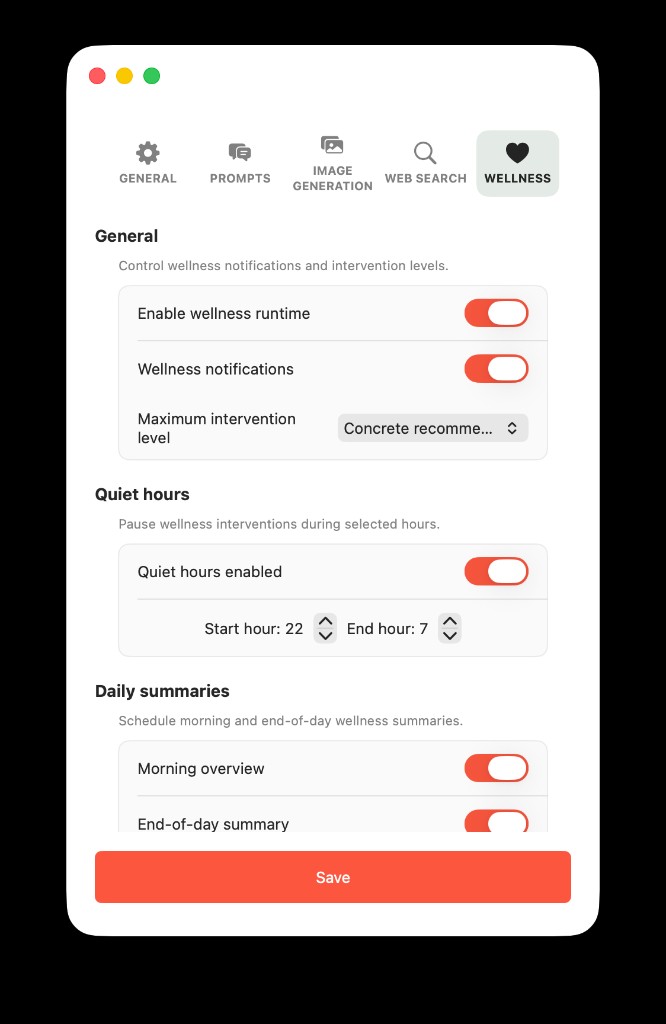
Settings → Wellness for the agent: runtime, notification ceiling, quiet hours, morning/end-of-day summaries.
General
- Enable wellness runtime — local observation + chat-home insights on this Mac
- Wellness notifications — allow or pause intervention pushes while runtime stays on
- Maximum intervention level — how assertive nudges can get (from observe-only up through stronger action offers)
Quiet hours
- Pause interventions overnight or during focus blocks you define with start/end hours
Daily summaries
- Morning overview — template check-in after unlock (respects your earliest-hour setting)
- End-of-day summary — winding-down summary; can defer with Still working? if you are not done
Tap Save after changes. If macOS notification permission is off for AideAI, Settings warns you so you know why pushes may not arrive.
Accept Opens The Same Home
When a wellness notification arrives, Accept routes to this same chat home — not a different window. That consistency matters: whether you open Wellness yourself or arrive from a nudge, you land in one place.
For notification actions in detail, read Smart Breaks: Wellness Notifications, Accept, and Discuss.
What If Chat Home Says Insights Are Unavailable?
Wellness ships behind gradual rollout (mac_wellness_agent_enabled). You may be on a build that includes Wellness but not yet in the enabled cohort.
In that case the Wellness agent still answers general lifestyle questions. The personalized Mac rhythm layer simply is not active for your account yet.
A Sensible First Week
- Open Wellness once and read today’s blocks without changing anything.
- Enable runtime when you want personalized status, not before.
- Work normally for two or three days before judging week preview.
- Adjust maximum intervention level if nudges feel too strong or too quiet.
- Use Discuss once to see how chat interprets sanitized day context.
For privacy boundaries — what goes to the model and what stays on Mac — read What Aide Sees on Your Mac for Wellness.
For pricing, visit Pricing.