 AideAI
Connect Cursor Agent to AideAI: Install the Meeting Context Bridge

This is the setup guide—not the product story.
If you already use OpenAI Codex with AideAI, the same local bridge powers Cursor. This page is for Cursor Agent on your Mac.
Before you start
You need:
- AideAI from the Mac download on the website (this connection is not available in the App Store build)
- Cursor with local Agent chat on this Mac
- at least one useful meeting in AideAI (recorded or imported)
- AideAI left running while Cursor asks for context
You do not need to paste a custom MCP URL by hand. AideAI installs the connector and skill for you.
Cursor Cloud Agents cannot reach localhost on your Mac. Use the local Cursor Agent on the same computer where AideAI runs.
Open the Cursor screen
- Open AideAI.
- Go to Apps (or Extensions & MCP).
- Open Cursor.
You should see Meeting context for Cursor Agent.
If the screen says the feature is unavailable, you are on an App Store build. Install the Mac download from the website instead.
Enable Cursor and reach Ready
Turn on Enable Cursor integration.
AideAI can then share only the sources you allow below with Cursor on this Mac.
In the Setup card, watch the status dot:
- Off — turn on Enable Cursor integration
- Needs setup — click Install in Cursor
- Needs repair — click Repair connection
- Not connected / Reconnect needed — click Retry connection, or toggle Enable Cursor integration off and on
- Ready — you are good to ask in Agent chat
Use Refresh after install or repair. Aim for Ready before you start. When Ready, the Try it in Cursor callout shows an example /aide-meetings prompt.
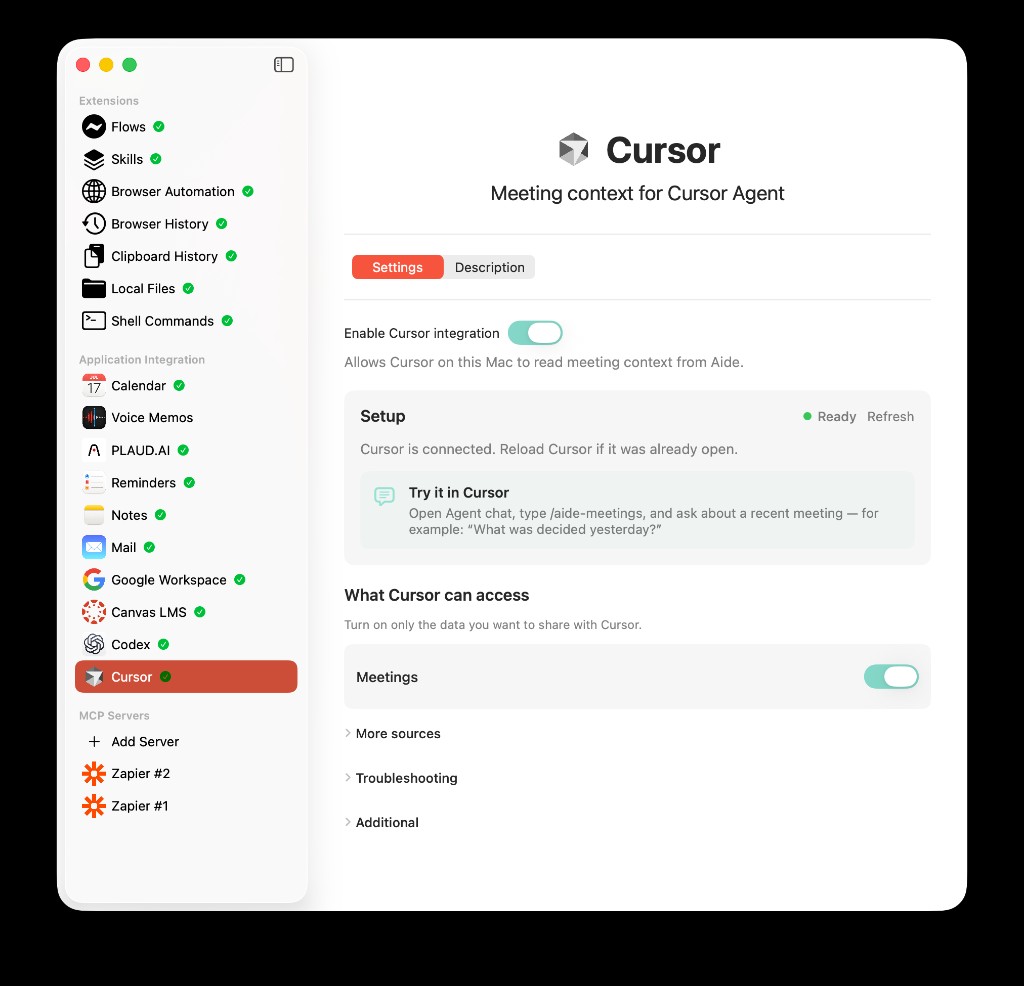
A healthy setup: Enable Cursor integration on, Setup Ready, and Meetings shared with Cursor.
Connect to Cursor (install the connector)
In Setup, if status is not Ready:
- If the connector is missing, click Install in Cursor
- If something looks stale, click Repair connection
- If the connection is down, click Retry connection
After install or repair, use Reload Window in Cursor (or start a new Agent chat). An already-open Cursor window may not pick up the change.
AideAI writes ~/.cursor/mcp.json and installs the aide-meetings skill. The file must be plain JSON—no // or /* */ comments. Back up the file before editing it manually.
Choose what Cursor can access
Only turn on sources you are comfortable sharing with Cursor Agent on this Mac.
For a first meeting → code run:
- Enable Meetings
- Leave everything else off until you need it
- Open More sources only when a task truly needs another source
- If a row asks you to enable a related AideAI app first, turn that app on in Apps, then come back
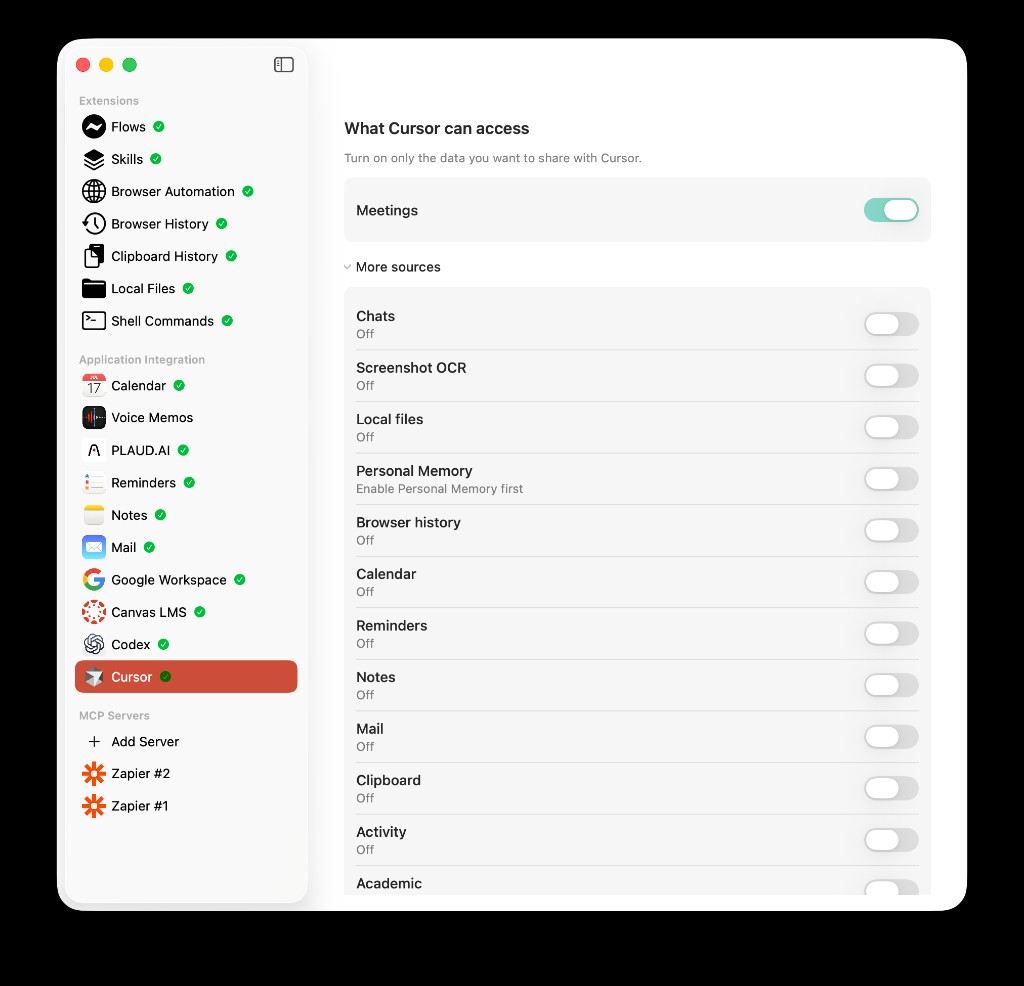
Start with Meetings on. Keep chats, mail, clipboard, and other sources off until you have a reason to share them.
Privacy details for the shared bridge: What Codex Can Read from AideAI — and What Stays Local (the same source toggles apply to Cursor).
Next step inside Cursor
When Setup is Ready:
- Reload Cursor (or open a new Agent chat)
- Type
/aide-meetingsexplicitly—the skill does not run on every message - Ask something concrete—for example: “What was decided in my most recent meeting?”
Cursor should pull context from AideAI instead of asking you to paste the whole transcript. Answers can include meeting deep links like aideai://meetings/...—if a link is not clickable, copy the URL into a browser.
Troubleshooting and Additional
Expand Troubleshooting when Agent chat ignores the bridge or citations look wrong.
Expand Additional for occasional maintenance:
- Local connection — whether AideAI’s local connection is running (same helper as Codex on port 39283)
- Connection token — stored in Keychain; use Rotate if you need a fresh secret
- Uninstall connector — remove the MCP entry and skill from Cursor
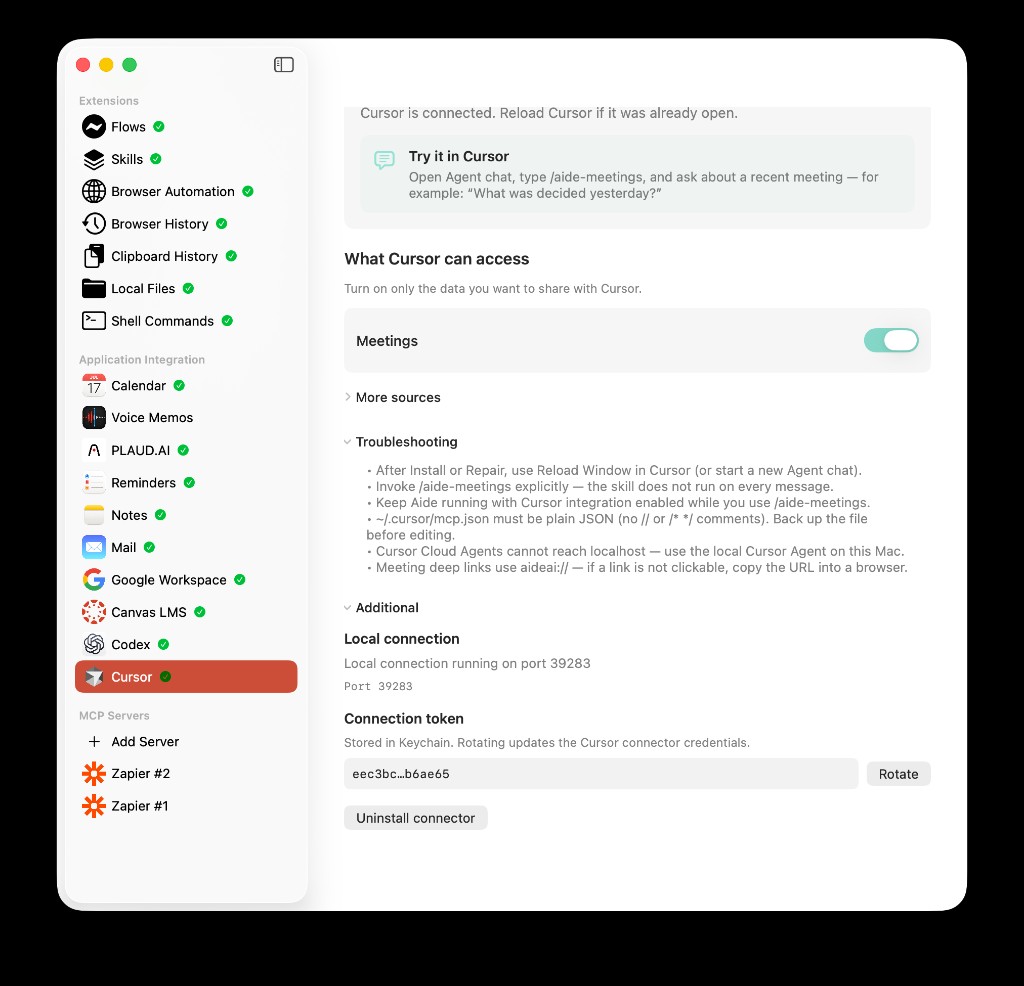
Troubleshooting covers Reload Window, /aide-meetings, and plain JSON in mcp.json. Additional is for token rotation and uninstall—not daily setup.
Most students can ignore Additional once Setup is Ready.
Troubleshooting quick reference
| What you see | What to try |
|---|---|
| Unavailable screen | Install AideAI from the Mac website download |
| Needs setup | Install in Cursor, then Reload Window |
| Needs repair | Repair connection, then Reload Window |
| Reconnect needed | Retry connection, or toggle Enable Cursor integration off/on |
| Agent ignores meetings | New Agent chat; invoke /aide-meetings; keep AideAI open |
| No meeting context | Meetings on; confirm the meeting exists in AideAI |
| Source won’t turn on | Enable the matching app in Apps first |
| Cloud Agent | Use local Cursor Agent on this Mac—not Cloud Agents |
Cursor vs Codex vs Add MCP Server
| Connection | What it does |
|---|---|
| Cursor (this guide) | Lets Cursor Agent read AideAI context you allow via /aide-meetings |
| Codex | Lets OpenAI Codex read AideAI context via @Aide |
| Add MCP Server | Connects outside tools into AideAI |
You can use all three. They solve different problems. Cursor and Codex share the same local bridge and source toggles on your Mac.
Related reading
Download AideAI for Mac, open Apps → Cursor, and get Setup to Ready before your next Agent chat.