 AideAI
Ask AI About Your Screen Without Oversharing
Sometimes the fastest way to ask for help is not to describe everything.
You are looking at a confusing assignment page, a lecture slide, a document, a dashboard, a coding error, or a PDF. You want to ask:
What am I looking at?
or:
Help me understand this screen.
That is exactly where a screen-aware assistant becomes useful. But screenshots can also contain more than the thing you meant to ask about. A browser tab in the corner. A private email. A token in a code editor. A password field. A personal document in the background.
AideAI is designed to help with what is on your screen while being more careful about what actually gets shared.
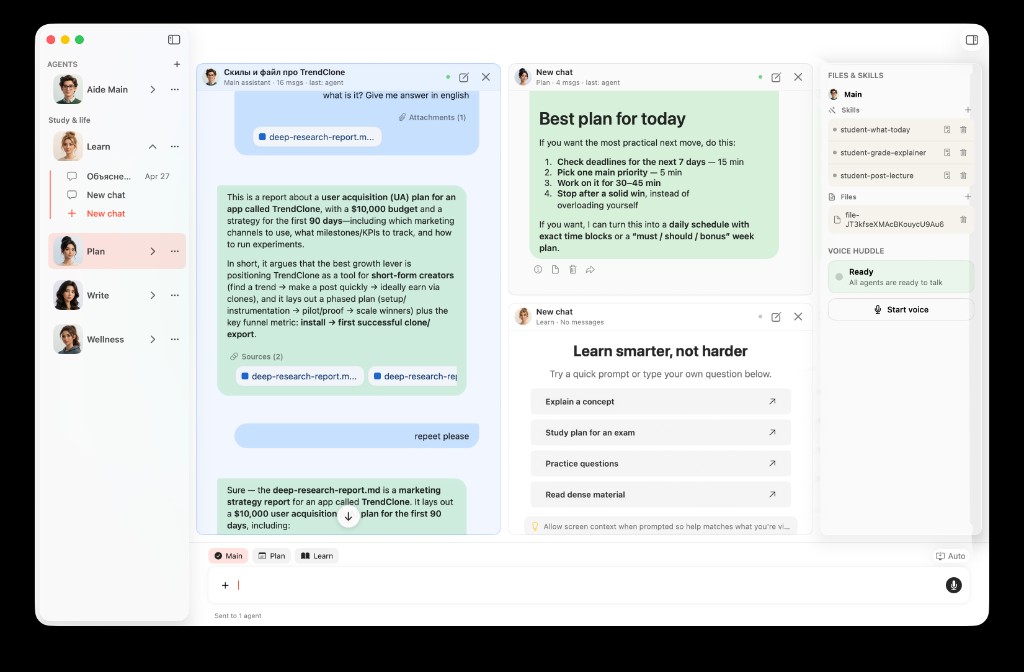
Screen questions are useful when the assistant can help with the visible task without treating every screenshot as automatically shareable.
A Screenshot Is Often Bigger Than Your Question
Students and Mac power users rarely work in one clean window.
You might be writing in one app while a course portal sits behind it. You might be debugging code while a browser tab is open nearby. You might ask about a slide while Messages, Mail, or a file name is still visible at the edge of the screen.
The question may be simple:
What does this error mean?
But the screenshot may include more context than you intended.
That is why AideAI treats screen help as a trust problem, not just a convenience feature. The goal is not only to answer from the screen. The goal is to avoid sharing a screenshot when the screen looks like it may contain private information.
What Happens When You Ask About Your Screen
When you ask AideAI a screen-based question, the app first decides whether a screenshot is useful for the answer.
If screen context is not needed, AideAI can answer from your text. If screen context is needed, the app checks the captured screen locally before deciding how to continue.
In practice, there are a few possible outcomes.
If The Screen Looks Ordinary
For ordinary study or work material, AideAI can use the screenshot to answer more accurately.
Examples:
- a lecture slide
- a documentation page
- a course assignment page
- a chart or diagram
- a coding error without visible secrets
- a PDF page you want explained
In this case, you get the kind of answer you expect from a screen-aware assistant: AideAI can respond to what you are actually seeing, instead of making you describe every detail manually.
If The Screen Looks Private
If the screen appears to include sensitive information, AideAI avoids sending the raw screenshot.
Examples:
- passwords or password-like text
- API keys or tokens
- financial or medical wording
- personal identifiers
- private email or account details
- password manager windows
Instead of sending the image, AideAI can use a safer text-only summary where private-looking parts are masked. That lets the assistant still help with the general situation without uploading the screenshot itself.
For example, if you ask for help while a private key is visible in a code editor, the safer behavior is not to send the image. The assistant may still understand that you are looking at a configuration file or a coding task, but the visible secret should not be treated like ordinary context.
If AideAI Is Not Sure
Sometimes the screen is hard to judge.
It might be mostly blank. It might be an unusual app. It might contain little readable text. Or it might be a screen where the app cannot confidently tell whether the screenshot is safe to share.
In those cases, AideAI can ask before sending the screenshot.
You stay in control:
- send the screenshot
- use text-only context
- cancel
This matters because "I want help with my screen" does not always mean "send this entire screen image automatically."
Why This Matters For Students
Students use AI in messy, real contexts.
You might be:
- asking about a Canvas assignment while your calendar is open
- checking a spreadsheet with personal details
- reviewing notes that include names, grades, or emails
- working on code where keys or config values may be visible
- asking for help during a live study session with multiple windows open
The safest workflow is not to make you manually crop every screen before asking for help. It is to make the app more careful by default.
AideAI's screen help is built around that idea: useful when the screen is safe, more cautious when the screen appears private, and explicit when the app is unsure.
A Better Default For Screen-Aware AI
Screen-aware AI should not force users into an all-or-nothing choice.
Without safeguards, the choices are usually:
- never use screen context, which makes the assistant less helpful
- always send screenshots, which can overshare
- manually inspect every screen before every question, which breaks the flow
AideAI aims for a better default:
- use screenshots when they are useful and look safe
- avoid raw screenshot sharing when private information appears visible
- ask when the situation is uncertain
That makes screen questions feel more practical for everyday student work.
Try A Screen Question
The next time you are stuck on a page, slide, document, or error message, ask AideAI what is on your screen.
Start with ordinary coursework first. Then notice the difference when private-looking content is visible: AideAI should be more careful about whether the image itself is shared.
For the broader visual context story, read A Better Way to Remember What You Saw, Read, and Worked On. For multi-agent screen workflows, read Meet Agent Desk: A Multi-Agent Workspace for Students. For using files, notes, docs, and audio as context, read Use PDFs, Notes, Docs, and Audio as Real AI Context.
Download AideAI for Mac and try a screen question in your next study session.