 AideAI
Shell Commands in AideAI: Let Your Assistant Check, Diagnose, and Inspect Your Mac

Some questions are easier to answer with a command.
How much disk space is left? Which process is using resources? Is this project a Git repository? What version of Node, Swift, or Xcode is installed? How many lines are in this file? Does a URL respond? Which files match a pattern?
Normally, you answer those questions by leaving the assistant, opening Terminal, remembering the right command, running it, interpreting the output, and then bringing the result back into the conversation.
The Shell Commands extension changes that workflow. It lets AideAI run focused shell commands on your Mac when a terminal check is the fastest way to understand what is happening.
AideAI does not replace Terminal. Terminal remains the full power tool. AideAI adds an assistant layer on top: it can choose a small diagnostic command, run it with your permission settings, read the output, and turn that output into a useful next step.
The Problem
Students and builders often hit questions that are not really "AI prompt" questions.
They are system questions:
- Do I have enough disk space to install this?
- Is Homebrew installed?
- Which Node version is active?
- What did Git change?
- How large is this folder?
- Which files contain this symbol?
- Is the server reachable?
- Why is this development environment acting weird?
Without shell access, the assistant has to ask you to run commands manually. That creates friction:
- The assistant suggests a command.
- You copy it.
- You open Terminal.
- You run it in the right folder.
- You copy the output back.
- The assistant interprets the result.
- You repeat the cycle for the next check.
That loop is slow, especially when the task needs several small checks in a row.
Why The Usual Approach Breaks Down
Terminal is powerful, but it assumes you already know what to ask.
For example, if a project will not build, you may need to know whether the problem is:
- the wrong working directory
- missing dependencies
- a stale lockfile
- the wrong Node version
- a Git branch issue
- a failed network request
- low disk space
- an unavailable developer tool
Each check is simple on its own. The hard part is choosing the right sequence and interpreting the output.
That is where an assistant with shell access becomes useful. It can keep the investigation in one conversation instead of making you shuttle between chat and Terminal.
What AideAI Does Differently
AideAI's Shell Commands extension lets the assistant execute terminal commands on your Mac when shell output is the right source of truth.
With Shell Commands enabled, AideAI can help with:
- disk space checks
- folder size checks
- process and memory snapshots
- Git status and recent commit inspection
- file and code analysis
- line counts and text searches
- network reachability checks
- HTTP header checks
- developer environment checks
- version checks for tools such as Node, Swift, and Xcode
Commands run through /bin/bash -c with the app environment. AideAI also extends the command PATH with common local tool locations such as Homebrew and user-local binaries, so commands installed in common developer locations are easier to find.
When a task refers to a specific folder, AideAI can run the command with a working directory. That matters because commands like git status, du -sh ., or project scripts only make sense in the right folder.
What The Extension Can Run
Shell Commands is designed for focused, inspectable commands.
Common examples include:
df -hfor disk spacedu -sh .for directory sizetop -l 1for a process snapshotps auxfor running processesgit statusfor repository stategit log -5for recent commitscurl -I <url>for HTTP headersping -c 1 hostfor basic reachabilitywc -l filefor line countsfind . -name '*.swift'for file discoveryxcode-select -pfor Xcode developer pathnode -vfor Node.js versionswift --versionfor Swift versionls -lafor directory contents
The point is not to make every answer a shell session. The point is to let the assistant use the shell when the shell is the cleanest evidence.
Command Output And Limits
Shell output can be noisy, so AideAI keeps command runs bounded.
Each shell command has:
- a default timeout of 30 seconds
- a minimum timeout of 5 seconds
- a maximum timeout of 120 seconds
- captured
stdout - captured
stderr - an exit code
- output truncation for very large responses
This helps keep shell work useful inside chat. If a command prints too much output, AideAI truncates the result rather than flooding the conversation.
For longer work, the better pattern is to run a narrower command, inspect the result, then decide the next step.
Safety And Confirmation
Shell Commands can be powerful, so AideAI classifies some commands as requiring confirmation.
Commands that match dangerous patterns ask before they run. Examples include:
rm -rffor recursive deletionsudofor administrator accessmkfsfor disk formattingchmod 777for broad permission changes- redirects into
/dev/ dd if=for low-level disk operationscurl | shorcurl | bashfor piping downloaded code into the shell
This does not mean every other command is risk-free. It means AideAI has a specific confirmation layer for patterns that are commonly destructive, privileged, or hard to undo.
You should still read shell commands before approving them. If a command changes files, installs software, touches credentials, or affects system settings, treat it as a real action.
Full Disk Access And App Store Limits
Some commands need macOS permissions.
Commands that read system or disk information, such as df or du, may require Full Disk Access. If a command fails or terminates unexpectedly while reading protected locations, grant AideAI Full Disk Access in:
System Settings -> Privacy & Security -> Full Disk Access
The App Store version runs in a sandbox. For full shell support, use the DMG build of AideAI.
This distinction matters because shell commands operate at the boundary between assistant workflow and the local operating system. macOS privacy protections still apply.
How To Set Up Shell Commands In AideAI
In AideAI:
- Open
Extensions & MCP. - Select
Shell Commands. - Turn on
Enable Shell Commands. - Grant Full Disk Access if you want system and disk commands to work reliably.
- Ask the assistant for a focused check, such as disk space, Git status, or a version check.
- Review confirmation prompts before approving risky commands.
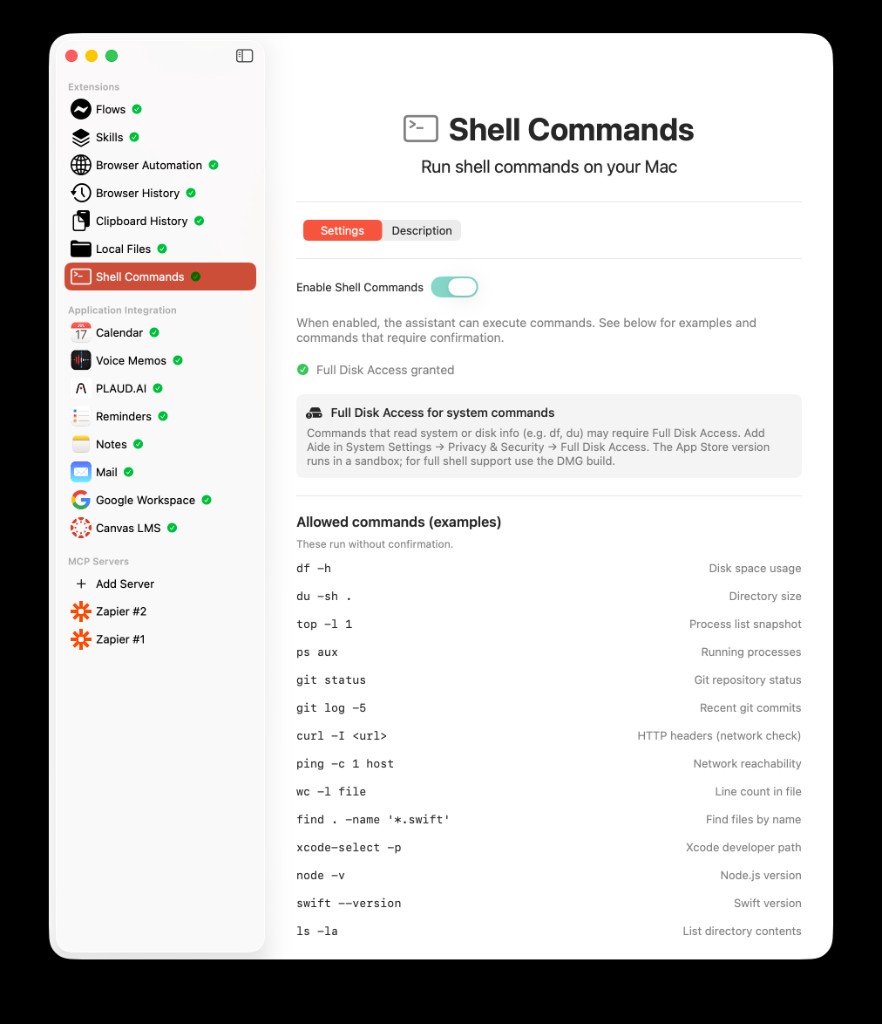
The Shell Commands settings screen in AideAI: enable command execution, confirm Full Disk Access, review examples that run without confirmation, and see which command patterns require approval.
The settings screen also shows examples of commands that run without confirmation and patterns that require confirmation.
What You Can Ask
Once Shell Commands is enabled, you can ask practical system questions in normal language.
For example:
Check how much disk space I have left.
or:
Show the Git status for this project.
or:
What Node version is installed?
or:
Count the lines in this file.
or:
Check whether this URL responds.
or:
Find Swift files in this folder.
AideAI can choose the appropriate command, run it, and explain the result instead of asking you to translate the problem into shell syntax.
Example Workflow: Debugging A Project Setup
Imagine a class project will not start.
You might need to check:
- whether you are in the right folder
- whether dependencies are installed
- whether Node is available
- whether the Git branch has uncommitted changes
- whether the project has the expected files
Without Shell Commands, the assistant can only tell you what to run manually.
With Shell Commands enabled, the workflow can be more direct:
- Ask AideAI why the project is not starting.
- Let it inspect the current folder with focused commands.
- Check tool versions.
- Check Git state.
- Review any errors.
- Decide the next fix from real command output.
That makes the assistant more useful because it can move from guessing to evidence.
Example Workflow: Understanding Disk Usage
Low disk space can cause confusing problems: failed installs, broken builds, slow downloads, or tools that stop working halfway through.
With Shell Commands enabled, you can ask:
Check whether disk space might be causing this.
AideAI can run a disk-space check, inspect the output, and explain whether storage looks like the likely issue.
If you need more detail, it can check directory sizes with a command such as du -sh . in the relevant folder. That helps you find whether a project directory, build cache, or downloads folder is unusually large.
Example Workflow: Git And Coursework
For programming classes, Git state matters.
You may need to know:
- which files changed
- whether anything is staged
- which branch you are on
- what the last few commits were
- whether a repo is clean before submitting
With Shell Commands, you can ask:
Check whether my project is ready to submit.
AideAI can inspect Git state with commands like git status and git log -5, then summarize what you need to review.
It should not silently make destructive Git changes. Commands that delete, overwrite, or alter history should be treated carefully and reviewed before approval.
Example Workflow: Network And Environment Checks
Some issues come from the environment rather than the code.
For example:
- a site is not reachable
- a server is not returning headers
- a package manager cannot connect
- Xcode tools are missing
- the wrong Swift or Node version is active
Shell Commands can help answer those questions quickly with commands like:
curl -I <url>ping -c 1 hostxcode-select -pswift --versionnode -v
This is useful because environment problems often look like application bugs until you check the system.
Shell Commands vs Browser Automation
Shell Commands and Browser Automation solve different problems.
Use Browser Automation when the task needs a web page: opening a site, clicking through a setup flow, reading page content, or working with a logged-in browser session.
Use Shell Commands when the task needs local command output: disk, Git, files, environment, developer tools, processes, or network checks from the Mac.
In real workflows, they can complement each other. Browser Automation can inspect a web-based setup page, while Shell Commands can verify whether the local environment is ready.
Privacy And Control
Shell Commands runs commands on your Mac, so control matters.
AideAI is designed around a few practical boundaries:
- you choose whether Shell Commands is enabled
- dangerous command patterns require confirmation
- command output is bounded and truncated when too large
- commands can use a specific working directory
- macOS Full Disk Access still controls protected file and system access
- App Store sandboxing limits full shell support
You should avoid asking the assistant to run commands that expose secrets, credentials, private keys, tokens, or sensitive personal data. If a command might reveal private information, ask for a safer version first.
Common Setup Issues
Shell Commands can fail for predictable reasons.
The extension may be disabled. Turn on Enable Shell Commands in Extensions & MCP.
The App Store build may be sandboxed. Use the DMG build for full shell support.
Full Disk Access may be missing. Commands that read protected disk or system locations can fail until AideAI has permission.
The working directory may be wrong. Commands like git status or du -sh . should run in the folder you actually care about.
The command may time out. Use a narrower command or a longer timeout, up to the app's cap.
The command may require confirmation. Review the prompt and approve only if you understand the action.
Why This Helps With Real Student Outcomes
Shell Commands is not just a developer feature.
For students, it can help with:
- programming assignments
- Git submissions
- environment setup
- disk-space problems
- debugging local projects
- checking whether tools are installed
- inspecting files and folders
- understanding command output without leaving chat
The real value is not that AideAI can run Terminal commands. The value is that the assistant can use command output as evidence, explain it in plain language, and help you decide the next step.
Try AideAI
If your coursework or projects involve code, local tools, Git, or system setup, Shell Commands can make AideAI much more practical.
Try AideAI, enable Shell Commands in Extensions & MCP, and start with a safe check like git status, df -h, or node -v. If you want to search class files on your Mac, read Local Files in AideAI: Search PDFs, Docs, Notes, and Class Materials on Your Mac. If you want the broader integrations story, read All the Places Your Student Life Already Lives - Connected. For plan details, visit Pricing.