 AideAI
Turn On Computer Use in AideAI: Approve the Mac Apps Your Assistant Can Use
This is the setup guide — not the product story.
If you want the “why,” start with Use the Mac Apps You Already Have Open. If Slack is the actual job, skip to Ask AideAI What Someone Wrote in Slack. Stay here when you want the card in Apps to match what you see on screen.
Computer Use is not in the Mac App Store build. You need the direct Mac download.
What “ready” looks like
You are done when all of this is true:
- Computer Use is on in Apps.
- Screen Recording and Accessibility show a check, not a warning.
- At least one already-running app is in Approved apps.
- Write is on only for apps you want AideAI to click, type, or jump in.
- You are willing to tap Allow on a confirmation that names the app and the action in plain language.
If any row is missing, the assistant should not improvise in a browser. Especially not for Slack.
Open the Computer Use card
- Open AideAI.
- Go to Apps.
- Under Extensions, select Computer Use.
You should see three tabs: Settings, Description, and Action log. Setup lives on Settings. The subtitle on the card is Control running Mac apps you approve.
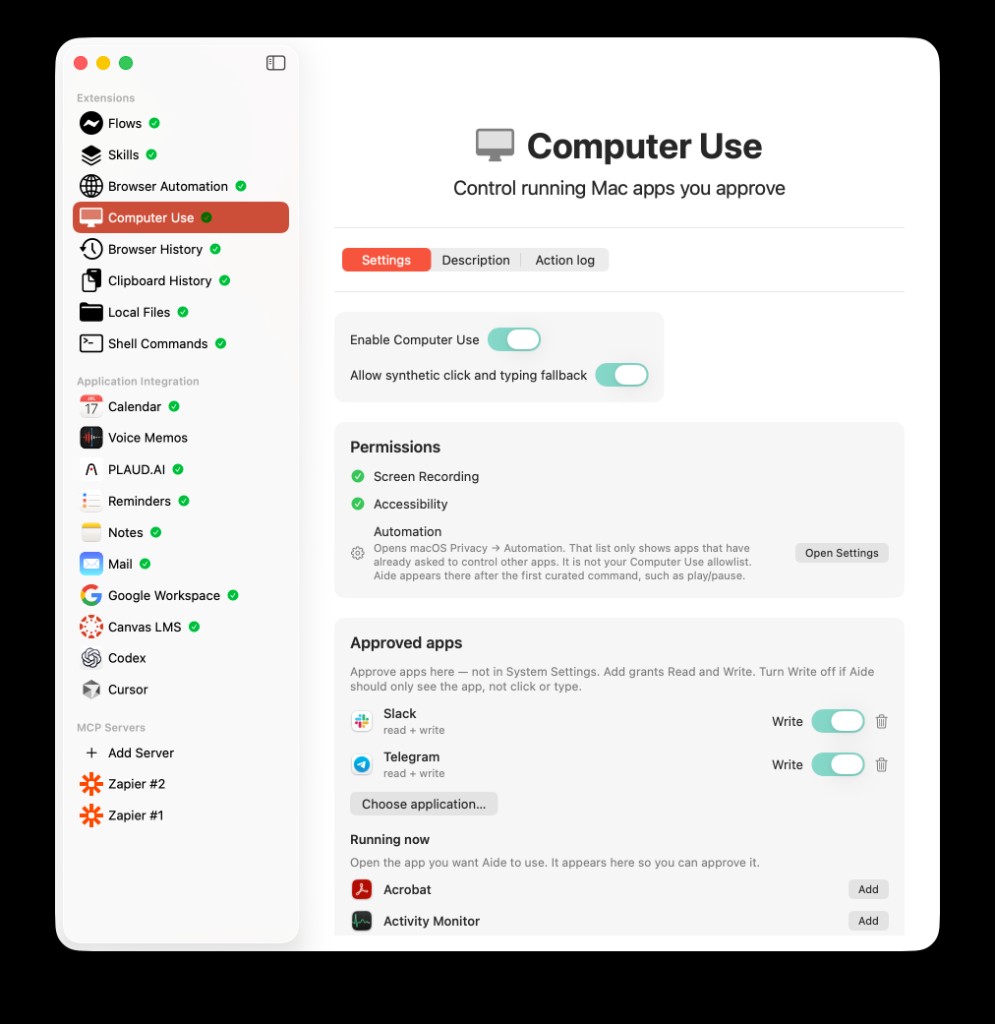
A ready Settings tab: Computer Use on, Screen Recording and Accessibility granted, Slack and Telegram approved with Write.
If the card says the feature is unavailable, you are on an App Store build. Install the Mac download from the website instead.
If a banner says Computer Use is turned off by a remote setting, the toggle will not run it until that setting is on. A DEBUG build may still allow a local override; production DMG builds should not.
Turn it on
On Settings, switch Enable Computer Use.
That is the master door. Off means no listing, no reading, no clicking.
Leave Allow synthetic click and typing fallback on unless you are debugging a specific app. AideAI prefers accessibility actions. The fallback is for apps that do not expose a usable control — not a license to click off-screen.
Grant macOS permissions
The Permissions block is not your app allowlist. It is the three macOS gates Computer Use needs to see and act in a window you already approved.
| Permission | What it is for | What it is not |
|---|---|---|
| Screen Recording | Capture one approved window | A film of the whole desktop |
| Accessibility | Read buttons, fields, and menus; perform those actions | Permission to drive every app on the Mac |
| Automation | Optional curated commands such as play/pause or sending Mail | Your Computer Use allowlist |
Tap Open Settings next to a missing permission and allow AideAI when macOS asks.
Automation is the confusing one. Open Settings there opens macOS Privacy → Automation. That list only shows apps that have already asked to control other apps. AideAI appears after the first curated command. Approve Slack, Notes, or Finder on the Computer Use card — not in that system list.
Approve apps here — not in System Settings
Scroll to Approved apps.
The help line on the card is the rule: approve apps here. Adding an app grants Read and Write. Turn Write off if AideAI should only see the app, not click or type.
Read is enough to list a window and look at the visible UI. Write is required to jump, click, type, or send. Write is never granted from chat.
How to add an app:
- Open the Mac app you actually use (Slack, Finder, Mail, Notes, Spotify). Computer Use starts from already-running apps.
- Find it under Running now and tap Add.
- Or tap Choose application… and pick one from disk, then open it before you ask in chat.
Under each approved app you will see read + write or read only — enable Write to click and type, plus a Write switch and a trash control.
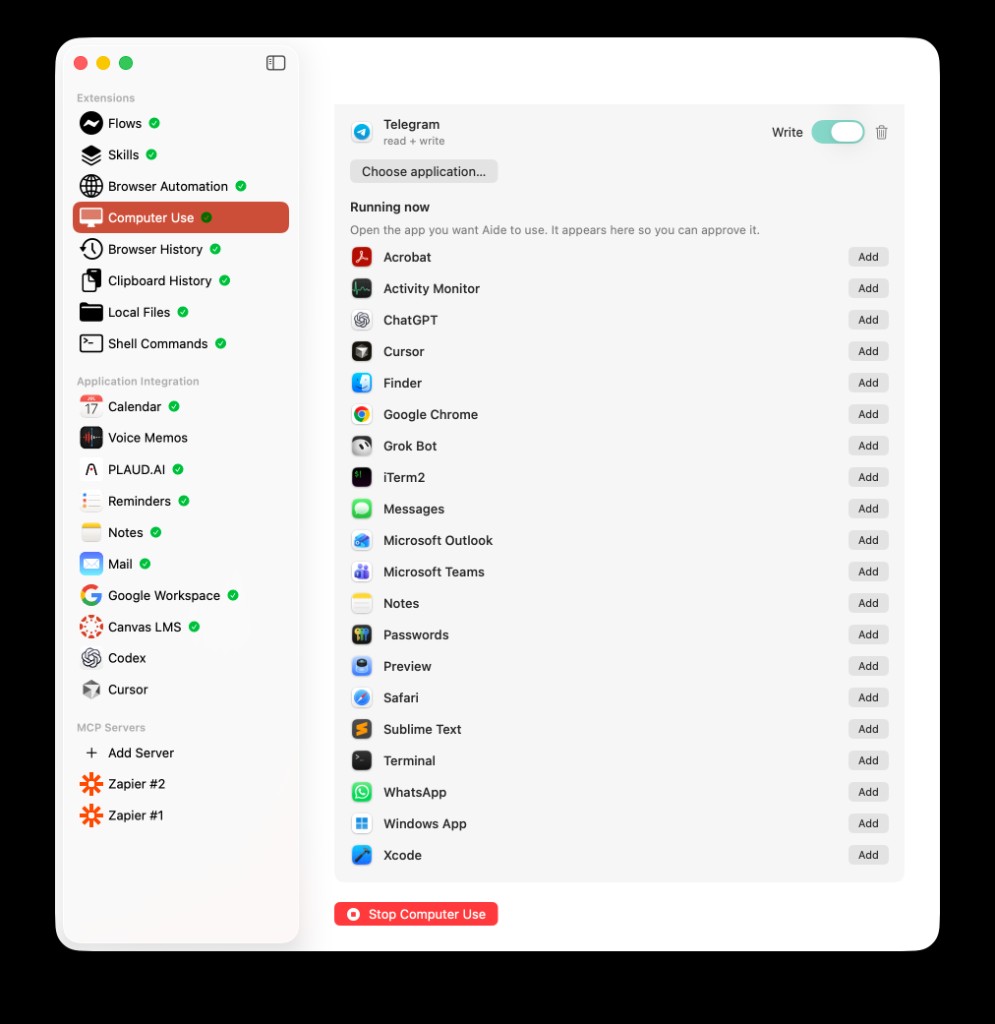
Approve from Running now with Add, or Choose application…. Stop Computer Use sits at the bottom of the card when the feature is on.
Do not dump the whole Dock in on day one. Add Slack or Finder. Keep Write off. Ask a read-only question. If the recap is useful, turn Write on for that one app. The Running now list can be long. You only need the apps you actually want AideAI to touch.
Confirmations, stop, and the Action log
Consequential steps — sending, deleting, paying, jumping to a Slack person — ask first. The confirmation should name the person, channel, or app in words you recognize, not a bundle ID.
Stop Computer Use on the card (and the AideAI menu) is the expected move if you walked away mid-jump.
The Action log tab stores the minimum metadata: app, action, redacted titles. It is not a screenshot roll.
When the chat turn finishes, AideAI should come back to the front so the answer is in chat, not trapped under Slack.
Try it with one question
With Slack approved and Write on:
Look in Slack at what @Jevgeni wrote to me the other day.
You should see a confirmation, Slack come forward, Jump open, then AideAI return with a recap of what is on screen.
If the assistant opens slack.com instead, treat that as a miss. Computer Use is supposed to stay in the desktop app you approved. The split with AideAI’s own browser is Computer Use or Browser Automation?.
If a row on the card looks wrong
- App Store lock — install the DMG.
- Permissions still orange — grant Screen Recording and Accessibility, then click back to AideAI so the card can refresh.
- Running now is empty — open a regular app. Menu bar helpers and AideAI itself are not the list you want.
- Jump does nothing — Write is off, or you dismissed the confirmation.
- Card language does not match Settings → Interface language — close the Apps window and open it again after the language change. The card should follow the in-app language, not only the macOS language.
Computer Use is off until you turn it on. That is the point.