 AideAI
Clipboard History for Students: Find What You Copied with AideAI

The clipboard is one of the most useful parts of a student's Mac, and also one of the easiest places to lose context.
You copy a paragraph from a reading. Then a link from Canvas. Then an email address. Then a citation. Then a sentence you want to rewrite later. Each copied item replaces the last one, and the useful thing you copied ten minutes ago is gone unless you pasted it somewhere.
That is why Clipboard History matters. It gives AideAI a local, searchable memory of text you copied so the assistant can help you find it again.
The Problem
Student work involves a lot of copying.
You may copy:
- assignment instructions
- research quotes
- URLs from course pages
- professor email addresses
- citation fragments
- error messages
- draft paragraphs
- notes from documents or web pages
The clipboard is fast, but it is temporary. Once you copy something else, the previous text is no longer available through the normal system clipboard.
That creates friction:
- you lose a useful link before pasting it
- you forget where a quote came from
- you copy a task from one app but never turn it into follow-up
- you have to reopen tabs or documents just to find text you already selected once
- the assistant cannot help recover copied context unless it was saved somewhere
Why the Usual Approach Breaks Down
The default clipboard workflow assumes you only need the most recent copied item.
That is not how students actually work.
A study session can move across a browser, PDF, Apple Notes, Mail, Canvas, a code editor, and a writing document in a few minutes. Copying is often how context moves between those surfaces.
But without history, the clipboard has no memory. It helps you move one thing right now, not recover what mattered earlier.
For students, that matters because copied text often represents intent:
- "I should cite this"
- "I need to ask about this"
- "This link matters later"
- "This error message explains the issue"
- "This paragraph belongs in my draft"
If the copied text disappears, the intent often disappears with it.
What AideAI Does Differently
AideAI's Clipboard History extension tracks text you copy while the extension is enabled and stores it locally on your Mac.
With Clipboard History enabled, AideAI can:
- monitor copied text in the background
- save useful clipboard entries locally
- search copied text by content
- filter clipboard history by date range
- return timestamps and previews for matching entries
- let the assistant answer questions like
What did I copy yesterday? - clear all saved clipboard history from the settings screen
This makes copied text part of the assistant workflow. Instead of being a one-item buffer, the clipboard becomes a searchable trail of useful snippets.
How It Works Under the Hood
The implementation is intentionally simple and local.
When Clipboard History is enabled, AideAI watches the macOS pasteboard for changes. It checks for updates frequently, about every half second, and only saves text content.
The extension also avoids saving noise:
- empty clipboard content is ignored
- very short strings under 3 characters are ignored
- copied text is capped at 10,000 characters
- the preview is stored as the first 200 characters
- immediately repeated duplicate content is skipped
- clipboard restoration events used by app workflows are ignored when marked as internal restore operations
Saved entries include the copied text, timestamp, and preview. They are stored locally in AideAI's app data using Core Data.
Why This Is Useful for Students
Clipboard History is most useful when you are moving quickly and do not want to stop to organize every fragment immediately.
It can help with:
- recovering a copied quote from a reading
- finding a link you copied earlier in the day
- looking up text from a professor's email or assignment page
- retrieving an error message after copying something else
- finding the last copied prompt, paragraph, or note fragment
- giving the assistant context from text you copied but forgot to paste
That changes the role of the clipboard. It becomes a lightweight capture layer for the small pieces of context that pass through your Mac during real study work.
What The Setup Looks Like
The extension lives in Extensions & MCP with the other local extensions.
Here is the Clipboard History extension screen inside AideAI:
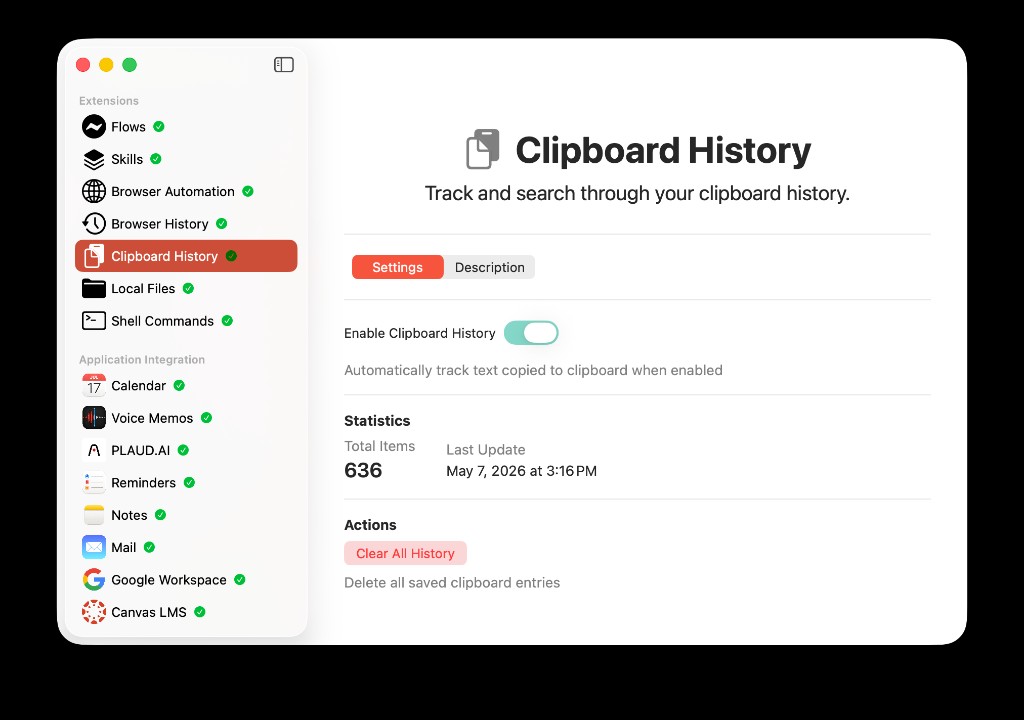
The Clipboard History settings screen in AideAI: enable tracking, review total saved items and last update time, or clear all saved clipboard entries.
In AideAI, the Clipboard History screen includes:
- an
Enable Clipboard Historytoggle - a short explanation of automatic clipboard tracking
- statistics for total saved items
- the last update timestamp when available
- a
Clear All Historyaction
There is no separate Full Disk Access requirement for this extension in the settings screen. On some macOS builds, the system may still show privacy warnings when an app accesses clipboard content.
How To Set Up Clipboard History In AideAI
The setup is straightforward:
- Open
Extensions & MCPin AideAI. - Select
Clipboard Historyin the extensions list. - Turn on
Enable Clipboard History. - Copy text as you normally work.
- Return to the settings screen to see total saved items and last update time.
- Use
Clear All Historyif you want to delete saved clipboard entries.
After the extension is enabled, AideAI starts monitoring copied text in the background while the app is running.
What You Can Ask
Once Clipboard History is enabled and has captured entries, you can ask for copied context naturally.
For example:
What did I copy today?
or:
Find the link I copied about financial aid.
or:
What was the error message I copied earlier?
or:
Search my clipboard history for the essay quote.
AideAI can use search_clipboard_history behind those requests. The search tool supports content queries, date filters, and a result limit. By default, it returns a small set of recent relevant entries so the assistant can avoid flooding the reply.
How It Fits With Study Work
Clipboard History is not a replacement for Notes, Reminders, Mail, Calendar, or files. It is the small bridge between them.
During a normal session, you may copy something before you know where it belongs:
- a quote that should become a note
- a deadline that should become a reminder
- a link that belongs in a project document
- a sentence that should be rewritten
- an error message that needs explanation
Clipboard History gives AideAI a chance to recover those fragments later. That makes it especially useful alongside other extensions:
- use Notes for longer study context
- use Reminders for follow-up tasks
- use Mail for professor and advisor messages
- use Browser History for web context
- use Clipboard History for the snippets that moved between apps
Privacy And Control
Clipboard content can be sensitive, so this extension is opt-in.
AideAI only tracks copied text when Enable Clipboard History is turned on. Saved entries are stored locally on your Mac. The settings screen includes Clear All History, which permanently deletes saved clipboard entries.
There are also practical limits in place: the extension ignores empty and very short content, caps saved text length, stores previews, and skips immediate duplicate entries.
If you turn the extension off, AideAI stops monitoring new clipboard changes. Existing saved entries remain until you clear them.
Why This Helps With Real Student Outcomes
A lot of student work happens in fragments.
You copy a detail before you know it matters. You move between sources before organizing the work. You use the clipboard as a temporary bridge, then lose the bridge.
Used well, Clipboard History can help students:
- recover useful copied text
- reduce time spent reopening sources
- turn copied fragments into notes, reminders, or questions
- preserve short-lived study context
- make the assistant more useful without changing how copying works
That is the real reason to enable Clipboard History. It captures the small pieces of context that already pass through your Mac and makes them searchable when you need them again.
Try AideAI
If you often copy links, quotes, instructions, and snippets while studying, Clipboard History is one of the easiest ways to make that flow less fragile.
Try AideAI, enable Clipboard History in Extensions & MCP, and ask the assistant to find something you copied during your next study session. If you want the broader integrations story, read All the Places Your Student Life Already Lives - Connected. If you also rely on Apple Notes, read Apple Notes Integration for Students: Make Class Notes Searchable with AideAI. For plan details, visit Pricing.