 AideAI
Apple Voice Memos Integration for Students: Turn Recordings into Study Notes
Apple Voice Memos is one of the fastest ways to capture something important on a Mac or iPhone. A lecture explanation, a project discussion, a research thought, a language practice session, or a quick idea between classes can all start as a simple recording.
The problem is what happens after that. Recordings are easy to create, but they are much harder to reuse. If they stay inside Voice Memos as raw audio, you still have to remember what was said, replay the right section, and manually turn it into notes later.
That is why the Apple Voice Memos integration matters. It lets AideAI bring those recordings into the same assistant workflow where you already review meetings, transcripts, summaries, and study context.
The problem
Students often use voice recordings when typing is too slow or inconvenient:
- during lectures
- after office hours
- while reviewing a reading
- during team project calls
- when an idea appears between tasks
Voice Memos is good at capture. It is intentionally simple: press record, save the audio, move on.
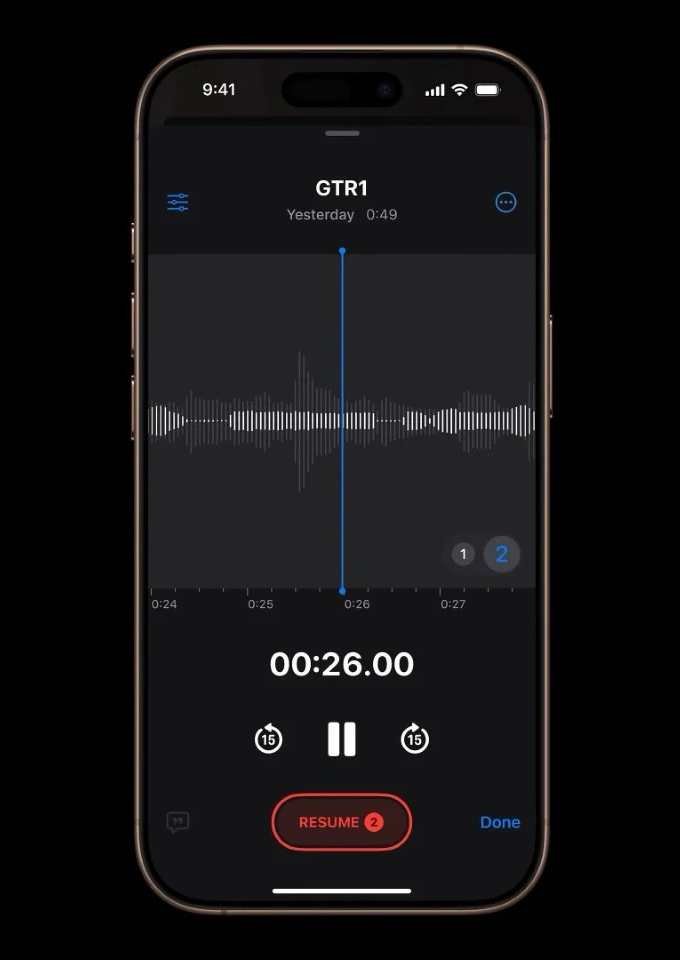
Apple Voice Memos is often the fastest place to capture spoken context. The AideAI integration helps turn those recordings into transcripts, summaries, and study notes later.
But study work usually needs more than capture. You need to know what was said, pull out the useful parts, connect the recording to class work, and turn the audio into something you can actually act on.
Without an assistant workflow, recordings tend to pile up as unnamed or half-remembered files.
Why the usual approach breaks down
The default workflow around voice memos is usually manual:
- Open Voice Memos.
- Find the recording.
- Replay the audio.
- Scrub around until the useful part appears.
- Type notes by hand.
- Decide whether anything should become a task, summary, or study plan.
That works for one short clip. It breaks down when you use recordings regularly.
For students, this matters because audio often captures the moments that are hardest to reconstruct later:
- a professor's explanation in different words
- a teammate's decision during a project discussion
- an idea for an essay or lab report
- a spoken reminder you did not have time to write down
- a lecture section that only made sense in the moment
The recording may contain the answer, but raw audio makes that answer slow to find.
What AideAI does differently
AideAI's Apple Voice Memos integration watches for recordings from Apple's Voice Memos app and imports new memos into AideAI as meeting-style items.
Once imported, a voice memo can become part of the same flow as other recorded sessions:
- the recording is copied into AideAI's audio workspace
- AideAI creates a meeting item with source
Voice Memos - the original memo name and timing are preserved when available
- local transcription can turn the audio into text
- the standard meeting summary flow can generate notes from the transcript
- the memo can be opened later with the rest of your meeting and study material
That changes the role of Voice Memos. It stays the quick capture tool, while AideAI becomes the place where the recording turns into usable academic context.
Why this is useful for students
Voice memos are especially useful when you do not want a heavy setup step before capturing something.
You can record first and organize later. With the integration enabled, AideAI helps with the "later" part:
- turning lecture recordings into searchable transcripts
- making quick spoken ideas easier to revisit
- converting project discussions into summaries
- keeping audio notes next to other meeting notes
- reducing the chance that useful recordings disappear into a long list of files
This is most helpful when recordings are short, frequent, and mixed into normal student life. You do not need to change how you capture audio. You just give AideAI permission to process the recordings after they exist.
What the setup looks like
The integration lives in the same Extensions & MCP area as other app integrations.
Here is the Apple Voice Memos integration screen inside AideAI:
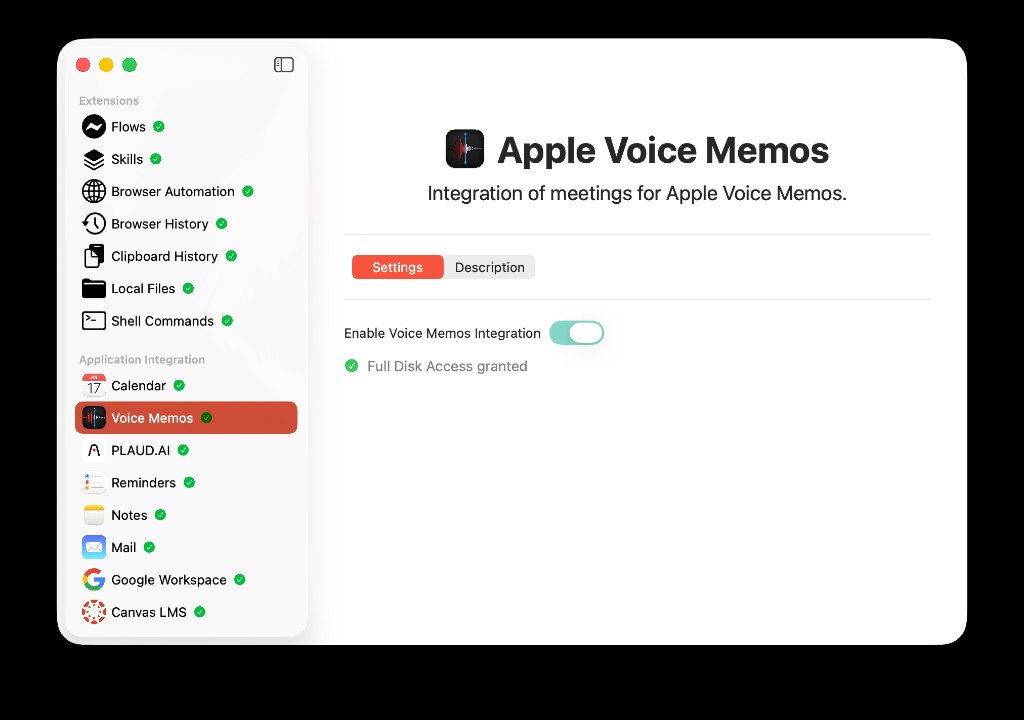
The Apple Voice Memos settings card in AideAI: enable the integration, confirm Full Disk Access, and review the integration description.
In AideAI, the Apple Voice Memos screen includes:
- the Apple Voice Memos integration icon
- an
Enable Voice Memos Integrationtoggle - Full Disk Access status
- a
Grant Accessbutton when permission is missing
Full Disk Access is required because Apple stores Voice Memos data in a protected local location on macOS. AideAI needs that permission to read the recording database and audio files.
Once access is granted and the integration is enabled, AideAI can check for new Voice Memos in the background and import recordings that have not already been processed.
How to set up Apple Voice Memos integration in AideAI
The setup is straightforward:
- Open
Extensions & MCPin AideAI. - Select
Voice Memosin the app integrations list. - Turn on
Enable Voice Memos Integration. - When prompted, grant Full Disk Access in macOS.
- If access is not granted yet, use
Grant Accessto open the relevant macOS privacy settings. - Confirm that the screen shows
Full Disk Access granted. - Record something in Apple Voice Memos, then leave AideAI running so it can import new recordings.
If Full Disk Access was denied earlier, open System Settings, go to Privacy & Security, then Full Disk Access, and make sure AideAI is allowed. After changing that setting, you may need to restart the app for macOS permissions to take effect cleanly.
What happens after setup
After the integration is enabled, new recordings from Apple Voice Memos can appear in AideAI as imported meeting items.
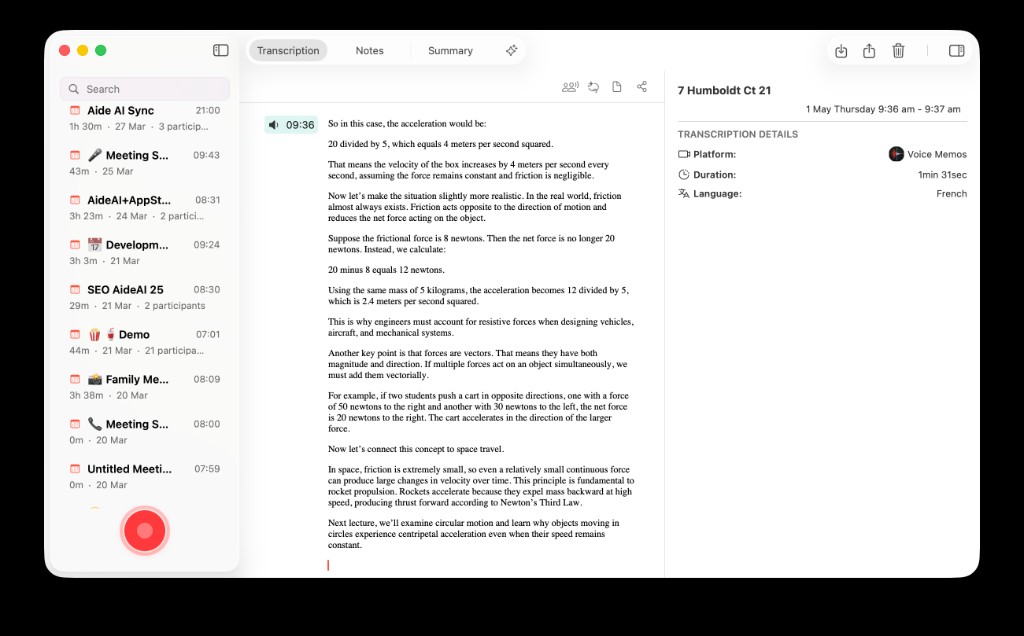
An Apple Voice Memos lecture inside AideAI Meetings: the recording appears with a transcript, source metadata, duration, language, and the Voice Memos platform icon.
Each imported memo is treated like an audio-backed meeting:
- the title comes from the Voice Memos recording name
- the source is shown as
Voice Memos - the Voice Memos icon is used as the platform icon
- the recording duration and timing are available from the original memo metadata
- transcription and summary generation can run through AideAI's existing meeting workflow
That means a memo can move from "audio I might listen to someday" to "text and summary I can actually study from."
When to use it
Apple Voice Memos integration is a good fit when you already capture audio casually and want those recordings to become useful later.
Use it for:
- lecture explanations you want to revisit
- research ideas you speak out loud before writing
- short study reflections after class
- office hour takeaways
- project meeting notes recorded outside a normal meeting app
It is less about replacing live meeting recording and more about making your existing Voice Memos library easier to use inside AideAI.
Privacy and permissions
This integration uses local access to Apple's Voice Memos storage on your Mac. AideAI cannot import those recordings unless you enable the integration and grant the required macOS permission.
If you turn the integration off, AideAI stops watching for new Voice Memos. If you remove Full Disk Access in macOS, the app will no longer be able to read the Voice Memos data needed for import.
Why this helps with real student outcomes
Students do not just need more ways to record audio. They need recordings to become usable memory.
Apple Voice Memos already helps you capture the moment. AideAI helps turn that captured moment into something you can review, search, summarize, and bring back into your study workflow.
That can help you:
- save ideas before they disappear
- review lectures with less replaying
- turn spoken context into notes
- keep audio captures connected to the rest of your academic work
- get more value from recordings you already make
Try AideAI
If you already use Apple Voice Memos for lectures, quick thoughts, or project discussions, connecting it to AideAI is one of the easiest ways to make those recordings more useful.
Try AideAI, enable Voice Memos in Extensions & MCP, and grant Full Disk Access when macOS asks. If you want the broader integrations story, read All the Places Your Student Life Already Lives - Connected. If you also use scheduled meetings, read Apple Calendar Integration for Students: Why It Matters and How to Set It Up. For plan details, visit Pricing.