 AideAI
Plaud and AideAI: Why connect PLAUD.AI Cloud to your assistant
Plaud makes hardware AI voice recorders (Plaud Note, Note Pro, NotePin, and more). You capture meetings, calls, and lectures on the device; the Plaud mobile app and Plaud Intelligence handle transcription and processing. Recordings and metadata land in PLAUD cloud—the same place AideAI talks to on your Mac.
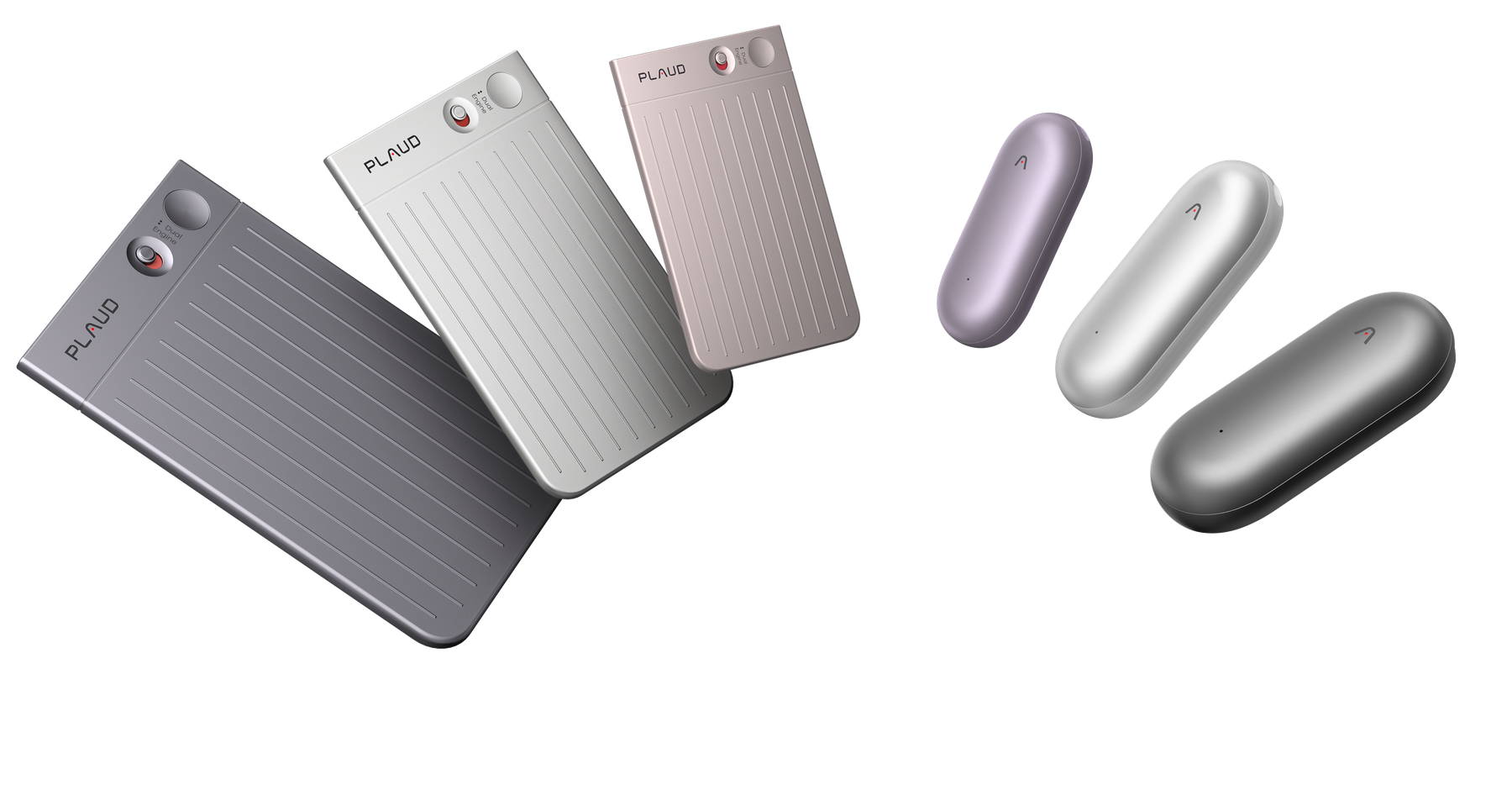
Physical Plaud recorders (the lineup includes models such as Note and NotePin). The AideAI integration targets PLAUD.AI Cloud, not a direct Bluetooth link—audio still reaches the cloud through the Plaud app.
This post explains what the AideAI integration gives you and how to turn it on, step by step.
Why link Plaud to AideAI
Without a desktop link, you live in a split world: recorded on the device—opened in the app. AideAI pulls the same cloud your recorder already syncs to and turns those files into first-class items inside the app:
- Meetings with source Plaud: title matches the file, start/end times, Plaud icon and platform label—easier to find in the list and to pass to the assistant as context.
- Audio messages tied to each recording: Aide stores the downloaded audio file and a transcription when the cloud has one.
- If the cloud returns Plaud’s own AI summary text, AideAI can place it in the standard meeting summary field so it follows the same workflow as other meetings.
- When cloud transcription is missing (still processing, paywall text, or a hiccup), AideAI falls back to on-device transcription on the downloaded audio (format probing and normalization for the engine), with exponential retry if the first pass is empty.
In practice, your Plaud workflow stays on phone or recorder, while your Mac assistant gets the same recordings in the environment where you already have chat, Skills, other meeting sources, and search.
Prerequisites on the Plaud side
- A PLAUD.AI account (the one you use in the Plaud app).
- In the Plaud mobile app settings, turn on PLAUD PRIVATE CLOUD. Without cloud access, AideAI cannot fetch the file list or content.
- Wait until recordings have synced to the cloud and, if needed, until Plaud marks them as processed (the AideAI UI reflects transcription/summary flags from the API).
How to set up the integration in AideAI (macOS)
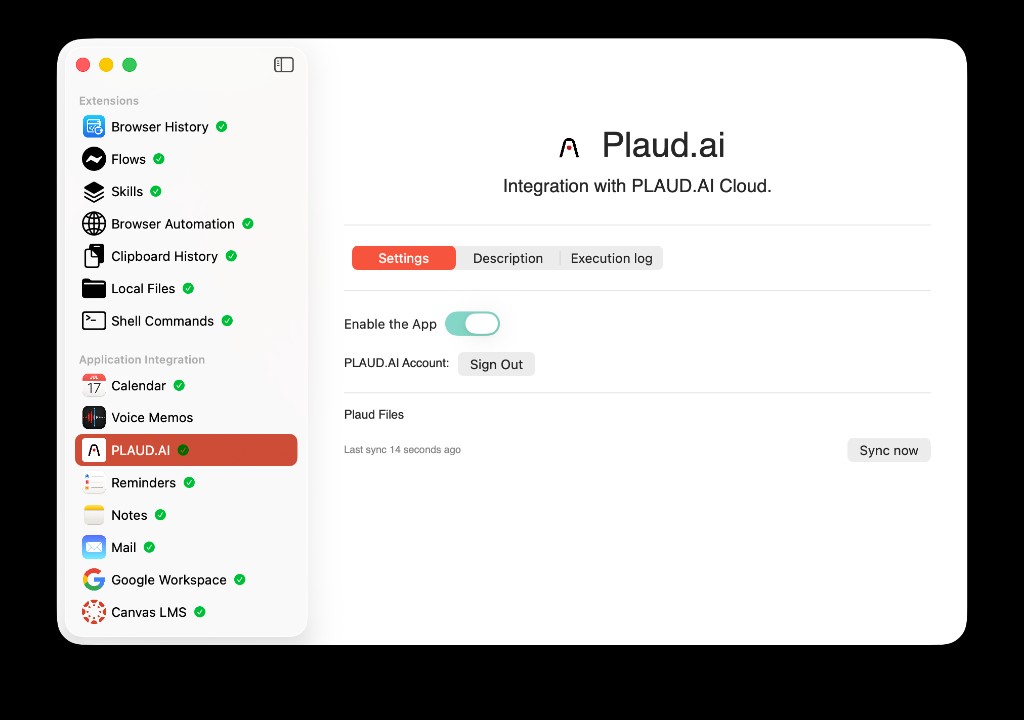
Plaud.ai under Application integration: Settings tab, Enable the App, account (Sign out when connected), and Sync now with last sync time. Use the Description and Execution log tabs for help text and sync diagnostics.
- Open Extensions & MCP (or Apps), then in the sidebar choose Plaud.ai under Application integration (subtitle: Integration with PLAUD.AI Cloud).
- Click Sign In and enter your PLAUD.AI email and password. The access token is stored locally for
https://api.plaud.airequests. - Turn on Enable the App. The toggle stays disabled until you are signed in.
- With the app enabled, Aide syncs the cloud on a schedule in the background and may sync on app launch when needed. You can also press Sync now on the integration card to fetch the list and process new files immediately.
- The Execution log tab is a step-by-step sync log: file counts, Plaud’s transcription flags, errors; a manual sync logs request/response detail (useful for debugging). You can copy the log for support.
What you will see in the UI
- Plaud Files—cloud file list, last sync time, Sync now, and “in progress” / “done” indicators.
- If authorization fails (expired token), you’ll see a message; sign in again when prompted.
A processed Plaud recording in Meetings
After sync, each import shows up like any other meeting: open it from the Meetings list and use Transcription, Notes, and Summary. The metadata panel shows Platform: Plaud with the Plaud icon, duration, and language—so you can tell cloud imports from local captures at a glance. In the example below, the Summary tab holds a structured recap (you can Regenerate and pick a language), while the full transcript stays on the right for reference or chat context.
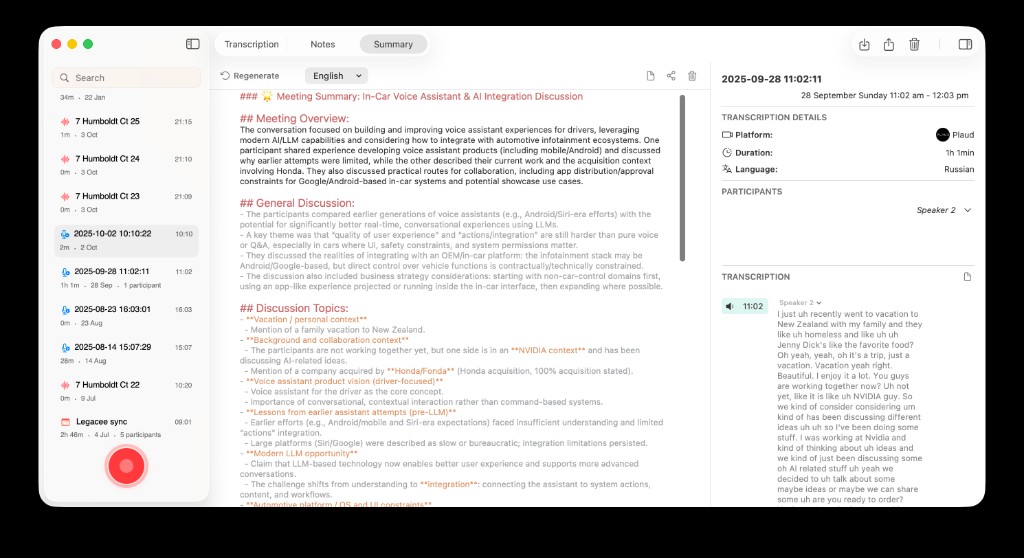
A Plaud-linked meeting in AideAI: list of recordings (left), Summary with an AI-generated overview (center), and details with Platform: Plaud, duration, and full Transcription (right).
Limitations and gotchas
- This is a Plaud cloud API integration, not a direct Bluetooth link to the hardware. Audio still goes through Plaud to phone and cloud.
- If the API returns paywall or marketing placeholder text instead of real content, AideAI does not save that as your transcription—audio and/or local transcription still apply when they succeed.
- The API can serve different audio encodings (e.g. Opus/MP3); the app tries download variants and only accepts data that decodes as real audio.
- Security: it is your Plaud account and a locally stored token; do not share passwords. If you change your Plaud password, sign out and back in to AideAI if sync breaks.
At a glance
| Step | Action |
|---|---|
| 1 | Turn on PLAUD PRIVATE CLOUD in the Plaud app |
| 2 | In AideAI: Plaud → Sign In (email and password) |
| 3 | Enable the App and, if you like, Sync now |
| 4 | Find meetings with source Plaud and use them in chat as context |
The integration bridges Plaud’s cloud to your desktop assistant and combines Plaud’s transcriptions and summaries with a local fallback so the same recorder capture can live in AideAI instead of getting stuck in another app.